Known Participant
March 4, 2019
Answered

How do i cut cut/trim lines/strokes from shapes?

  • March 4, 2019
  • 1 reply
  • 8962 views

I have been suffering for 3 hours trying to figure this out and cant seem to find any way to do it. This is the logo im trying to do:

VC Logo Design – Logo Portfolio

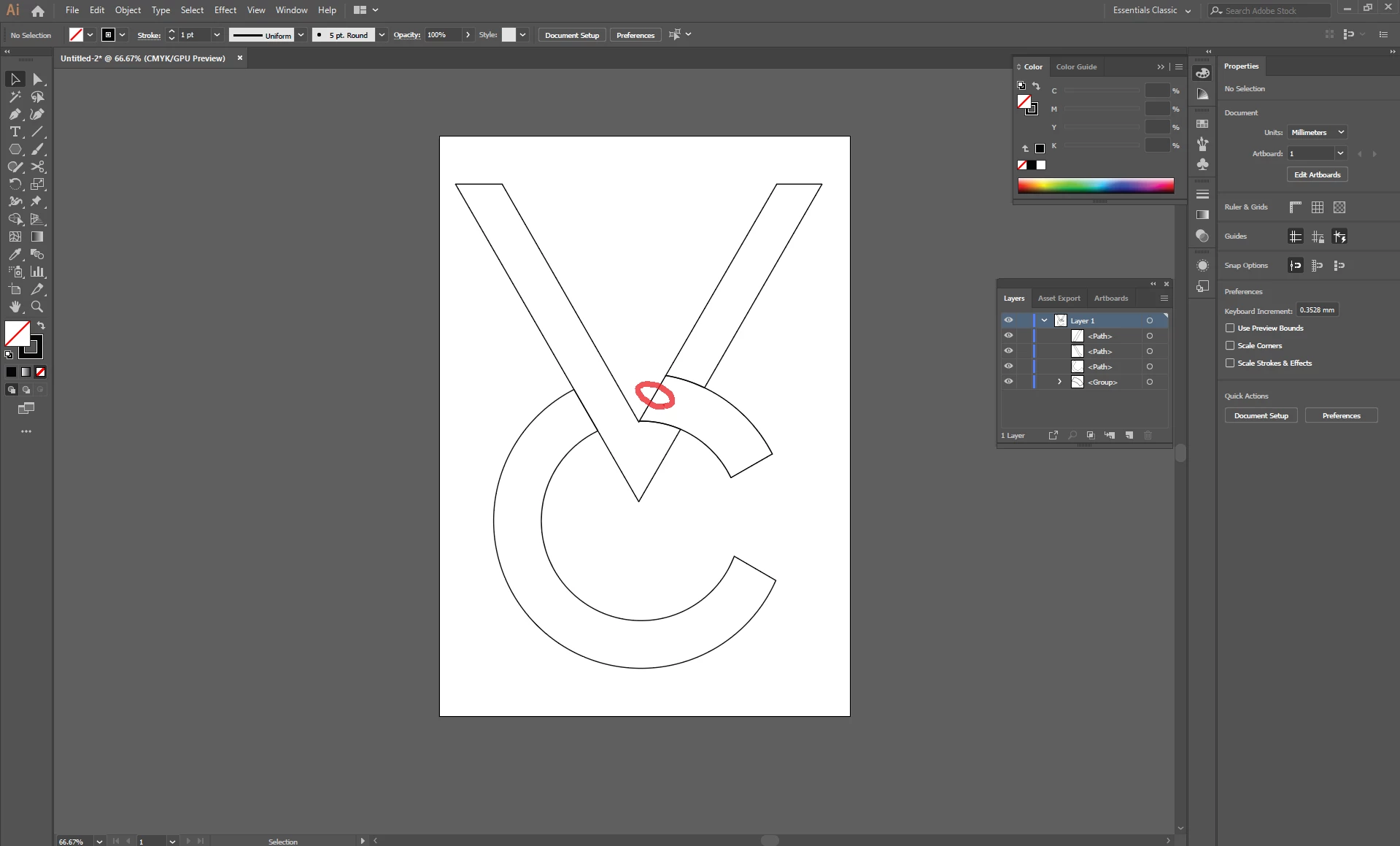
And this is my current result, im trying to cut the line circled with red. Any help would be appreciated.
    This topic has been closed for replies.
    Correct answer barbara_a7746676

    I can't tell from your screen capture how the objects are constructed. But, this is what you could do.

    Select the object that has the line you want to remove. I will assume that it is the "V" shape.

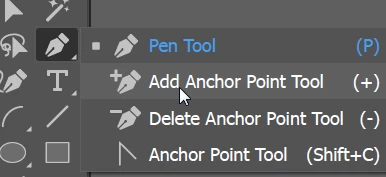
    Select the Add  Anchor Point tool.

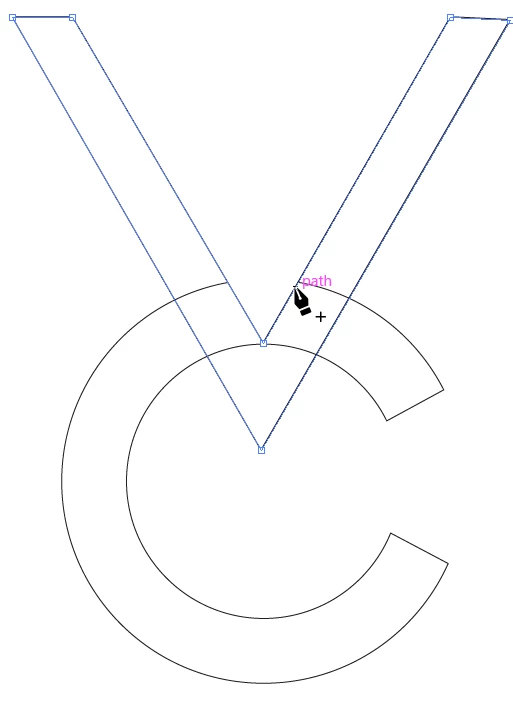
    Click where you want to cut the object.

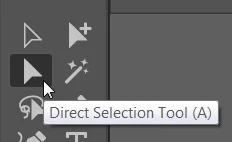
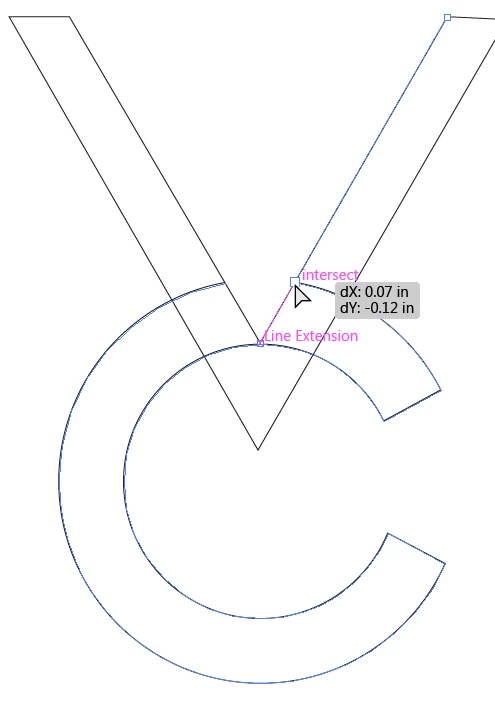
    If you need to move the new anchor point, select the Direct Selection tool and drag the anchor point.

    With the Direct Selection tool, select the line segment you want to delete.

    And hit the Delete key once.

    1 reply

    barbara_a7746676
    Community Expert
    Community Expert
    March 4, 2019

    You could add a new anchor point and then select the line segment and delete it.

    begich96Author
    Known Participant
    March 4, 2019

    How? Im just a beginner.

    barbara_a7746676
    Community Expert
    Community Expert
    March 4, 2019

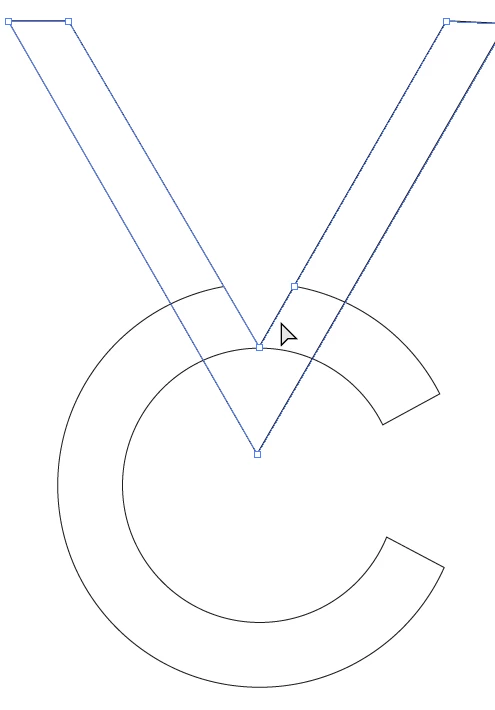
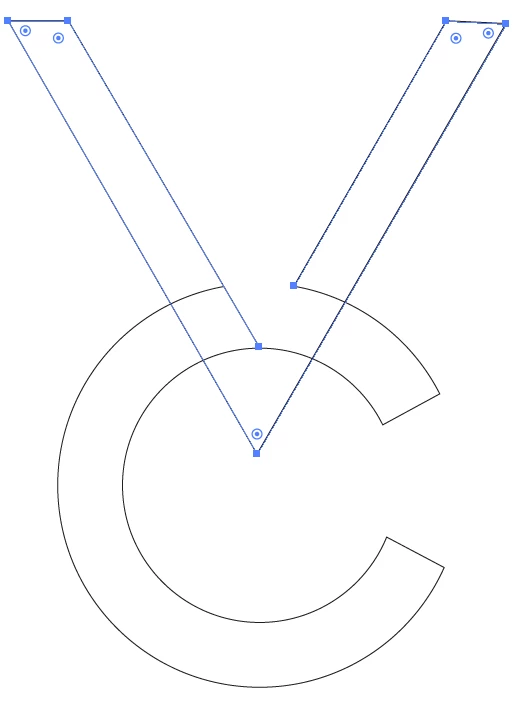
    Ok it worked but i have another problem, when i increase my stroke i have this gap i dont know how to get rid of, is there possiblity to fix it?


    Select the two anchor points that you've circled in red. (You can use the Lasso tool to circle around them.) Make sure that they are exactly one on top of the other. If you aren't sure, then choose Object > Path > Average.

    Once they are one on top of the other, choose Object > Path > Join.