Johnny Sokko
Inspiring
May 7, 2019
Answered

How do I fix these path corners?

  • May 7, 2019
  • 3 replies
  • 3867 views

(Illus. 2019, Mac OS)

See the screen capture? See the bad corners? How do I fix these? The points intersect, but they don't look like it.


    This topic has been closed for replies.
    Correct answer pixxxelschubser

    These are single lines. You have to join them.
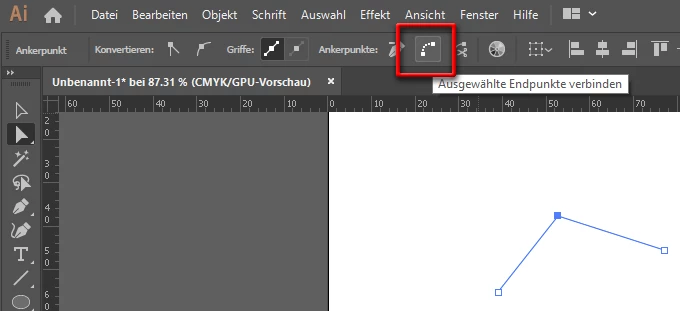
    • Use the Sharpener tool  or
    • select both intersecting anchor points with the white arrow and [Strg]+ (that means Object --> Path --> Join)  or
    • select both intersecting anchor points with the white arrow and use the icon in the Control bar

    Have fun

    3 replies

    barbara_a7746676
    Community Expert
    Community Expert
    May 8, 2019

    The reason they didn't look right at first even though you lined up the end points, is because Illustrator defaults to putting the stroke half inside and half outside the path, like this:

    The easiest way is to join them, but if you don't want to do that you could use the round cap option in the Stroke panel.

    Which will give you this:

    Johnny Sokko
    Inspiring
    May 11, 2019

    https://forums.adobe.com/people/Barbara+Ash  wrote

    The reason they didn't look right at first even though you lined up the end points, is because Illustrator defaults to putting the stroke half inside and half outside the path, like this:

    (EDIT)

    The only problem I found with this solution was that, while it DID make the corner look like a rounded closed corner, it only affected the one corner. The other corners in my path remained pointed (even if the entire shape/path is selected).

    pixxxelschubser
    Community Expert
    pixxxelschubserCommunity ExpertCorrect answer
    Community Expert
    May 7, 2019

    These are single lines. You have to join them.

    • Use the Sharpener tool  or
    • select both intersecting anchor points with the white arrow and [Strg]+ (that means Object --> Path --> Join)  or
    • select both intersecting anchor points with the white arrow and use the icon in the Control bar

    Have fun

    Johnny Sokko
    Inspiring
    May 11, 2019

    https://forums.adobe.com/people/pixxxel+schubser  wrote

    These are single lines. You have to join them.

    • Use the Sharpener tool  or
    • select both intersecting anchor points with the white arrow and [Strg]+ (that means Object --> Path --> Join)  or
    • select both intersecting anchor points with the white arrow and use the icon in the Control bar

    Have fun

    This was the best solution. Thank you and apologies for the late reply. Been a crazy week at work.

    Monika Gause
    Community Expert
    Community Expert
    May 7, 2019

    Looks like those paths are not joined.

    Johnny Sokko
    Inspiring
    May 7, 2019

    https://forums.adobe.com/people/Monika+Gause  wrote

    Looks like those paths are not joined.

    Interesting enough, when I selected all, then Joined, the corners healed themselves. So you might have been right. Although I don't fully understand why they looked so bad earlier. The path points intersected, with a snap.