Participant
August 7, 2018
Answered

How do I get a dissolved edge in Illustrator?

  • August 7, 2018
  • 4 replies
  • 4839 views

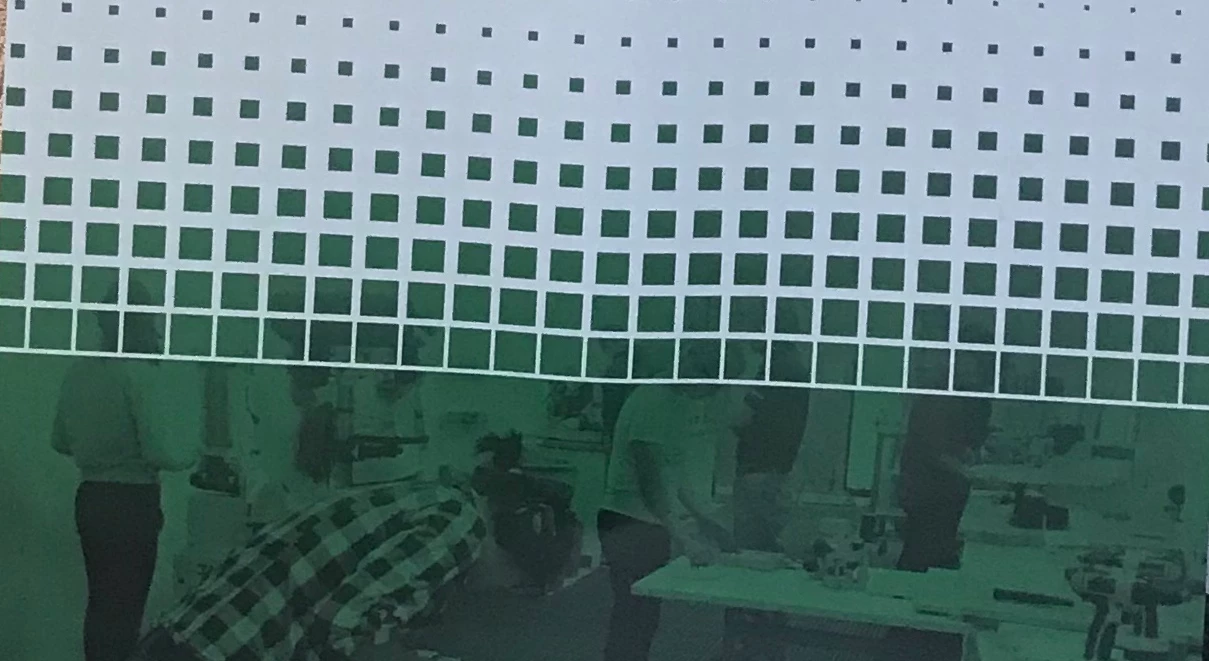
I'm trying to create an image with a dissolved edge in Illustrator but I can't seem to figure it out. I wanted to use something similar to a halftone effect instead of blocks.

I apologize if I'm not using the proper terminology. I'm a newbie with Illustrator.

Below is an example of what I'm talking about.

    This topic has been closed for replies.
    Correct answer Ray Yorkshire

    Another way

    make a blend of 2 squares like Barbara has done above

    drag the single column into the brushes panel

    In New brush choose Pattern brush option

    set  corners (red pointers) to Auto Between

    scale, maybe to 10

    OK
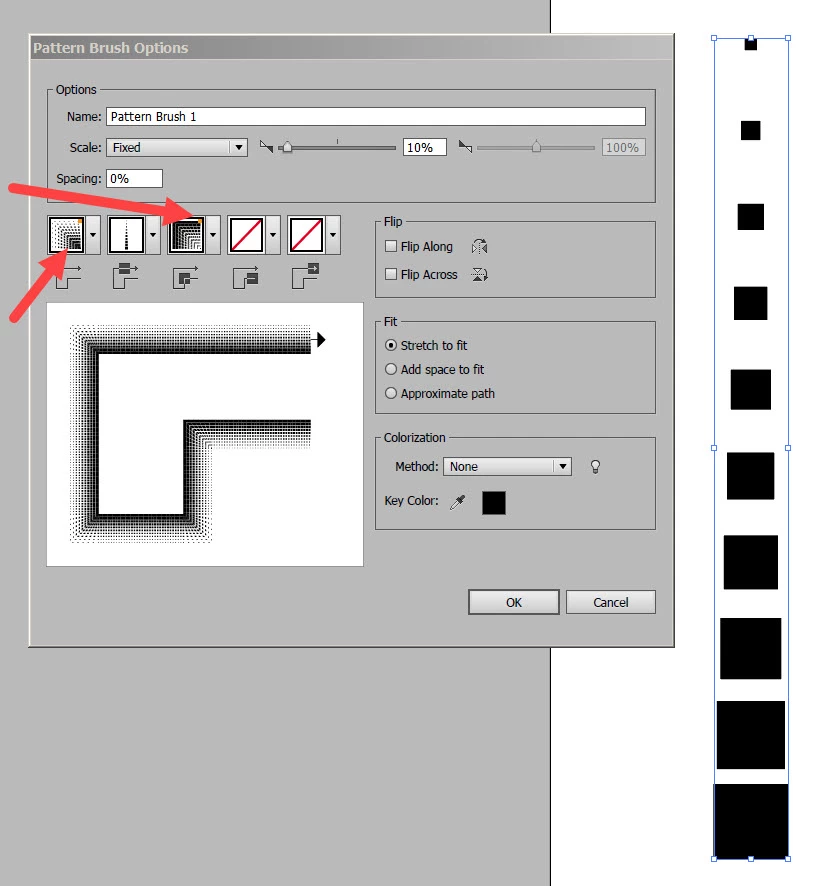
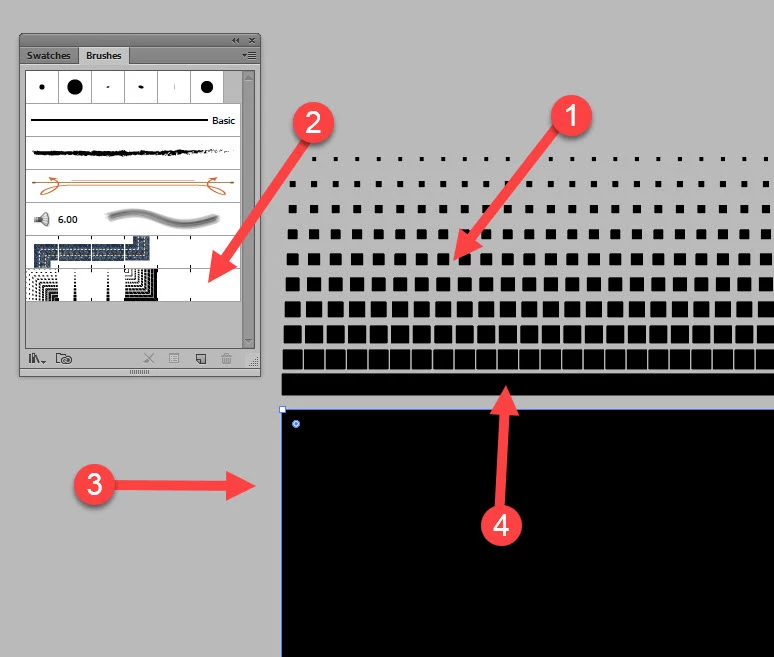
    1 Draw a  line  (the length of the image etc)  with a stroke no fill

    2 In  Brushes click to apply new brush to stroke

    3 Add a rectangle below black fill no stroke fill

    4 move rectangle up up to cover the lower black line

    select both the line and the rectangle Object > Group
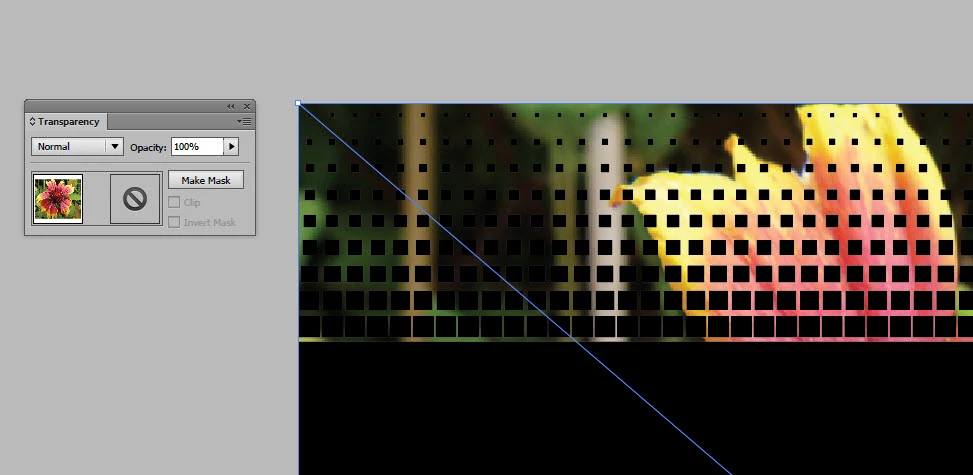
    Add photo , make sure its below Black pattern

    Select

    Object > Arrange >Send to back

    Select both image and pattern

    open Transparently panel

    Click make mask
    toggle between clip and invert mask settings until it looks right
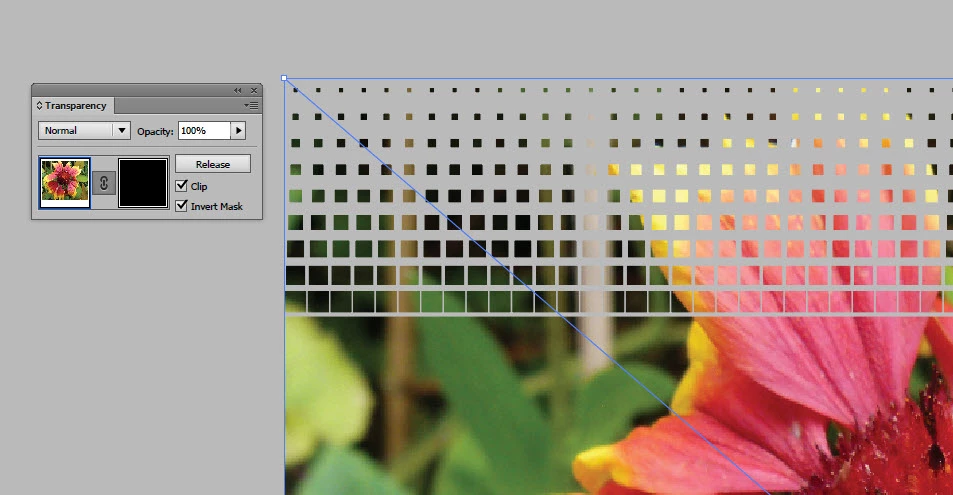
    I understand you are just learning and there's many steps, but sadly that's often the case in Illustrator with no one touch button

    4 replies

    Myra Ferguson
    Community Expert
    Community Expert
    August 8, 2018

    You can apply a halftone pattern to a rectangle then use a mask like Ray suggests.

    1. Make a rectangle (the same size as your image) with a black fill and a gradient that is applied across the stroke.

    2. Go to Effect > Sketch > Halftone Pattern and adjust the size and contrast.

    It is a live effect, which means that if you want to make adjustments to your gradient stroke, the effect will update accordingly.

    3. Align the rectangle and image, then go to the Transparency panel and make the mask.

    Ray Yorkshire
    Ray YorkshireCorrect answer
    Participating Frequently
    August 8, 2018

    Another way

    make a blend of 2 squares like Barbara has done above

    drag the single column into the brushes panel

    In New brush choose Pattern brush option

    set  corners (red pointers) to Auto Between

    scale, maybe to 10

    OK

    1 Draw a  line  (the length of the image etc)  with a stroke no fill

    2 In  Brushes click to apply new brush to stroke

    3 Add a rectangle below black fill no stroke fill

    4 move rectangle up up to cover the lower black line

    select both the line and the rectangle Object > Group

    Add photo , make sure its below Black pattern

    Select

    Object > Arrange >Send to back

    Select both image and pattern

    open Transparently panel

    Click make mask

    toggle between clip and invert mask settings until it looks right

    I understand you are just learning and there's many steps, but sadly that's often the case in Illustrator with no one touch button

    JonathanArias
    Legend
    August 8, 2018

    really nice approach to issue.

    barbara_a7746676
    Community Expert
    Community Expert
    August 8, 2018

    Halftones usually progress from square dots to round dots. However, your example is made completely of squares. This is a way that you could create the squares --

    Draw a small square and a large square for the beginning and ending shapes.

    Choose Object > Blend > Blend Options. Specify the number of intermediate shapes that you want.

    With the shapes selected, choose Object > Blend > Make.

    Hold down Option (Mac) Alt (WIndows) and start dragging to make a duplicate. Add the Shift key before releasing the mouse to constrain the movement.

    Choose Object > Transform > Transform Again or Ctrl-D (windows) Command-D (mac). Continue the Transform Again command until you have the number of columns you need.

    When done you may want to group all the columns to make it easier to transform them.

    Monika Gause
    Community Expert
    Community Expert
    August 7, 2018

    You could try blends or brushes (this kind of effect only on straight lines).

    It gets easier with the plugin Phantasm. It's not free, but can create vector halftone effects.