
AaronFUJITSU
Participant
November 27, 2018
Answered

How do I make a gradient carry through a honeycomb pattern as one piece?

  • November 27, 2018
  • 4 replies
  • 786 views

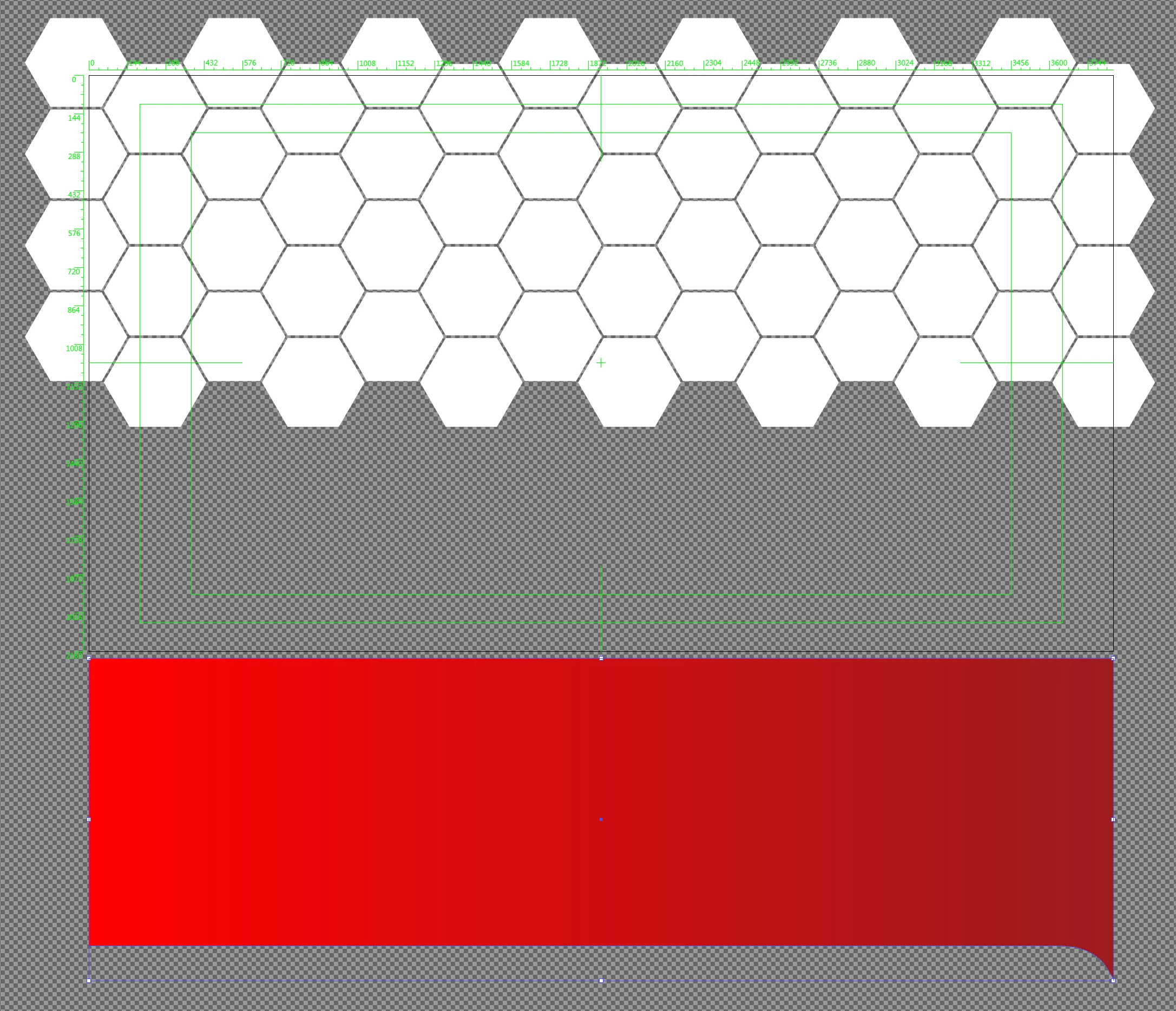
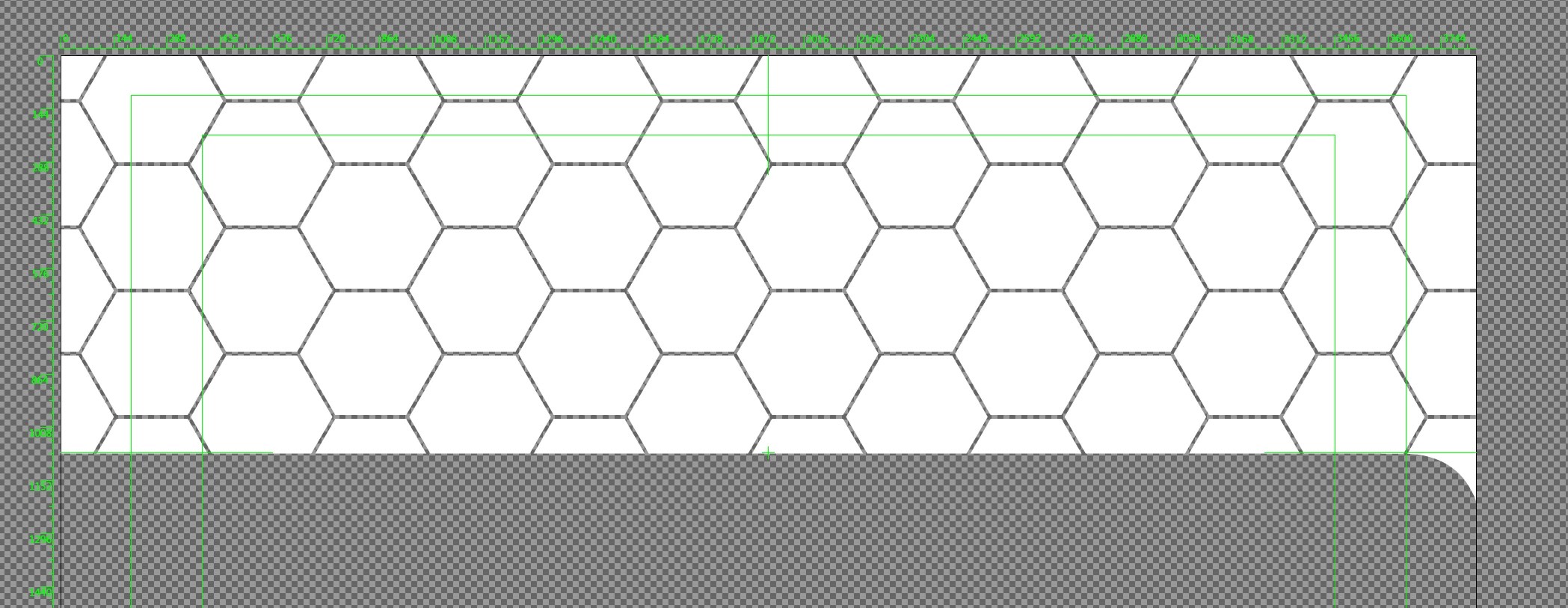
I want to take the shape that has the gradient, and have it comprised of the honeycomb pattern, and with the gradiant carrying through from one end to the other in one piece. The honeycomb is made up of individual hex objects, and after trying every single masking techinque I can think of, the only thing i've been able to do so far is make a white version of the shape I want. If anyone has suggestions that'd be awesome. Thanks.
This topic has been closed for replies.
Correct answer Ray Yorkshire

Another way:

you could select all the polygons

Object  > Compound path > Make

apply the  red gradient fill to them

move the rectangle shape on top, select all, and

Object > Clipping mask > Make

4 replies

BeanFactory
Participating Frequently
November 28, 2018

You could also do it using just shapes if you like.

1. Make a copy of the honeycomb pattern underneath your original one.

2. Join the newly created honeycomb pattern into one shape. I'm a fan of the pathfinder for this.

3. Apply the gradient to the newly-formed big lumpy shape.

4. Either change the blending mode of the original honeycomb to something like "multiply" so only the dark stuff shows up, or switch it to having only a black stroke and no fill. Whatever suits you.

Ton Frederiks
Community Expert
Community Expert
November 27, 2018

make your Gradient into a Gradient swatch.

Select all your hexagons.

Object > Compound Path > Make

Apply the gradient swatch

You can use the Gradient tool (G) to set the direction of your gradient

Ray Yorkshire
Ray YorkshireCorrect answer
Participating Frequently
November 27, 2018

Another way:

you could select all the polygons

Object  > Compound path > Make

apply the  red gradient fill to them

move the rectangle shape on top, select all, and

Object > Clipping mask > Make

Monika Gause
Community Expert
Community Expert
November 27, 2018