Participating Frequently
July 11, 2019
Answered

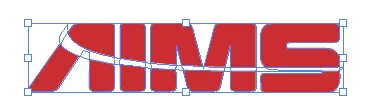
How do I make this white line separate the logo?

  • July 11, 2019
  • 3 replies
  • 643 views

Hi,

I have this logo that was made for our company by someone who were are no longer in contact with.  Anyway, I'm having an issue because the white space is actually two white paths.  What I want is for those paths to be transparent so that if I put the image on a colored background, you would see whatever that color is, instead of white.  Essentially, the line "cuts" the logo.  However, if I just set it to transparent, you end up seeing the red that is behind the white.

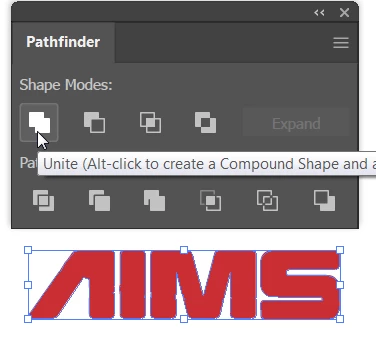
This is the logo:

Here is our old logo.  Each of those "pieces" of the logo are separate pieces, whereas the new one, they are not.

This topic has been closed for replies.
Correct answer barbara_a7746676

Basically, the same as suggested.

Select all of the red shapes and choose Pathfinder > Unite.

With all the red shapes still selected, from the Object menu choose Compound Path > Make.

Position the white shape on top of the red shapes, and select them.

In Pathfinder, click Minus Front.

If you want more flexibility to position the white shape later, you can hold down Alt/Option as you click Minus Front. That way, when the shapes can still be moved and edited if necessary.

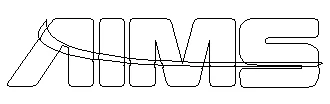
If you choose to use Alt/Option as you click Minus Front, you can see all shapes when you choose Outline from the View menu.

3 replies

barbara_a7746676
Community Expert
barbara_a7746676Community ExpertCorrect answer
Community Expert
July 12, 2019

Basically, the same as suggested.

Select all of the red shapes and choose Pathfinder > Unite.

With all the red shapes still selected, from the Object menu choose Compound Path > Make.

Position the white shape on top of the red shapes, and select them.

In Pathfinder, click Minus Front.

If you want more flexibility to position the white shape later, you can hold down Alt/Option as you click Minus Front. That way, when the shapes can still be moved and edited if necessary.

If you choose to use Alt/Option as you click Minus Front, you can see all shapes when you choose Outline from the View menu.

Jacob Bugge
Community Expert
Community Expert
July 11, 2019

PDSITManager,

Anyway, I'm having an issue because the white space is actually two white paths.

To get the same structure as for the old version, what happens if you turn the red paths in to a Compound Path as Monika says, then select both the white ones and Pathfinder>Unite, before you subtract?

Monika Gause
Community Expert
Community Expert
July 11, 2019

Can you show this in outline view? Or select the white part?

It might be as simple as to select all the red ones and make a compound path and then select the white one in addition and use the pathfinder to subtract.

Participating Frequently
July 12, 2019

Jacob Bugge
Community Expert
Community Expert
July 12, 2019

PDSITManager,

With both the white paths selected as shown in your post #4, what happens if you try my suggestion from post #2?

To get the same structure as for the old version, what happens if you turn the red paths in to a Compound Path as Monika says, then select both the white ones and Pathfinder>Unite, before you subtract?