
Chris  P.  Bacon
Inspiring
August 30, 2022
Question

How do I scale down an illustration optically proportionally?
  • August 30, 2022
  • 7 replies
  • 3415 views

At 10% my owl became just a black patch.

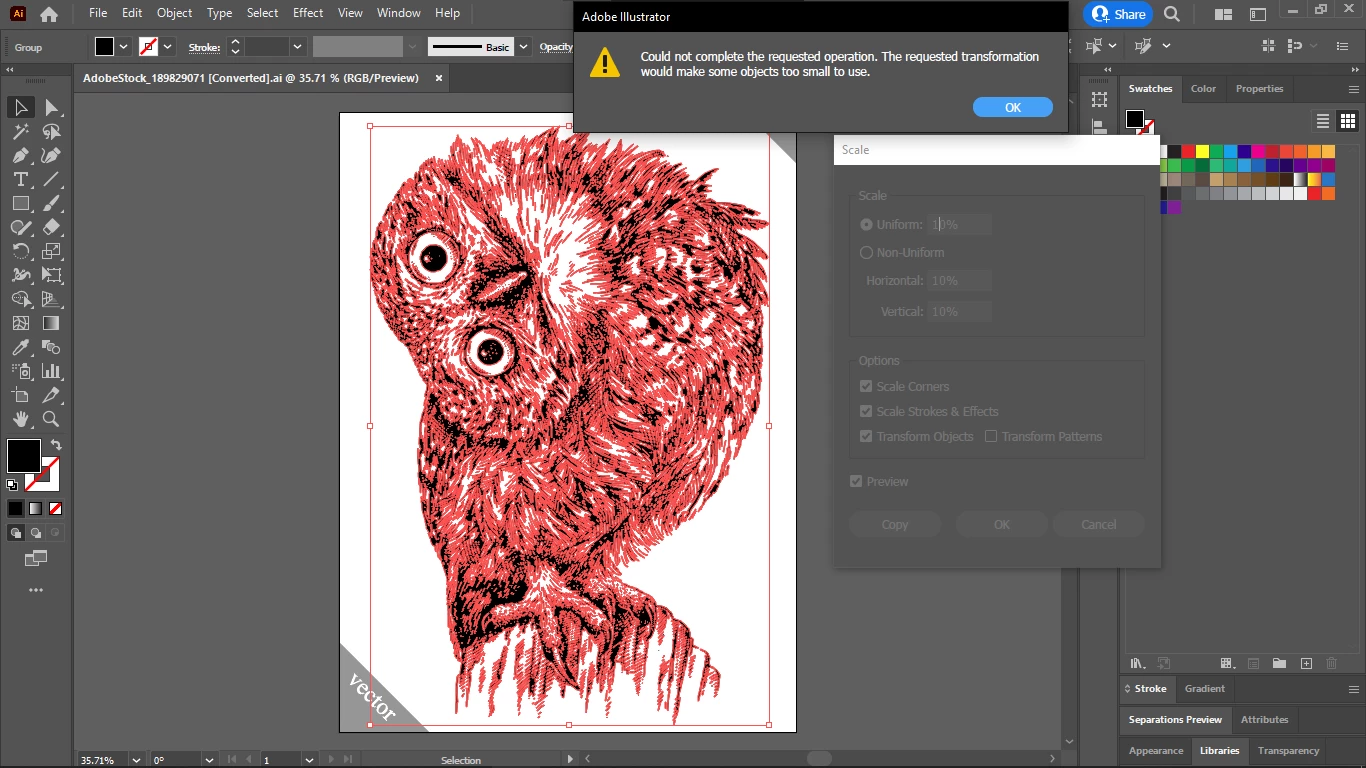
This scale dialog wouldn't even let me scale it down:
So I scaled it down with the other dialog:
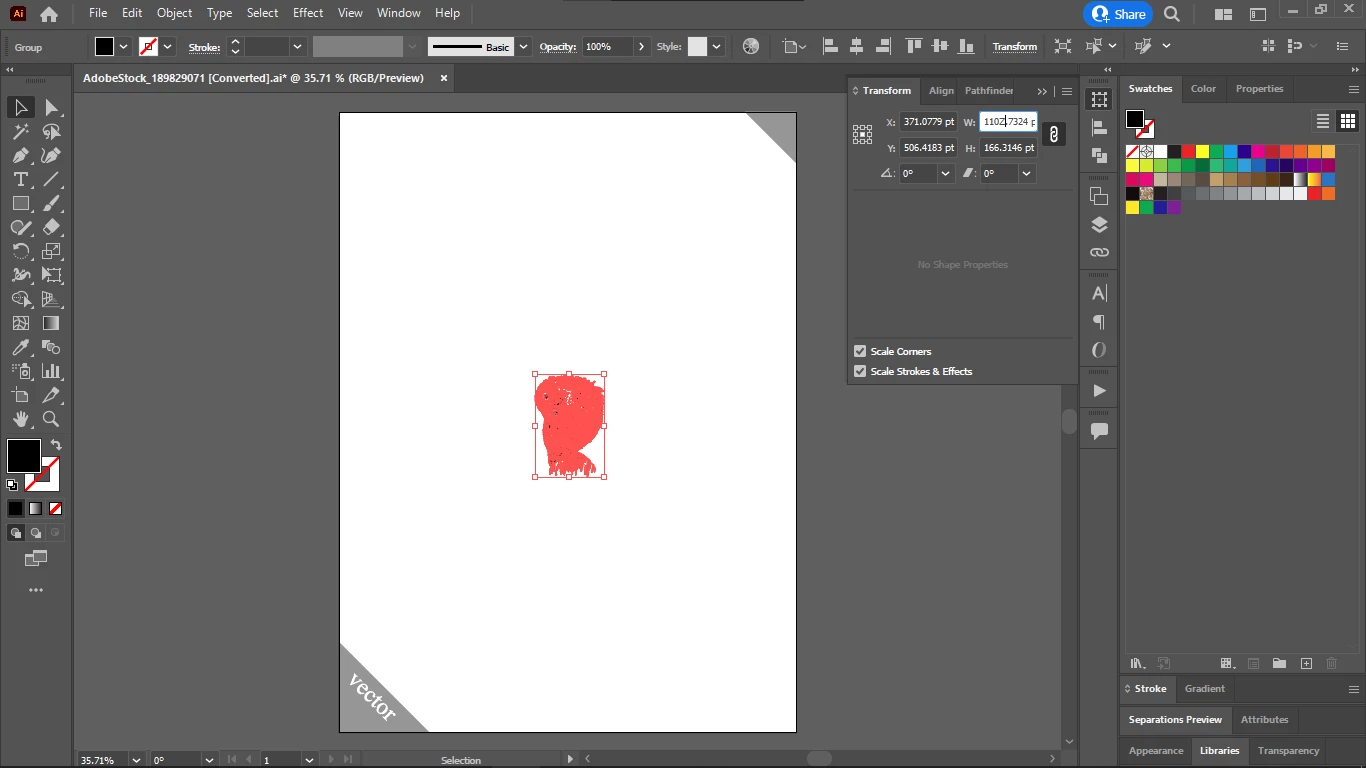
I expected a little owl icon with clearly visible eyes.

How do I create optically-proportionally small icons of larger vector illustrations? 

This topic has been closed for replies.

7 replies

Disposition_Dev
Adobe Expert
August 31, 2022

Ok... 10 seconds later and I'm back for another response.. I can't do a test on the actual owl... And even if i could, i don't know what size you're trying to scale it to...


But i did a test with some simple rectangles... It looks like while the Object > Transform > Scale tool does seem to have a lower limit.... The transform panel does not. You can select your artwork and then go to your transform panel, make sure proportions are locked, then click inside the width or height input boxes and type "*.1" to scale the art to 10% without any "artwork too small" errors. I tried everything i could think of to break this and I couldn't do it.. There is actually a lower limit to the size, but it's for the size of all of the selected artwork.. So let's say you just have a square that is 10pt x 10pt. you can select that square and then use the transform dialog to scale it (using a percentage by multiplying the current value by a decimal, or by typing in an absolute width/height), you can scale it as small as 0.0001pt. If you attempt to scale it any smaller than that, the UI will simply show "0" for the dimension.. However, this limit appears to be applied to the entirety of a selection rather than to the individual elements therein... So, if you duplicate your 10x10 square 200pt to the right, then duplicate both of those 200pt down, you'll have a square of squares. one square in each corner. if you select all of these squares, you can scale the whole set down to .0001pt as well, effectively making each individual square mind numbingly miniscule, with no error.


I even tested out saving the file thinking that maybe just because it didn't throw an error when scaling the art.. maybe illustrator would complain when trying to save it... No problems there. And even opening the file back up, all the art is there just like it was when i saved, so small you can't even see it on the screen. It appears also that you can repeat this process indefinitely... Or at least my several attempts to copy each scaled group and then scale everything again didn't find a limit.. Interestingly, if you look at any individual shape in the UI after scaling it this way, the transform panel shows 0 for the height/width.. But if you analyze the dimensions with javascript/extendscript, you get a tiny tiny number written in scientific notation (3.46726665156893e-7). So even though the art is too small for the UI to display, and even too small for the UI to display a dimension, it's still there in the file with no errors.


Disclaimer: I'm not attempting to say this is the best way to handle this or the smartest way... It's just one possible way to do it. But it's not ideal. Like most non-ideal things in life, they're not gonna kill you. Doing it this way isn't going to prevent you from doing whatever project you're trying to do... But I did want to point out for posterity that this is an inherently inefficient method of doing this. Even if you can't see a piece of artwork in your file... It still has anchor points. It still has color data. It still has position data and height data and width data etc. Which means that any time you zoom/scroll/pan/open/save the document, Illustrator has to do all of the vector math to handle those shapes, even if they're invisible to you.


Again, without access to the specific vector artwork you're using, i don't have much to go on.. I don't know if there's one or two shapes that become too small when you scale it.. Or whether there are hundreds or thousands. If it's one or two.. you will never notice a difference. If it's hundreds or thousands, you might find yourself getting hypnotized by the spinning wheel of doom while you wait for a bunch of invisible art to be calculated.

Ton Frederiks
Adobe Expert
August 31, 2022

If you need to scale it down, keep it vector, try to add a very small white stroke, like 0,0001 pt, to the paths.

Disposition_Dev
Adobe Expert
August 31, 2022

Some people have recommended simplify.. but that's definitely not what you want to do here... all that does is decrease the number of anchor points.. It doesn't do anything about small detail shapes.


As an automator, my first reaction is "let's just loop through the items and remove any that would end up too small after scaling it".. When all you have is a hammer, everything looks like a nail... I'm not sure whether there would be enough demand for something like that... What do you guys think? Is this an issue you guys come across often enough to desire a script to handle it?

Chris  P.  Bacon
Inspiring
August 31, 2022

Even the PNG is too crammed. Perhaps you can't just scale down illustrations and expect to get it transformed into a nice little icon. Unless there is such a feature in Illustrator.

Disposition_Dev
Adobe Expert
August 31, 2022

scaling some artwork in illustrator is, in some ways, fundamentally no different from looking at an object in real life from close up, and then taking 10 steps farther away and looking at it again. It's simply a mathematical and biological fact that when you decrease the size of an object relative to your field of view, detail gets lost.. Even if the detail is technically still there... You can't see it.


If you zoom in on your 10% scaled SVG, it should look identical to the original. That's the beauty of vector. It's mathematical perfection (i mean... within reason.. we're still limited by floating point math in a binary system with a finite number of available bits... but, ignoring any errors caused by those constraints because they don't represent values that actually matter in practical applications, vector is perfect. Whether you scale it to 1% or 10,000,000,000%... the relative position/angle/control handles of the anchor points will be identical.


Long story short, it seems to me that the issue here isn't necessarily with how well Illustrator can scale vector artwork... The issue is your expectation of massively scaling down artwork while retaining the visual fidelity it had at full scale. This simply isn't how our eyes or printers or monitors work.


Essentially, the root of the problem is the resolution of the eye. Our eyes are actually quite good at identifying one very small thing (if you've ever used a monitor with a dead pixel, you understand... even such a tiny object as a HD monitor pixel is big enough for your eyes/brain to see. Where our eyes/brains are much more limited is the ability to identify space between two objects. You can see one object if it's by itself and very small.. but if you have two objects that are very small... the space between them is very important for how your brain renders the image to your consciousness.. If the space between two pixels is equal to the width of one of the pixels, it's very likely your brain will render one object.. Because even though you can see something as small as a pixel, you can't see a space that is as small as a pixel if its surrounded by pixels. (i believe this is a similar effect to when you point a camera towards a bright light source with something small/thin in between the light source and the camera.. something like a picture of a sunset with a powerline in the foreground.. If the powerline appears to go through the sun, it may look like part of the powerline is actually missing when you take the photo.. Because the brightness of the nearby pixels overpowers the narrow band of darkness). Edit** Here's an example of what i mean: image link It's clear that the sun is not between the man's feet and the camera, but still somehow the light that JUST BARELY passes by his legs without hitting them and continues on into the camera lens is overpowering the part of the sensor that should be receiving "dark" color information from that part of the composition. Pixels on screen do the same thing. they gang up on the whitespace to erase it from your perception.. the only defense is more whitespace (i.e. less detail, or more absolute space... like a larger image).**Edit


Anyway.. Sorry for the novel.. Long story short, when you scale down your owl SVG, the space between the black shapes becomes too small for your eyes (or monitor or both) to actually see the gap between them, which is why it appears as a black blob instead of a black and white detailed line drawing.


If you want to scale something down to a small size, you need to consider how much detail there is and whether that detail is going to be lost. There's nothing you can do in illustrator to override how the brain interprets light that hits your retina. 

Anna Lander
Inspiring
August 31, 2022

please, describe a bit more about what you want to get finally. Do you need the icon to be animated? Should it be a shape animation or just some small transformation? Will you increase the size of the icon by more than 5-10%?  What's the reason to convert it into SVG? The best workflow depends on these things.

Chris  P.  Bacon
Inspiring
August 31, 2022

I want SVG because that would be the highest print quality, right? I mean because DPI is not even a factor for it. It's print, so no it's not animated. I want to achieve the same as with raster: no matter what's the shape or pattern, make it look the same at all scales, as SVG. 

I demonstrated with the two small scale owls example that even simplifying the vector to the max (the left owl) before exporting it as PSD, will not yield any visual difference compared with the unsimplified owl. 

I couldn't make this comparison in SVG at small scale, because in SVG at 10% it's just a black patch, crammed lines, the shape is lost. 

New Participant
August 31, 2022

I don't know what you mean. How are you determining that the vector looks different?

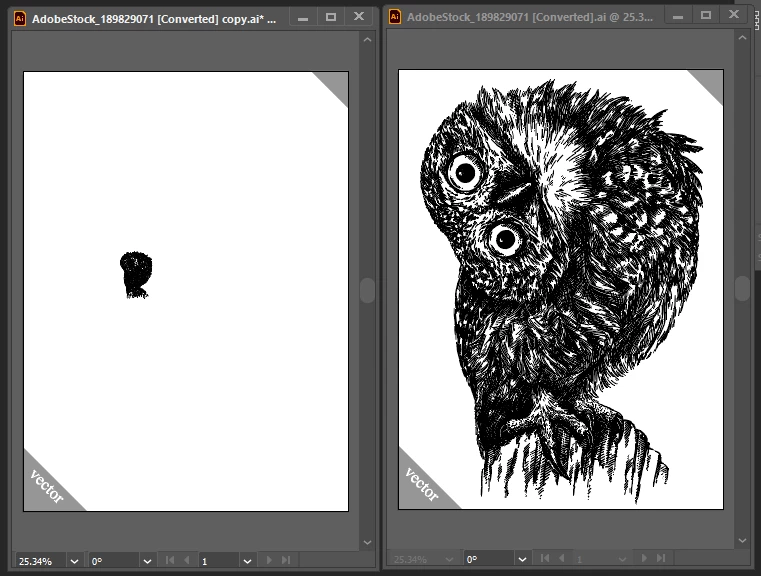
This is your image. Both of these windows are the same document; Left shows the original owl and scaled down, right is zoomed in on the scaled down owl. They look identical:


This is what I mean: left owl is vector.

On the right, the first is exported into PNG as simplified to the max.

The second is exported into PNG without any simplification.

I cannot get a vector owl that is the same small size as the PNG with the same amount of detail as the PNG.

The vector owl is just a black patch with too crammed lines, and the white is lost.


Chris  P.  Bacon
Inspiring
August 30, 2022

Hi,

In the meanwhile I realized I need the white background just behind the illustration (not outside of the owl) cause it will be on a black background, so I went with PNG instead.

PNG scales down very nicely, so you get a little owl icon.

By the way if you had to choose, between scaling it down as PNG, and re-trace it into SVG, or simplifying the paths, which would you choose?

Anna Lander
Inspiring
August 30, 2022

simplify the paths. PNG is a raster format, so when you scale it down, you lose information about the real shape, re-tracing will give you very rough shapes that look more or less good in small size but become really ugly if you scale them up even a little.

Chris  P.  Bacon
Inspiring
August 30, 2022

Sorry I meant PSD not PNG.

The owl on the left is simplified to the max before exporting to PSD, the owl on the right without simplification before exporting it to PSD.

There is no visible difference, as PSD.

But I cannot use it as vector, since I need the white background exactly behind the owl (not further), and even after max simplification it wouldn't let me to scale it down to 10%. I get the 

error.

And if I force it with the transform dialog, I get the small black patch again instead of the owl.


Mike_Gondek10189183
Adobe Expert
August 30, 2022

Make sure scale strokes is on. To get the dialog option click the scale tool.


How did you create the owl? The amount of points or near proximity is a problem you can use object >> path >> simplify. When the scalling is so small that points go on top of each other becomes a postscript problem.

Anna Lander
Inspiring
August 30, 2022

As far as I can see, there are no strokes. The problem is that there are too many extra small details and, yes, an enormous amount of anchor points. The paths need to be simplified.

Anna Lander
Inspiring
August 30, 2022

well, it has some extra small details which become invisible in such a small size. When your details are too small, you can't use them on screen because the details are smaller than screen pixels. And you can't even print or cut them for the same reason.

Try to save a copy to keep the original. Then in the document delete too small elements and unite the details that "ask" for this (e. g. are placed too close to each other).

The smaller size of the object — the simpler its shape.