Known Participant
March 8, 2019
Answered

How do I select and move two control handles on two different anchor points so they move concurrently?

  • March 8, 2019
  • 4 replies
  • 27726 views

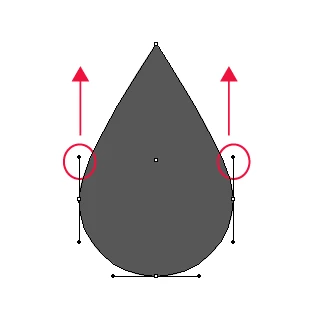
I am drawing a teardrop shape and want to select and move the two ringed control handles upwards at the same time so that the teardrop is exactly the same shape on both sides, is there any way to do this? Thanks.

Correct answer Jacob Bugge

Miss Sparkles,

I apologize for the ambiguity of

over the Anchor Points with the Handles

As c pointed out, the over was meant as above/higher than vertically, rather than covering/including.

ClickDragging across over/above the Anchor Points will select the upper segments and reveal the Handles of the side Anchor Points and the top Anchor Points, but you will only affect the pair of (vertical) upper Handles of the side Anchor Points when you use the Up arrow (just as you will only affect the (horizontal) Handles of the Top Anchor Point if you use Left of Right arrow.

In the image, you have the corresponding lower segments selected with corresponding Handle selection.

4 replies

G_Man
Inspiring
October 29, 2021

Wow - I can't believe I finally have the answer and it was so darn simple. Thank you!

Jacob Bugge
Community Expert
Community Expert
October 30, 2021

G, the Concurrent Handle Move thread lives, thanks to you.


Inspiring
August 15, 2023

Hi. Just reviving this thread. What about doing what the OP wants but with only one segment (not two) between the two anchor points with the handles? In other words, the sharp anchor point at the top of the teardrop does not exist, making the anchor points with the handles two ends of the same segment. I would like to keep the anchor points in place but change the size of both handles (just the top part of the handles) the same way for both anchors.

rcraighead
Legend
March 8, 2019

Participant
April 30, 2020

Do you know why i can only do this through scaling, and not with the direct selection as you've showed in the gif?

(i'm using Illustrator 2018)

nvm i just had to do a straight movement with the mouse as without guidelines i wasn't sure if it was going to lock by itself

Legend
March 8, 2019

Another way to guarantee a perfectly symmetrical shape is to draw one half of it, and then use the Transform Effect to reflect the other half. Any subsequent changes in the original half will be automatically applied to the reflection.


Jacob Bugge
Community Expert
Community Expert
March 8, 2019

Miss Sparkles,

Just deselect, then Direct Select both path segments (you may ClickDrag across over the Anchor Points with the Handles), then use the Up arrow.

Known Participant
March 8, 2019

Hi Jacob,

If I select the two anchor points with my Direct Selection Tool by click dragging, the control handles don't appear (shown below)? The same thing happens if I try to select one anchor point, hold down shift and select the second anchor point.

Known Participant
March 8, 2019

For my part you are welcome, Miss Sparkle.

The way Susan (re)told about, which gives a greater freedom in creating the desired shape, can be done live.

Here is the easier way possible with the newer versions, which replaced my earlier suggestion (with an initial preparation) some 4 years ago, and kept among my  snippets:

It is quite possible to create a symmetrical drawing live with the help of Illy, with the inbuilt tools, without any external plugins, if you just start in the right way. Obviously, it is much better to see the whole appearance while you create it.

Depending on the number of reflexion/rotation axes, there are different ways.

For a simple one to two mirroring, you may see the reflection live after each Anchor Point if you start out as follows (for Pen Tool with vertical reflection to the right, similar for other directions):

1) Create the first two Anchor Points of your basic path;

2) Effect>Distort&Transform>Transform>ReflectX with 1 copy and the middle right side Reference Point chosen;

3) With the Pen Tool ClickDrag (or Click) anew from the second Anchor Point and go on;

If you wish, you may:

4) Object>Expand Appearance and Ctrl/Cmd+J to join the half paths.

Ctrl/Cmd+Z Undo is your friend: you can just go back and redo while drawing the basic path.

For multiple reflexion/rotation axes and plugins, you may have a look at solutions in this thread, including the links to external solutions below:

https://forums.adobe.com/thread/2284752

Or you can have a look at the MadPattern templates,

http://madpattern.com/

Or you can use the MirrorMe plugin from Atute Graphics,

http://www.astutegraphics.com/software/mirrorme/


Thanks so much Jacob, that is really great, I shall take a look and try them out. Excellent.