Known Participant
March 8, 2019
Answered

How do I select and move two control handles on two different anchor points so they move concurrently?

  • March 8, 2019
  • 4 replies
  • 27943 views

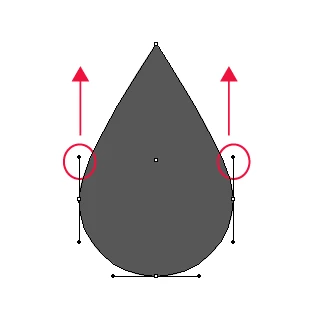
I am drawing a teardrop shape and want to select and move the two ringed control handles upwards at the same time so that the teardrop is exactly the same shape on both sides, is there any way to do this? Thanks.

Correct answer Jacob Bugge

Miss Sparkles,

I apologize for the ambiguity of

over the Anchor Points with the Handles

As c pointed out, the over was meant as above/higher than vertically, rather than covering/including.

ClickDragging across over/above the Anchor Points will select the upper segments and reveal the Handles of the side Anchor Points and the top Anchor Points, but you will only affect the pair of (vertical) upper Handles of the side Anchor Points when you use the Up arrow (just as you will only affect the (horizontal) Handles of the Top Anchor Point if you use Left of Right arrow.

In the image, you have the corresponding lower segments selected with corresponding Handle selection.

4 replies

G_Man
Inspiring
October 29, 2021

Wow - I can't believe I finally have the answer and it was so darn simple. Thank you!

Jacob Bugge
Community Expert
Community Expert
October 30, 2021

G, the Concurrent Handle Move thread lives, thanks to you.


Inspiring
August 17, 2023

Obvious crossposting, s.


I am unsure where that leaves us.


I have attached what happened in my case. I started with 1, made 2, then shiftclickdragged and got 3. You can see what happened to the handles. But I was expecting the top part to reshape "in proportion", as your circle did.

I think my statement "to keep the same angle" was incorrect. It seems the handles could not have kept the same angle to get the result I was expecting. They did in your case because there was no angle to begin with (rather, yours were the same angle as the direction you were dragging in). In the end, I got what I wanted (in a slightly different scenario) by cutting the object at the anchor points and scaling the problem part.

I am also unsure where that leaves us! Some place muddy. 😉

rcraighead
Legend
March 8, 2019

Participant
April 30, 2020

Do you know why i can only do this through scaling, and not with the direct selection as you've showed in the gif?

(i'm using Illustrator 2018)

nvm i just had to do a straight movement with the mouse as without guidelines i wasn't sure if it was going to lock by itself

Legend
March 8, 2019

Another way to guarantee a perfectly symmetrical shape is to draw one half of it, and then use the Transform Effect to reflect the other half. Any subsequent changes in the original half will be automatically applied to the reflection.


Jacob Bugge
Community Expert
Community Expert
March 8, 2019

Miss Sparkles,

Just deselect, then Direct Select both path segments (you may ClickDrag across over the Anchor Points with the Handles), then use the Up arrow.

Known Participant
March 8, 2019

Hi Jacob,

If I select the two anchor points with my Direct Selection Tool by click dragging, the control handles don't appear (shown below)? The same thing happens if I try to select one anchor point, hold down shift and select the second anchor point.

c.pfaffenbichler
Community Expert
Community Expert
March 8, 2019

Jacob Bugge spoke of the segments themselves, not the bezier handles.

Instead of the arrow keys you could also start draging the segments upwards and hit the shift key to constrain the transformation vertically.