
Chris  P.  Bacon
Inspiring
December 6, 2022
Answered

How do I split a shape into 2 objects?
  • December 6, 2022
  • 3 replies
  • 1599 views

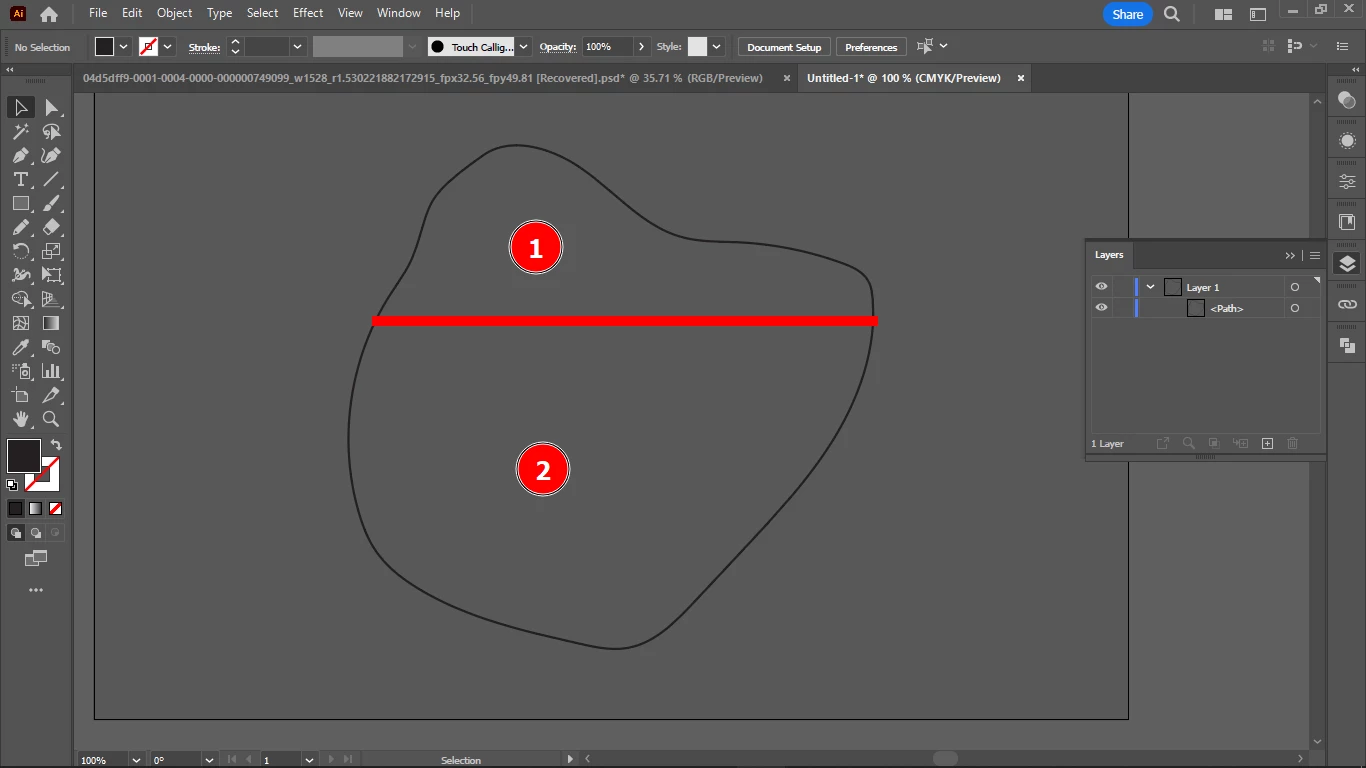
I am creating free hand drawn shapes which will be text boxes (subheading + text) or article chunks, and I want to apply envelope distort only for the subheading (section 1), or envelope distort with different settings for section 1 and section 2, 2 being the body text part of the article chunk.

How do I separate a shape into 2 sections so I could apply envelope distort with different settings for the 2 sections?

This topic has been closed for replies.
Correct answer Jacob Bugge

Chris,


Or you can just use Object>Path>Divide Objects Below as soon as you have drawn the line (reaching or going beyond the path) and it is still selected.


Edit: Hi Doug.


3 replies

Jacob Bugge
Community Expert
Jacob BuggeCommunity ExpertCorrect answer
Community Expert
December 6, 2022

Chris,


Or you can just use Object>Path>Divide Objects Below as soon as you have drawn the line (reaching or going beyond the path) and it is still selected.


Edit: Hi Doug.


Doug A Roberts
Community Expert
Community Expert
December 6, 2022

Draw a line through the object at the point you indicated, then select all and use Divide in the Pathfinder panel.

Chris  P.  Bacon
Inspiring
December 6, 2022
Thanks.
Chris  P.  Bacon
Inspiring
December 6, 2022

Envelope distort fills the shapes more perfectly than just the default way of filling shapes with text, so I am trying to minimize the distortion for the body text, but still get a more perfect filling than with the normal text fill. 

Chris  P.  Bacon
Inspiring
December 6, 2022

These areas of text are actually parts of images that have an uniform filling or areas that have been covered with a single color.