savannahs82895027
Participant
July 10, 2019
Answered

How do I wrap an image around a 3D polygon?

  • July 10, 2019
  • 5 replies
  • 3555 views

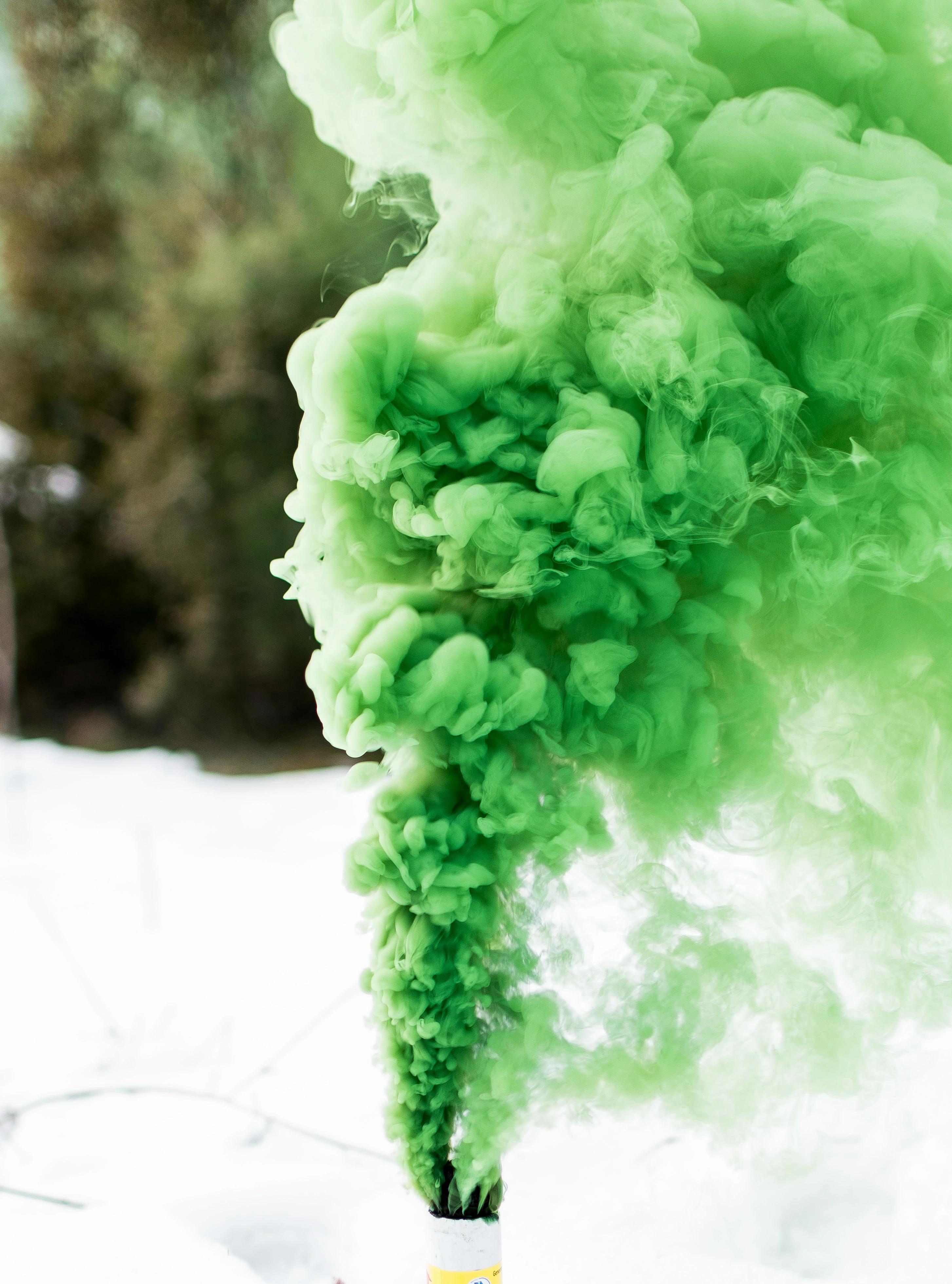
I'm trying to create a potion bottle, or what looks like a perfume bottle. I want it to appear that green smoke is swirling around inside, so I chose to just turn the photo of the green smoke into a 3D polygon. The problem is that I can only figure out how to make either just a bevelled polygon, or just another cube or sphere with the image mapped onto it.Image result for 3d pentagon
    This topic has been closed for replies.
    Correct answer rcraighead
    1. Draw 6 pentagons
    2. Convert photo into swatch by dragging to Swatch Panel
    3. Fill pentagons with image swatch
    4. Selecting each filled object one at a time and:
    5. Click "R" to activate Rotate tool
    6. Hold down "~" key while rotating. This will rotate ONLY the fill, not the object.
    7. Add gradient overlay on each pentagon to create highlights/shadows.

    5 replies

    savannahs82895027
    Participant
    July 10, 2019

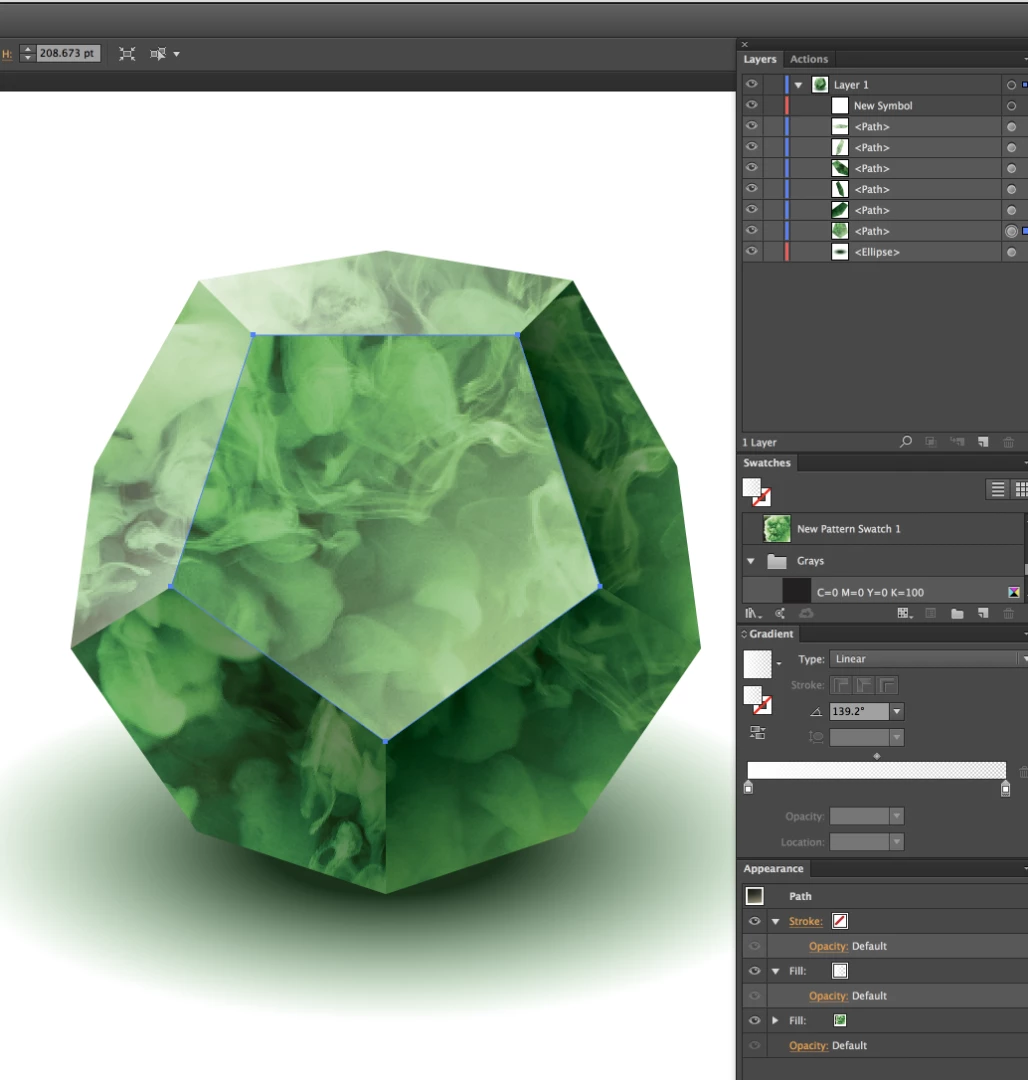
    This is what I have now. It kind of looks like I could have just drawn the shape and then layed it over the pic of the smoke, but I'm happy with what I learned! Also, how can I move the object without the fill shifting? I grouped them together, but that didn't work.

    rcraighead
    Legend
    July 11, 2019

    Well done! Additional rotating of the patterns will help. And imagining a directional light then adjusting gradients to create light and dark sides will improve 3D appearance.

    As for moving without changing fills:

    1. Select all
    2. Click "Make New Symbol" in Symbol Panel
    3. Click "Static Symbol" (my preference)

    This will make the artwork act like a placed graphic you can scale, rotate, duplicate and move without effecting the fills, etc. Just edit the Symbol by double-clicking it in the Symbols Panel if you want to make changes to the "master" artwork.

    Danny Whitehead.
    Legend
    July 10, 2019

    rcraighead's solution is great, but I'd definitely recommend giving Dimensions a try for a more photorealistic result. I've been too intimidated by 3D software for decades but I've found it pretty easy to learn.

    There's a dodecahedron like that in its built-in shapes, and you can apply the green smoke image as a 'decal'.

    rcraighead
    Legend
    July 10, 2019

    I agree 3D would be great. I haven't played with the "new" Adobe Dimensions. But if you REALLY want 3D power I'd recommend downloading the FREE Blender 3D. It is well worth learning.

    rcraighead
    rcraigheadCorrect answer
    Legend
    July 10, 2019
    1. Draw 6 pentagons
    2. Convert photo into swatch by dragging to Swatch Panel
    3. Fill pentagons with image swatch
    4. Selecting each filled object one at a time and:
    5. Click "R" to activate Rotate tool
    6. Hold down "~" key while rotating. This will rotate ONLY the fill, not the object.
    7. Add gradient overlay on each pentagon to create highlights/shadows.

    JonathanArias
    Legend
    July 10, 2019

    thats cool. i would have said do it in photoshop.

    Myra Ferguson
    Community Expert
    Community Expert
    July 10, 2019

    You can also create some convincing effects in 2D with masking and blend modes, but I'd recommend using Photoshop for that instead of Illustrator.

    Monika Gause
    Community Expert
    Community Expert
    July 10, 2019

    You cannot build that type of object with Illustrator's 3D effects. You will need a 3D application to build it.

    Probably Adobe Dimension offers you this kind of object or you can download it from the web to apply the label in Dimension.