
Known Participant
March 27, 2018
Answered

How to ACCURATELY distribute and align text?!

  • March 27, 2018
  • 3 replies
  • 2945 views

Let's say i want to distribute multiple INDIVIDUAL lines of text vertically without converting them into curves. (create outlines)

I'm having 2 problems :

1. When i try to distribute the space between them vertically, (by selecting them all, and clicking on the Vertical distribute Space button) the result is incorrect.

2. When i try to align the text with another object horizontally, the object gets aligned with the point type bounding box, rather than the text itself.
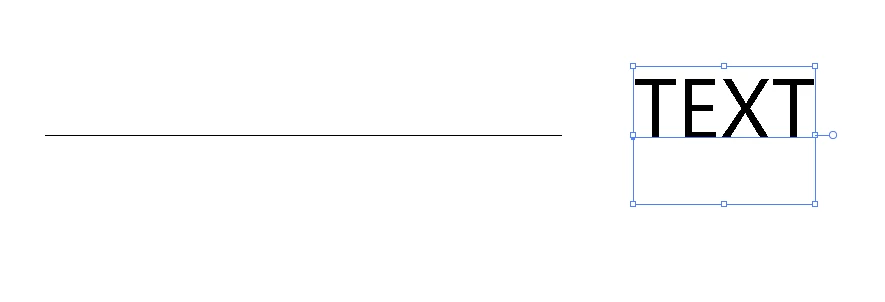
Is there a reason for the bounding box to be this way, instead of accurately surrounding the text?

This wouldn't be a problem if i turn the text into curves, but i absolutely need to keep the text as text here, for future editing.

    This topic has been closed for replies.
    Correct answer Monika Gause

    Apply the Effect > Path > Outline object.

    In the preferences turn on "Use preview bounds".

    You should check out Smart guides as well.

    And maybe using InDesign will be more joy over all.

    3 replies

    Inspiring
    March 27, 2018

    If the individual lines of text don't need to be used in separate boxes, it's possible that this Illustrator project requires you to use paragraph styles to set leading for different text styles, and then to use the "Space After Paragraph" setting in the paragraph panel to adjust the spacing between each section.

    In this document, because my headline follows smaller body copy, my paragraph style for my headline specifies 30 pt leading.

    My body copy is set to 10 pts with 12 pt leading.

    Now if in my paragraph window I increase the space after paragraph () from 0 to 15 pts, space is added evenly between my paragraphs.

    My guess as to why Adobe aligns text boxes according to the size and shape of the box versus aligning outlined text as a shape, is that various fonts and letter combinations have different optical heights. For example if you were to distribute the word "oreo" which has ascenders or descenders along with the word "happy" which has an ascender in the "h" and descenders in the "ppy" the words themselves are different heights.

    Known Participant
    March 27, 2018

    No, my project requires me to align text lines with specific objects, so working with paragraphs is not an option.

    I already had to install a custom script to allow me to break individual lines of text.

    macpawel
    Participating Frequently
    March 27, 2018

    You can also use one text frame and some paragraphs of text

    Then use Paragraph panel and set Space Before (or After) you need

    Sometimes im much easier to use single text frame and text options

    pawel

    Monika Gause
    Community Expert
    Monika GauseCommunity ExpertCorrect answer
    Community Expert
    March 27, 2018

    Apply the Effect > Path > Outline object.

    In the preferences turn on "Use preview bounds".

    You should check out Smart guides as well.

    And maybe using InDesign will be more joy over all.

    Known Participant
    March 27, 2018

    Thank you, the combination of "outline object" and "use preview bounds" worked for both problems.

    Should i assume that this is the only way of properly working with text in illustrator? (I'd rather not work in indesign if the project has less than 2 pages)

    Any idea on why the text bounding box is that way by default?

    Monika Gause
    Community Expert
    Community Expert
    March 27, 2018

    https://forums.adobe.com/people/Illustrated+Oxymoron  schrieb

    Any idea on why the text bounding box is that way by default?

    Have you ever looked at a lead letter?

    They always have space above and below.