
coye
Known Participant
November 6, 2021
Answered

How to add a auto-sized rectangle around text box?

  • November 6, 2021
  • 1 reply
  • 4257 views

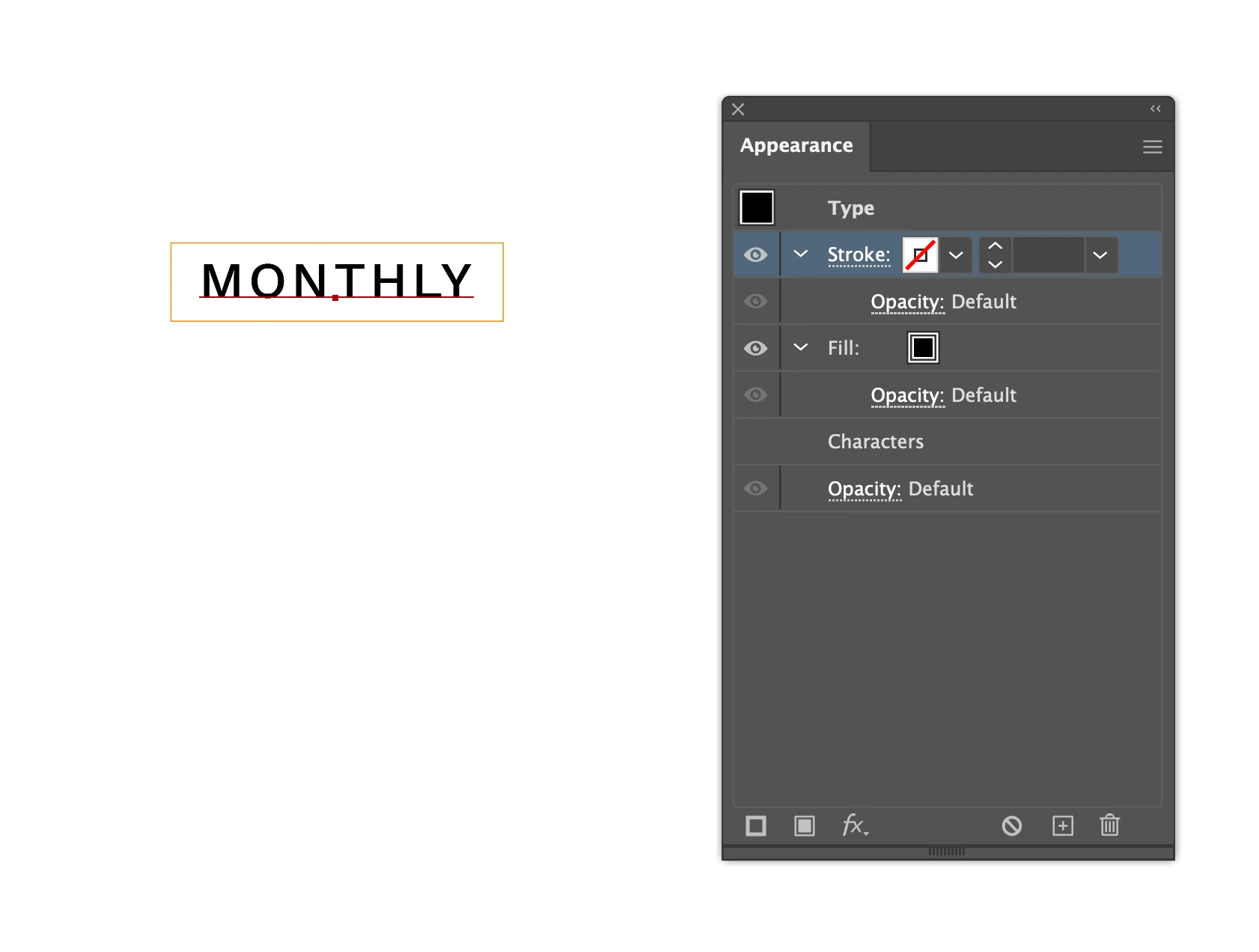
The orange box is a cut line. I initially add the box around the text manually and but it took me so much time to change the size of the box if I want to increase the font size. I followed the steps from this post (https://graphicdesign.stackexchange.com/questions/19824/illustrator-auto-sized-text-box-with-shaded-background), but the text became transparent when I selected Effect > Convert to shape > Rectangle. I don't know how to keep the text in black with the orange box around at the same time. I would like to keep the height in 0.35cm and the width should be the length of the text + 0.25cm. Does anyone know how to create an auto-sized rectangle around the text box :(?
Correct answer Jacob Bugge

coye,


Whatever is described, you can:


1) With the normal Type Tool create the text as live Type; you may wish to choose Align Center in the Window>Paragraph palette (bundled with the Character palette where you set the font and size);
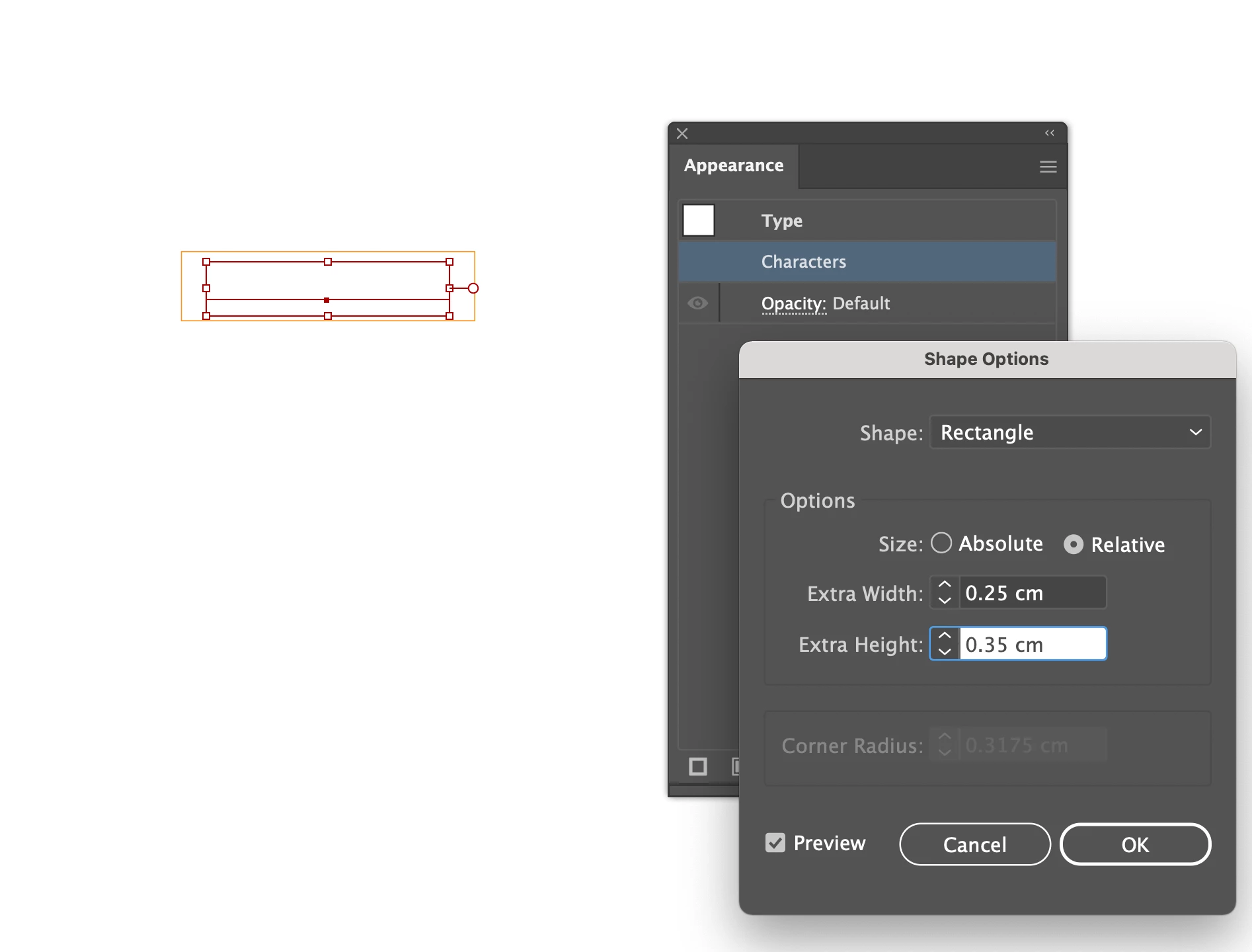
2) In the Window>Appearance panel click Add New Fill, then drag that fill down below Characters and click it to have it selected; it will be highlighted;
3) Set the desired background colour, you may use the Window>Color palette or something else;
4) Effect>Convert to Shape>Rectangle (or Rounded Rectangle), then Click Relative and set the width and height to be added to the live Type; you may try different values in Preview to see how it works.

This will give you the text as live Type so you can edit it (you may add text, even more lines, hence the Paragraph choice), and it will stay centred on the background, and the background will adapt to the text.


Edit: I just had a closer look at your screenshot, and it seems that the crucial part is to perform step 2) in full.

1 reply

Jacob Bugge
Community Expert
Jacob BuggeCommunity ExpertCorrect answer
Community Expert
November 6, 2021

coye,


Whatever is described, you can:


1) With the normal Type Tool create the text as live Type; you may wish to choose Align Center in the Window>Paragraph palette (bundled with the Character palette where you set the font and size);
2) In the Window>Appearance panel click Add New Fill, then drag that fill down below Characters and click it to have it selected; it will be highlighted;
3) Set the desired background colour, you may use the Window>Color palette or something else;
4) Effect>Convert to Shape>Rectangle (or Rounded Rectangle), then Click Relative and set the width and height to be added to the live Type; you may try different values in Preview to see how it works.

This will give you the text as live Type so you can edit it (you may add text, even more lines, hence the Paragraph choice), and it will stay centred on the background, and the background will adapt to the text.


Edit: I just had a closer look at your screenshot, and it seems that the crucial part is to perform step 2) in full.

Participant
October 2, 2024

Reviving this thread with a follow-up question:


When I do this, the text is not perfectly aligned to the rectangle, due to it aligning to the em box instead of the glyph bounds, even if I select the glyph bounds options in the Alignment panel.


Any help? Thanks!

Jacob Bugge
Community Expert
Community Expert
October 2, 2024

Thank you so much for the quick reply!


Regarding step 5, is there a reason not to just keep Use Preview Bounds turned on?


You are welcome, aferwardsness.


In addition to what Anshul said, Use Preview Bounds has a wide range of effects, sometimes rather troublesome; in many/most cases it is either needed or troublesome.


To mention some of the effects, in connexion with stroked paths, Use Preview Bounds adds the outer half of the Stroke Weight to the size of the object, which can be seen in the Transform palette, such as a nice regular rectangle such as 200 x 100 pt which will become 201 x 101 pt; for a similar rectangle of 200 x 100 mm will become an even less nice number. Effects such as Gaussian Blur and Drop Shadow will add the extension of the effect, for the latter even moving the centre of the object in the Transform palette. When distributing objects to be abutted by side, the outer bounds of the strokes will be abutted rather than having the strokes overlapping. All of these can be against the desired workflow.


All that said, it is important to be aware of the outer bounds when you create raster images, especially when you have strokes/effects, and ensure nothing is missing, either by having Use Preview Bounds on or by adding to the size.


Edit: And what Ton said while I was delayed in answering.


Edit edit: Actually, Ton made me aware of the serious ommission I made in the text in my answer above.


Step 1) should have been:


1) With the normal (Point) Type Tool create the text as live Type (you may wish to choose Align Center in the Window>Paragraph palette bundled with the Character palette where you set the font and size), then use the Effect>Path>Outline Object;


This is necessary for the instructions to work, and this is what I actually did in the second line of the image.


And this is exactly what Ton suggested.


The "Tick Use Preview Bounds in the Genereal Preferences" in step 0) and the follow up in 5) only apply "If you wish to align the background rectangle by the visible bounds of the characters rather than the Em box,"


Without step 0) and step 5), the rectangle will be aligned by the centre of the Em box instead of by the visual bounds, and the difference can be important.


I will correct step 1) in the answer above, with a note pointing to this.