
hedger
Known Participant
August 10, 2017
Answered

How to apply a gradient to an overall image created using a pattern?

  • August 10, 2017
  • 2 replies
  • 2035 views

Hi,

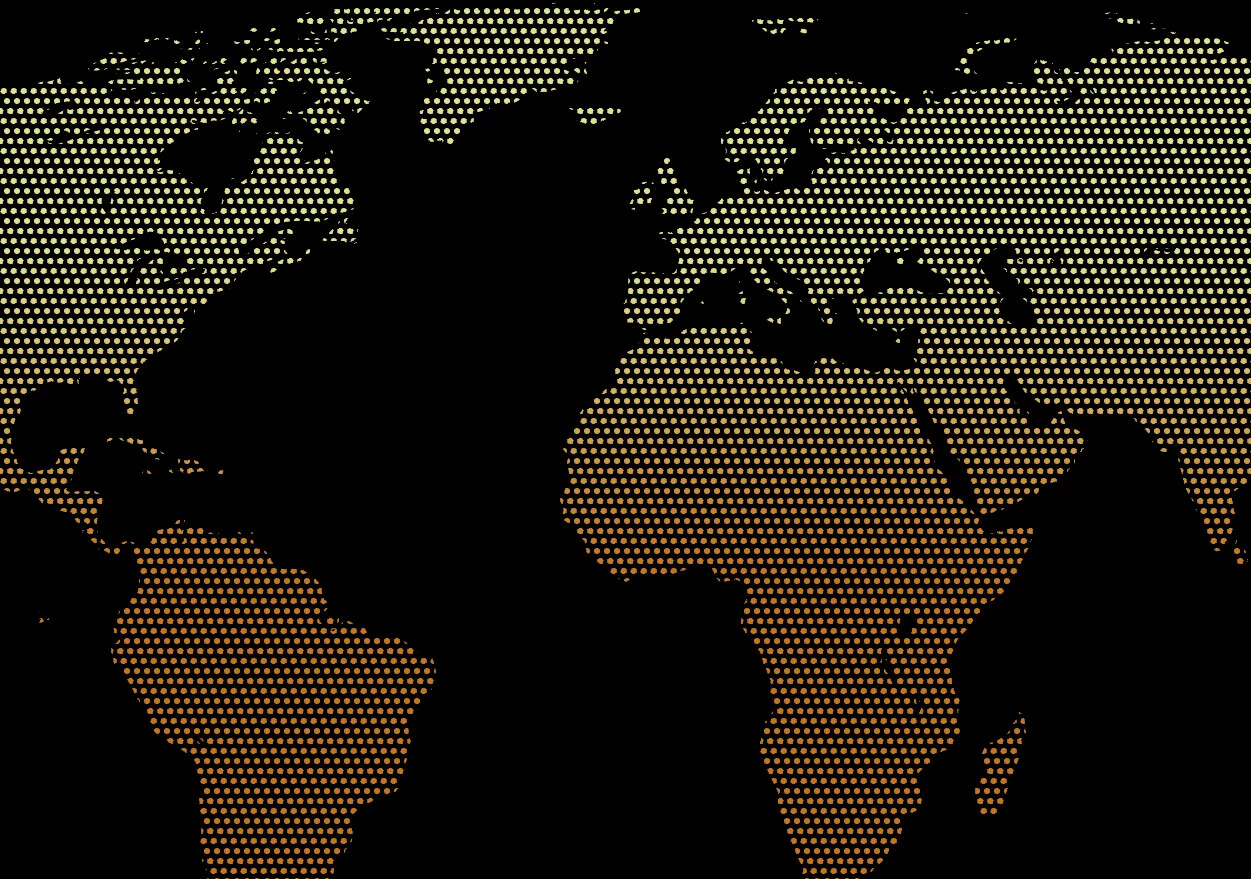
I have another question for the forum. I am trying to create a map that is made up of small circles. I would like to have a gradient applied to the overall map. So far I have created the map and then created a pattern of offset circles that is the approximate size that I wanted. I then applied this pattern to the map. The result was what I was looking for. Unfortunately, I cannot seem to figure out how to apply a gradient over the entire image. What I am trying to achieve is shown in the attached image. (It was thrown together in photoshop.)

Should I not have created the map using a pattern? How can I achieve this same result using Illustrator. I am learning Illustrator and appreciate any assistance anyone can offer.

Thanks so much!
This topic has been closed for replies.
Correct answer Monika Gause

Make your pattern black. Group all object in case there's more than one path.

Draw a rectangle and apply the gradient.

Put the rectangle behind the black dotted pattern

Select both

Make opacity mask (in the transparency panel)

Now you might need to experiment with the invert and masking options in the transparency panel.

2 replies

Inspiring
August 11, 2017

My technique may be a bit tedious, but I would create a row of circles and then group it > then I would duplicate the first row by stepping it down and to the right ( this gives you your offset ) > group the first two rows and duplicate them vertically to make the depth of the pattern > group all of the circles > now you should have all Black ( or White ) circles, apply a gradient as a fill > use the original map artwork and duplicate it ( you might have to convert to a compound path ) > create a clipping mask with the duplicated map artwork and the dots.

This should leave you with a clipped dot pattern with a gradient applied to the dots only.

michelew83603738
Community Expert
Community Expert
August 10, 2017

So other than the black circles in the pattern, did you use a white fill as a background or no fill? Either way, you could use a gradient rectangle over the entire image with a blending mode of darken or multiply so that the black would show through. You could also use the appearance panel, add a second fill and add the blending mode that way as well - it just depends how many shapes you have and how comfortable you are using the appearance panel.

hedger
hedgerAuthor
Known Participant
August 10, 2017

When I made the pattern I used the brighter yellow color so that I could see it on the white artboard. The black background that I used in this image was simply to make this example image of the map to stand out more. I'm wanting to have the background be a transparency and the small dots that make up the map to be a gradient color. I've messed around with the blending modes, transparency, and appearance panel but cannot seem to find a way to make it work. I've tried created masks as well.

Any other ideas on how to achieve this?

Monika Gause
Community Expert
Monika GauseCommunity ExpertCorrect answer
Community Expert
August 10, 2017

Make your pattern black. Group all object in case there's more than one path.

Draw a rectangle and apply the gradient.

Put the rectangle behind the black dotted pattern

Select both

Make opacity mask (in the transparency panel)

Now you might need to experiment with the invert and masking options in the transparency panel.