
Participant
February 17, 2020
Question

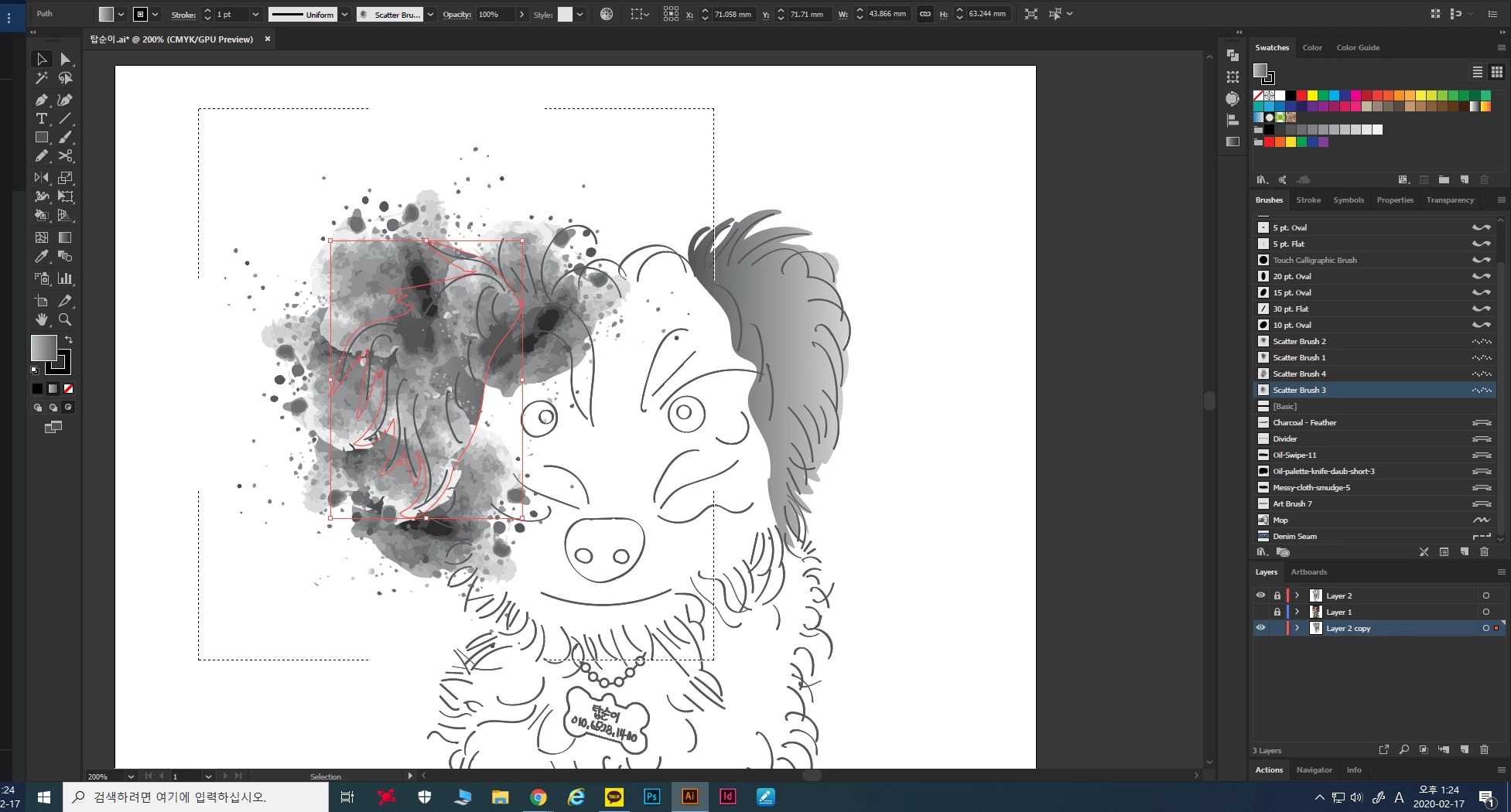
how to apply path on draw inside mode?

  • February 17, 2020
  • 3 replies
  • 608 views

hello. 

i'm illustrator beginner 

i'm using a scatter brush on a path and i'd like apply the ear path line on draw inside mode 

and remove outside the path 

i did it once and then it never happened

anyone know how please help me 

thank you


This topic has been closed for replies.

3 replies

happie_97
Community Expert
Community Expert
February 17, 2020

I tried to replicate your issue and was able to successfully. I had to go to the scatter brush options and play with the spacing, scatter to get them into the draw inside the area. I also changed the rotation relative to the path (not page) box. This still didn't have all of the scatters inside. The draw inside leaves a lot of room outside of the stroke area for the scatter brush to roam.


Another technique that can work is clipping the brush into the ear shape.

The way to do that is to copy the ear shape (ctrl or cmd + C), paste it in front (ctrl or cmd + f),

select the scatter brush and the copy, and go to Object > Clipping Mask > Make.

This will hide the areas outside of the brush that you don't want.

meganchi
Legend
February 17, 2020

Look below your gradient fill and stroke in your toolbar. There should be tiny icons that you can click to select different drawing modes. So, keep your ear outline selected, then choose the drawing mode "Draw inside", then take your scatter brush and apply it to your ear shape. It should now keep them confined to the inside of the ear shape. Then when you want to go back to normal draw mode, click the small icon and select "Draw normal".

Monika Gause
Community Expert
Community Expert
February 17, 2020

Not sure what happened there. Can you open the layer in the layers panel and show us a larger screenshot? This one is so tiny it can't be read.