Known Participant
January 5, 2020
Answered

how to bulk change total ink coverage to the 240% required by printer

  • January 5, 2020
  • 6 replies
  • 37460 views

Hi everybody,


Got a new conundrum for you.


Still working on my book cover file for the printer, Ingram Spark, but running into trouble figuring out how to lower the TAC/TIC values below 240%. Anybody have a suggestion? Doesn't seem like there are any recent recommendations/posts on this. I did find several folks that said to individually adjust the CMYK sliders for every single swatch. A few problems with this:


  • how do you adjust all the sliders to maintain the same color?
  • this doesn't do any good for embedded jpegs (like my red background leather effect)
  • what happens when you have mutiple layers interacting, like a dropshadow over the jpeg background? how do you adjust the CMYK for both without messing up both color renditions?


Here are Ingram Spark's specs for the cover submission:

  • 300 ppi
  • PDF COMPLIANCE: Files must be PDF/X-1a:2001 or PDF/X-3:2002 compliant. The PDF/X-1a:2001 setting is found in the Professional versions of Adobe Acrobat 6 or above (listed as PDF/X-1a in Acrobat 6 Professional). The PDF/X-3:2002 setting is found in the Professional versions of Adobe Acrobat 7 or above
  • We recommend a rich black with CMYK values = 60% Cyan / 40% Magenta / 40% Yellow / and 100% Black. CMYK total value should not exceed 240%. Elements should not be built in ‘Registration’ (100% of all colors). *Files sent with densities higher than 240% may be rejected for correction. Files with densities greater than 240% may process and print without rejection. If these files with densities over 240% encounter print issues in future orders, LS will require a corrected file from the customer.
  • CMYK MODE


My color settings, then below that a screesnshot from Acrobat Pro of the TAC areas that are over 240% in bright green.
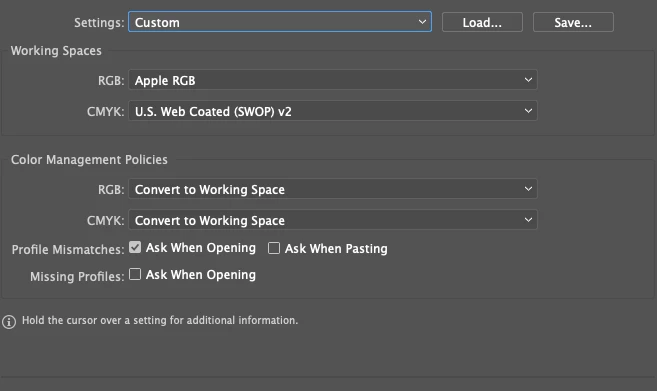
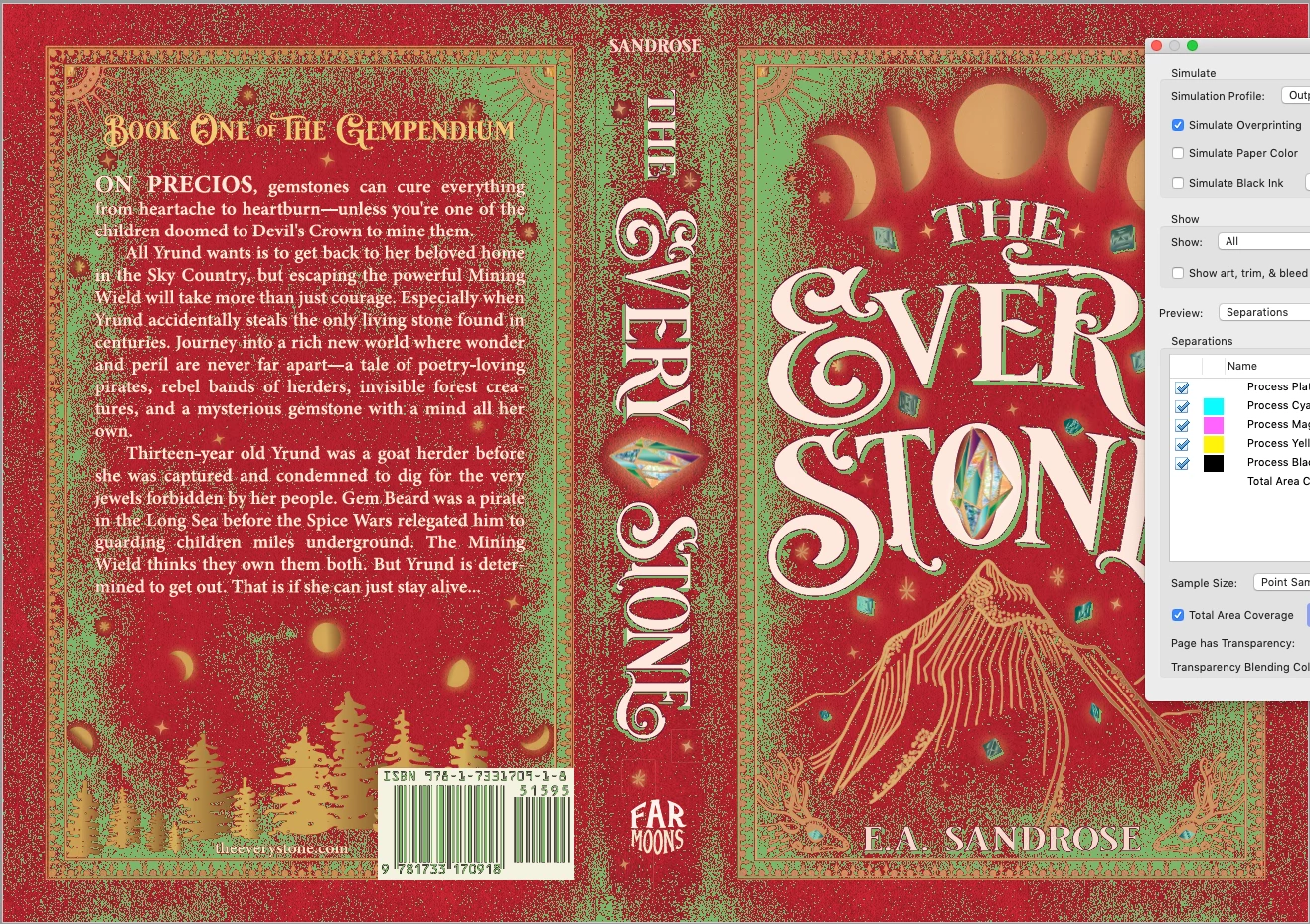


Would appreciate any suggestions to how to proceed. It's especially confusing as I thought this type of PDF (PDF/X-1a:2001 or PDF/X-3:2002) was supposed to flatten all the layers and transparencies anyway...


Correct answer Test Screen Name

One key, and important thing: if you use CMYK values (or images) in your design, the chances are those CMYK values will make it into the PDF. Because the assumption is you have the CMYK values you want. On the other hand, if you use RGB values (or images) in your design, and export a CMYK PDF, then Illustrator MUST convert them and MUST use your target profile... so if the profile has maximum ink built in, all will be well.


So, one way for you to work is to design entirely in RGB and allow the CMYK conversion to take care of everything else. 

6 replies

tomh52056997
Participant
June 13, 2025

I've discovered that if I change a CMYK file's color mode back to RGB and then back to CMYK, very often the total ink coverage will fall within range.

Ton Frederiks
Community Expert
Community Expert
June 13, 2025

If it is the correct profile it will convert the RGB values to CMYK within the limits of the profile.

But it is dangerous, all your black objects (like black text) will be converted to a rich multicolor black instead of 100% K.


Participant
August 22, 2023

Good morning,
Three years later I come across your discussions because I am having exactly the same problem: I am also working on a project with Lightning Source/Ingram (the French subsidiary) and therefore have to produce a cover with an ink rate of less than 240 %. Thank you for all these elements that will help me. Unfortunately, I did not understand all your exchanges because I am a beginner in the use of the Adobe suite, however I downloaded from color.org a color profile which seems to work to create a PDF < 240% ("SNAP 2007 "). There's one issue that I believe hasn't been resolved in this discussion: For the cover barcode, they require it to be 100% black on a white resist. However, the barcode provided by the service provider is not 100% black and I cannot change that. Can you tell me how to proceed?
With sincere thanks for your help!

Ton Frederiks
Community Expert
Community Expert
August 22, 2023

Is the barcode an image? You need to correct that in an image editor (maybe first Unembed it).

Participant
August 24, 2023

Thanks ! 

Ton Frederiks
Community Expert
Community Expert
January 5, 2020

I think you can get it to work (at least I can) without working in RGB.

I used the following profile: http://www.color.org/registry/CGATS21_CRPC1.xalter

Made a file in Illustrator in CMYK with some very high ink values and an image that exceeded 240%.

No conversion in Illustrator, just saved as the default PDF (without flattening).

In Acrobat I used Convert Colors, checked the Preserve Black option and choose the CGATS21_CRPC1.icc as destination profile.

No more warning when the TAC 240% is checked.

Save as PDF/X

Ton Frederiks
Community Expert
Community Expert
January 5, 2020

A small correction. It is better to flatten the file before converting the colors.

either in Illustrator or in Acrobat.

Converting before flattening still gives too high ink values.

sand_roseAuthor
Known Participant
January 5, 2020

 Not getting the same result.  Here's what I did.

  • Started with a version of the cover saved in CMYK MODE. Here's what that looks like before changing the profile:
  • Downloaded and installed the new color profile:  http://www.color.org/registry/CGATS21_CRPC1.xalter
  • Selected this new profile under Edit: Assign Profile
  • Note there is an instant massive color shift--all the shadows in the images decrease to a washed out look and the drop shadows features are nearly lost so the title no longer pops. See here:
  • Use the Save a Copy under File to create a PDF, selecting the PDF X-1a:2001 that the printer wants which converts the destination over to the new profile with this warning:
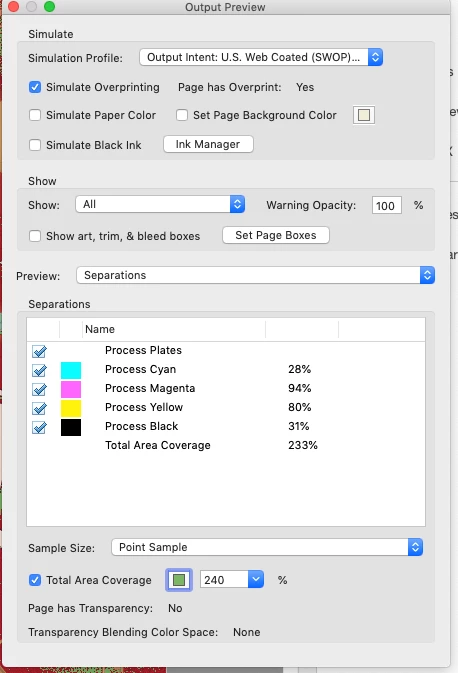
  • If you now open the PDF in Acrobat Pro DC and check the values under the Tools: Print Production: Output Previewer and select the TAC as 240%, all the previous spots light up as over.
  • If I go and convert in the Tools: Print Production: Preserve Black, then return to the Output Previewer and run the TAC again it's still over 240%. Is this because I am relying on the Save as PDF in X-1a:2001 to flatten? Should I be doing it someplace different?


Test Screen NameCorrect answer
Legend
January 5, 2020

One key, and important thing: if you use CMYK values (or images) in your design, the chances are those CMYK values will make it into the PDF. Because the assumption is you have the CMYK values you want. On the other hand, if you use RGB values (or images) in your design, and export a CMYK PDF, then Illustrator MUST convert them and MUST use your target profile... so if the profile has maximum ink built in, all will be well.


So, one way for you to work is to design entirely in RGB and allow the CMYK conversion to take care of everything else. 

sand_roseAuthor
Known Participant
January 5, 2020

Okay, let me try that right now. Thanks!!!!

sand_roseAuthor
Known Participant
January 5, 2020

Okay, that does make a huge difference. I duplicated the Ai file of cover, reset Color Mode to RGB (telling it to override the Color Settings for this one file) then saved a copy as a PDF X1a:2001, customizing the Output window to Convert to Destination: SWOP 240% (the new color profile mentioned in reply to other user in this thread).


Now when I open the PDF in Acrobat PRO DC, and use the Tools: Print Production: Output Preview, the TAC levels (when set to 241%) don't light up on the file if the simulation is set to the new SWOP 240% profile. It does light up (though less) if I set the simulation to US Web Coated (SWOP) v2. Is this a problem? Pic of each here:


Also, what do I send Ingram Spark, the printer, if they require the file saved in US Web Coated SWOP v2 with all ICC profiles turned off?


I did try converting the file in Acrobat to the new SWOP 240% then checking Output Preview again with the Simulation set to US Web Coated SWOP v2 and there are still areas over 240, same as above. See pic:

Ton Frederiks
Community Expert
Community Expert
January 5, 2020

It should be no problem to fix this in Acrobat.

One thing to watch out for with this type of conversions is 100% black becoming multi ink black, but Acrobat can prevent this.

As far as I can see only the barcode area has to be checked for this.

I would recommend to do this in Acrobat on an unflattened copy of your file and do the flattening after conversion to the limited inks.

I did not test this, but maybe this article can help:

https://www.selfpublishingreview.com/2016/03/how-to-fix-your-ingram-spark-pdf-with-free-pdf-fix-download/

sand_roseAuthor
Known Participant
January 5, 2020

Hi there,


Thanks for the reply. I did see that article you link to and even downloaded the preflight and followed its instructions all the way through, but I must be doing it wrong, as my file still displayed vivid green areas over 240% using it and became very blotchy and distorted, ruining the art.


Could you recommend which tool in Acrobat I should be using to "force" the TAC down? I'm very new to Illustror and working with a printer so not familiar with any of this yet, and I couldn't find a tutorial on this.

Ton Frederiks
Community Expert
Community Expert
January 5, 2020

You are right, I tried it, but it does not seem to change the total ink values.

It could be easily done with the right profile in Acrobat using Convert Colors with Preserve Black as opion checked.

The problem is, where to find the profile that limits the inks to 240 %.

You would expect that Ingram Spark would provide such a profile.

Legend
January 5, 2020

"I thought this type of PDF (PDF/X-1a:2001 or PDF/X-3:2002) was supposed to flatten all the layers and transparencies anyway..."


Yes, it flattens transparency (or rather, it cannot have any transparency, so the software that makes a PDF/X-1a or PDF/X-3 file has to flatten it first).  

Layers also cannot be stored in these old PDF/X formats. They aren't flattened, there just aren't any layers at all. (PDF layers aren't like layers in any other apps, so yes you can have a PDF with zero layers).

Still, what part of this is confusing?


Second question. That JPEG (which seems to be where the problems are focussed). Is it a CMYK JPEG or an RGB JPEG? This is crucial; you don't "fix" a CMYK JPEG in InDesign, but before it's made.

Legend
January 5, 2020

(Sorry, I mean you don't fix a CMYK JPEG in ILLUSTRATOR).