WanderElla
Inspiring
August 19, 2019
Answered

How to change the shape of a text box in Adobe Illustrator?
  • August 19, 2019
  • 4 replies
  • 38542 views

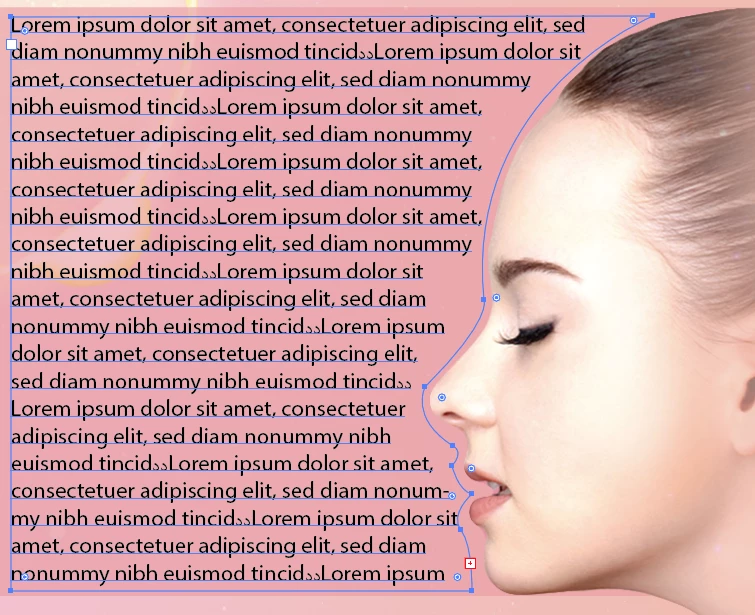
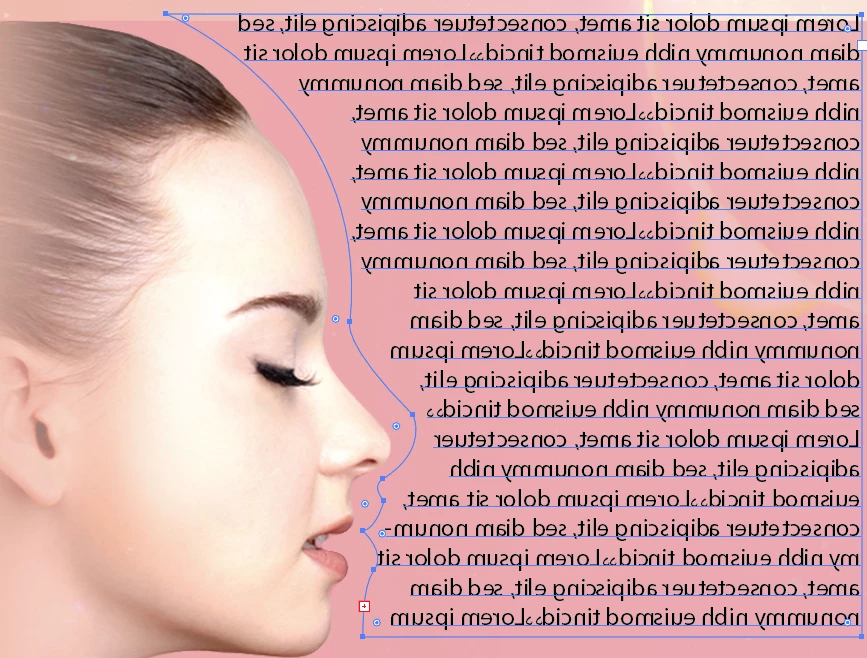
So this is an example of the text shaped or adjusted from the shape of the lady (see above picture). I need to know how it is done because I need to change the position of the lady from right to left so facing right, I need to also change the shaped part of the text. I just transformed the text box to show you how I want it to be but the text inside will also transformed (see picture below).
Thank you in advance guys!

Correct answer tromboniator

It seems to me that this is a pretty good place to use Text Wrap, from the Object menu. Use the Pen Tool to trace the head (or, as I did, Export Paths to Illustrator from Photoshop), and be sure that the new path is above the text. With just the new path selected, apply the Text Wrap, and adjust the offset in Text Wrap Options.

To move to the other side, just select both the head and the wrapping path, reflect, about the vertical axis, and align as you will. And, if you wish, change the offset.

Peter

Edit: Hi, Eric, I see you got in ahead of me!

4 replies

tromboniator
Community Expert
tromboniatorCommunity ExpertCorrect answer
Community Expert
August 19, 2019

It seems to me that this is a pretty good place to use Text Wrap, from the Object menu. Use the Pen Tool to trace the head (or, as I did, Export Paths to Illustrator from Photoshop), and be sure that the new path is above the text. With just the new path selected, apply the Text Wrap, and adjust the offset in Text Wrap Options.

To move to the other side, just select both the head and the wrapping path, reflect, about the vertical axis, and align as you will. And, if you wish, change the offset.

Peter

Edit: Hi, Eric, I see you got in ahead of me!

WanderElla
Inspiring
November 4, 2019

Thank you so much 🙂 

Anna Lander
Inspiring
August 19, 2019

Use Pen tool. Every text box is a vector form, so you can change it with Direct Selection tool (White arrow) and Pen tool.

1. Select the box edge by Direct Selection tool.

2. Use Pen tool. Click on the box segment where you want to have a new anchor point. The new point will appear.

3. Hold Ctrl (Cmd) button to temporarily get the Direct Selection Tool. Move the point to needed position.

4. If you need a smooth point, hold Alt (Option) and drag the handles from the point.

5. Add as many points as you need.

6. Adjust the line using Direct Selection Tool.

Eric Dumas
Community Expert
Community Expert
August 19, 2019

HI,

I think there is a simpler way.

Do not flip the text. Create a shape around the face, above the text frame, use that as a Object>Text Wrap>Make . Of course with no fill and no colour for the stroke.

So now, you can move, flip, adjust , rotate... the wrap shape it will push the text nicely.

Please always include the version of illustrator and operating system you are using, just in case.

Anna Lander
Inspiring
August 19, 2019

yes, you're right. Text Wrap is the best way. But since the question was "How to change shape?", I explained how to change shape

Ton Frederiks
Community Expert
Community Expert
August 19, 2019

If the textbox is already filled with text, you can direct select the textbox only and flip it.

Mohammad.Harb
Community Expert
Community Expert
August 19, 2019

Here is a workaround:

if you already filled the text inside the path, when you flip ithe path the content ( Text ) will also be flipped, so you need to flip the path first before filling it with text