Nice to see you again, Jber.
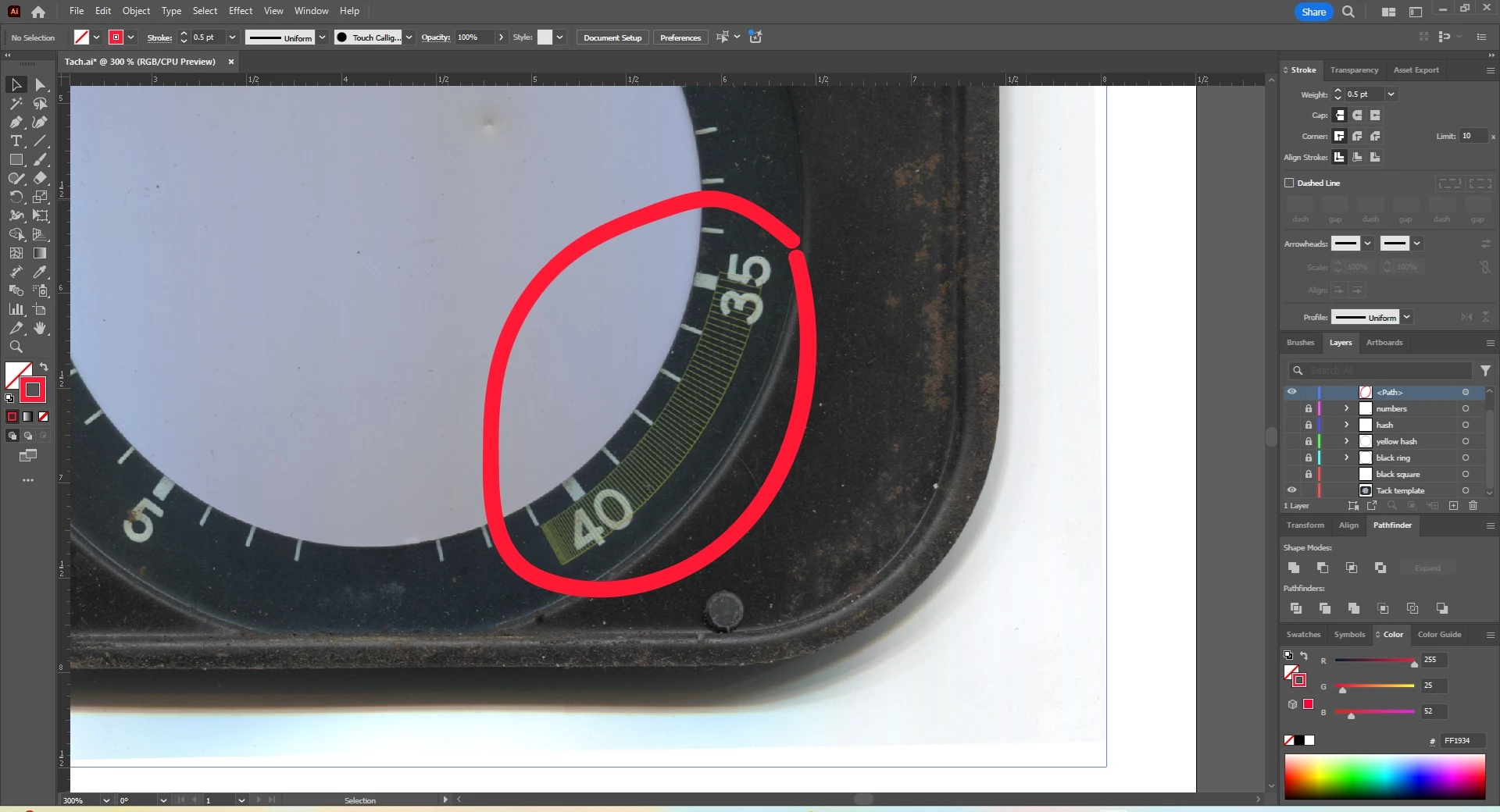
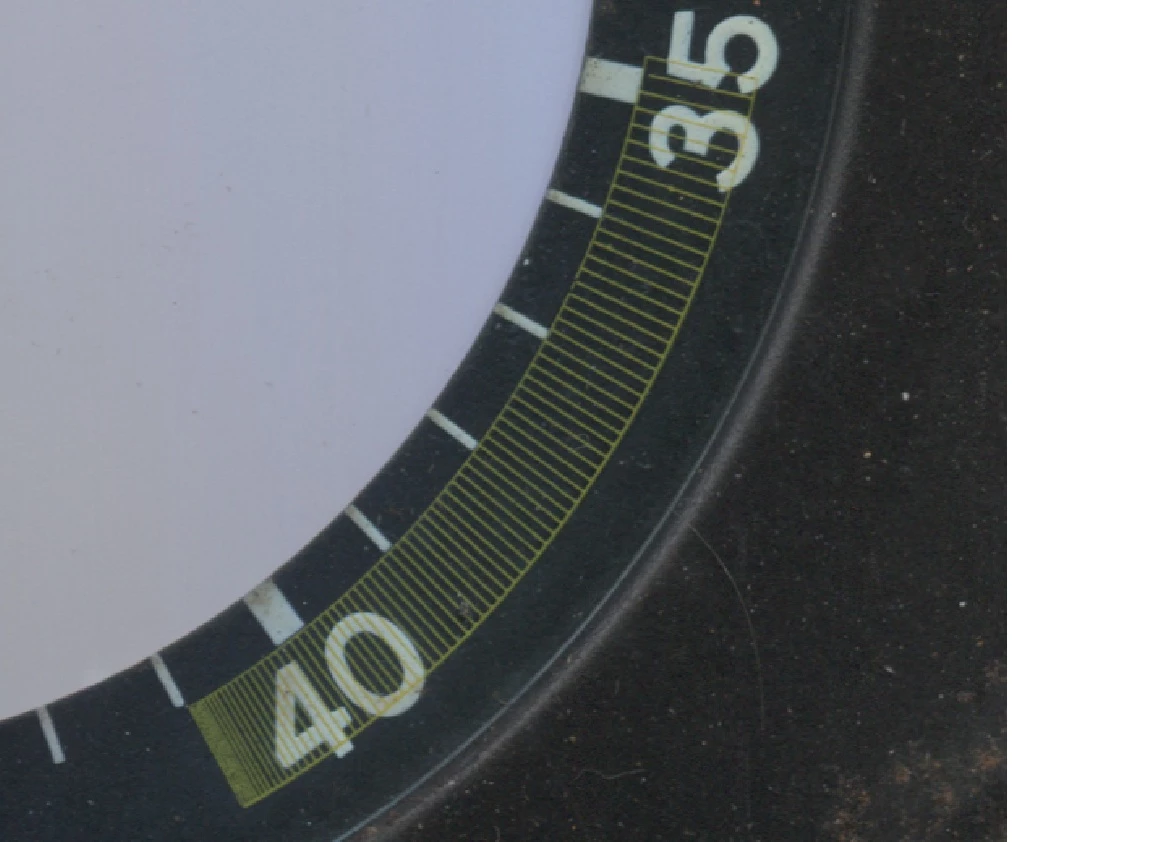
The space increase in your image seems improbable, especially at the beginning.
Depending on the way you wish/need the increase, you can, Smart Guides and the Line Segment Tool being your friends:
0) Create a midline for the set with the right length, angle span, and position, and a Stroke Weight of 1pt;
1) Create a horizontal set of vertical lines with the desired number, Stroke Weight and length, and increasing distance, in the most convenient way, which may be the Effect>Distort&Transform>Transform Effect with a suitable low Horizontal Scale and a suitable Horizontal Move and the deired number of tick marks that is expanded afterwards;
2) Object>Expand Appearance;
3) Turn 2) into a new Art Brush in the Brush palette;
4) Select the midline from 0) and apply the new Art Brush.
You can go back and forth, trying out different values and go back and forth between the steps; keeping backups of different versions of the artwork and Undo are also your friends.
If you wish to have the area shown as a frame, you need to add a horizontal line at top and bottom to the final version of the expanded horizontal set in 2), as follows:
1+) Ungroup the set twice, and Group the set again, then Join the first and last lines (you can deselect and then Direct Select the top Anchor Points and Ctrl/Cmd+J and do the same for the bottom ones, to turn those lines into a rectangle; it is safest to set the Cap to Butt (for the whole Group).
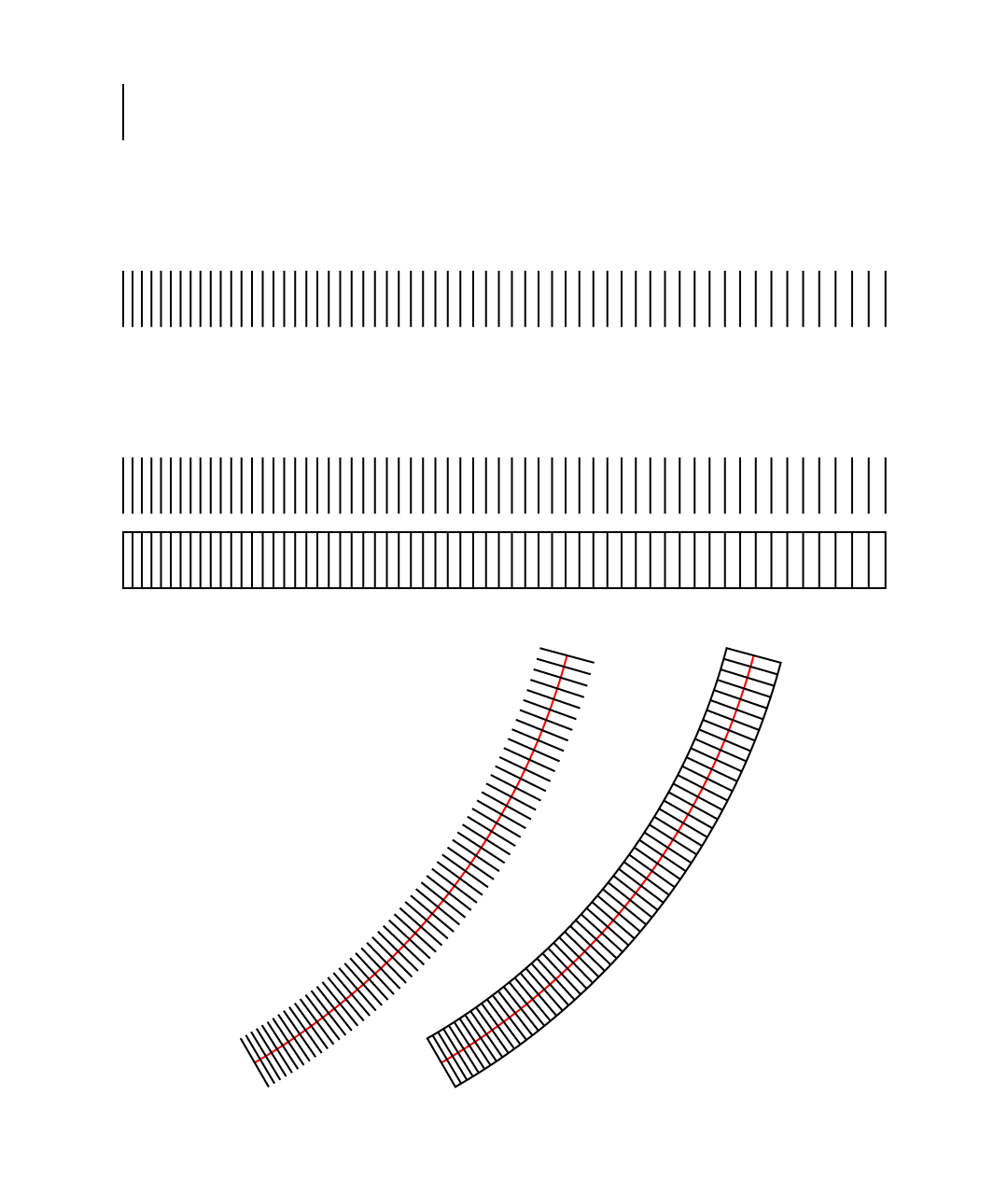
Below is shown a sample made as follows, just to give an impression
In 0) the midline is shown in red (at the very bottom), made as 45 degrees of a circle (originally with W=H=720pt, and rotated to start at 30 degrees from vertical corresponding to 40, going anticlockwise).
In 1) everything starts with a 30pt vertical line (Stroke Weight 1pt, Butt Cap), then Effect>Distort&Transform>Transform with a Horizontal Scale of 101% and a Horizontal Move of 5 pt (to start with, which will then increase) and 60 Copies (random number); the rate of increase increases with the Scale; you can try out different combinations till you hopefully get it right. You can already get a basic impression by this.
In 2)/3), The set is shown without and with the horizontal lines (possibly) added in 1+.
In 4) the final result is shown without and with the horizontal lines
 Click to get closer, Click again to get closer still

 AdChoices