Participant
September 26, 2018
Answered

How to create gradient that varies in direction inside a shape.

  • September 26, 2018
  • 5 replies
  • 1041 views

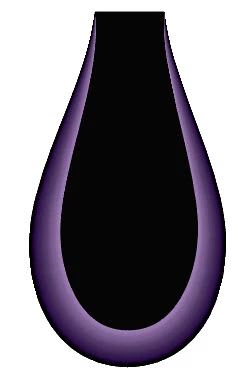
I'm trying to create a gradient effect like on the picture below, where a gradual fade follows the stroke.
I have tried to turn my gradient into a stroke, and to turn the gradient into an art brush, but it looks terrible where the width overlaps, and too controlled.

It will eventually have to be screenprinted, so it will have to be dithered, but I can figure that part out after.


Any advice is greatly appreciated.

This topic has been closed for replies.
Correct answer Myra Ferguson
  1. Draw your curve
  2. Increase the size of your stroke
  3. Apply a gradient to the stroke
  4. Make sure stroke is set to apply to the center (You won't get the option for the next step if the stroke is set to Align Stroke to Outside)
  5. Change gradient to Apply Gradient Across Stroke
  6. Use the Width Tool to vary the size of the stroke to taper it at the ends

5 replies

Myra Ferguson
Community Expert
Myra FergusonCommunity ExpertCorrect answer
Community Expert
September 26, 2018
  1. Draw your curve
  2. Increase the size of your stroke
  3. Apply a gradient to the stroke
  4. Make sure stroke is set to apply to the center (You won't get the option for the next step if the stroke is set to Align Stroke to Outside)
  5. Change gradient to Apply Gradient Across Stroke
  6. Use the Width Tool to vary the size of the stroke to taper it at the ends

Inspiring
September 26, 2018

You could make a blend:

When you have finished your object (left) you do Offset Path, select the inner and outer path and blend. In the screenshot I set the outer path to yellow and the inner path to black.

Participant
September 30, 2018

So far this has been the best response, and when I tried it on simple shapes it worked perfectly,

but this is the shape that I am trying to work with:

and this is what happens when I try to blend is.

I haven't worked much with blends before, so I don't know if i'm missing some essential piece of information, or if in fact my shape is just too complex.

any advice or ideas are  HIGHLY appreciated.

Monika Gause
Community Expert
Community Expert
September 30, 2018

You will probably need to divide this in multiple parts and do them separately. Also: Don't blend strokes, but fills instead. That way it will be easier to fit neighbouring blends.

Simmer1
Community Expert
Community Expert
September 26, 2018

Hi,

You could also try using the Mesh Tool if you an advanced user and reduce the opacity of the anchor point on the outer edges of the path.

How to use the Mesh Tool in Adobe Illustrator (Mesh Advanced) - YouTube

Monika Gause
Community Expert
Community Expert
September 26, 2018

Simmer1  schrieb

Hi,

You could also try using the Mesh Tool if you an advanced user and reduce the opacity of the anchor point on the outer edges of the path.

How to use the Mesh Tool in Adobe Illustrator (Mesh Advanced) - YouTube

Good luck with that on the spiky shapes.

Monika Gause
Community Expert
Community Expert
September 26, 2018

Two methods might work for you:

- a blend

- the Glow inside-effect