Exit
  • Global community
    • Language:
      • Deutsch
      • English
      • Español
      • Français
      • Português
  • 日本語コミュニティ
  • 한국 커뮤니티
1

How to create negative space around object?

Community Beginner ,
Nov 21, 2017 Nov 21, 2017

I have found several responses that are close to what I need to do, but not exactly applicable to my specific need.

I'am trying to create a negative space between 2 objects. I was able to achieve what I wanted to do via a white stroke in the first image (I know I accidentally cropped out part of it on both), but that didn't change the outline view which I need to be reflective of what I was trying to create. The second picture is what I have to work with. Thank you for help with what seems to be pretty basic of a task.

Canada F150 look.JPG

canada f150.png

8.4K
Translate
Report
Community guidelines
Be kind and respectful, give credit to the original source of content, and search for duplicates before posting. Learn more
community guidelines

correct answers 1 Correct answer

Community Beginner , Nov 22, 2017 Nov 22, 2017

Actually once I was able to expand the live paint there where some new cut lines and I just manually deleted all points needed to create the space. Thank you!

Translate
Adobe
Advocate ,
Nov 21, 2017 Nov 21, 2017

Not quite sure I understand but it seems like you are saying outlining the elements works but you need the solution to show up in outline mode as well? you might try turning the type into outlines if it is not already, use the Object>Path>Outline Stroke command to separate the stroke into its own shape. If you need to isolate the type, stroke and leaf then you might try a pathfinder option. Hope that helps

Translate
Report
Community guidelines
Be kind and respectful, give credit to the original source of content, and search for duplicates before posting. Learn more
community guidelines
Community Beginner ,
Nov 21, 2017 Nov 21, 2017

Yeah it's hard to explain. So the type is already an object and borrowed from a logo website. The file will be used to cut vinyl decals. When I had it just with the stroke outlined and white (to match the background) the lines were still behind the image in outline mode. That translates to cut lines with a vinyl cutter and thus ruins the whole decal. I was trying a remove from back/front approach, but couldn't get it to just remove the stroke object from the leaf.

Translate
Report
Community guidelines
Be kind and respectful, give credit to the original source of content, and search for duplicates before posting. Learn more
community guidelines
Community Expert ,
Nov 22, 2017 Nov 22, 2017

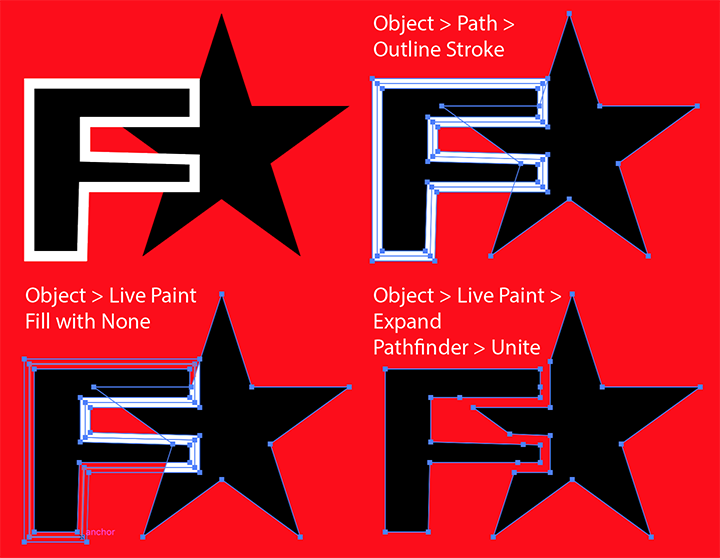
You can try: Object > Path > Outline Stroke

Object > Live Paint > Make

Use the Live Paint Paint Bucket to fill the white areas with None

Expand the Live Paint group

Use Pathfinder panel Unite to unite the black area.

NoStroke.png

Translate
Report
Community guidelines
Be kind and respectful, give credit to the original source of content, and search for duplicates before posting. Learn more
community guidelines
Community Beginner ,
Nov 22, 2017 Nov 22, 2017

Everything worked good until the expand live paint. It deleted the now transparent stroke layer and there is nothing to Unite anymore.

Translate
Report
Community guidelines
Be kind and respectful, give credit to the original source of content, and search for duplicates before posting. Learn more
community guidelines
Community Beginner ,
Nov 22, 2017 Nov 22, 2017

Actually once I was able to expand the live paint there where some new cut lines and I just manually deleted all points needed to create the space. Thank you!

Translate
Report
Community guidelines
Be kind and respectful, give credit to the original source of content, and search for duplicates before posting. Learn more
community guidelines
Community Expert ,
Nov 22, 2017 Nov 22, 2017
LATEST

Glad to hear you got it working.

It's always hard to give an exact solution without having the original file, so you just have to guess based on your pictures.

Translate
Report
Community guidelines
Be kind and respectful, give credit to the original source of content, and search for duplicates before posting. Learn more
community guidelines