Inspiring
August 21, 2020
Answered

How to create this round dots effect?

  • August 21, 2020
  • 4 replies
  • 1161 views

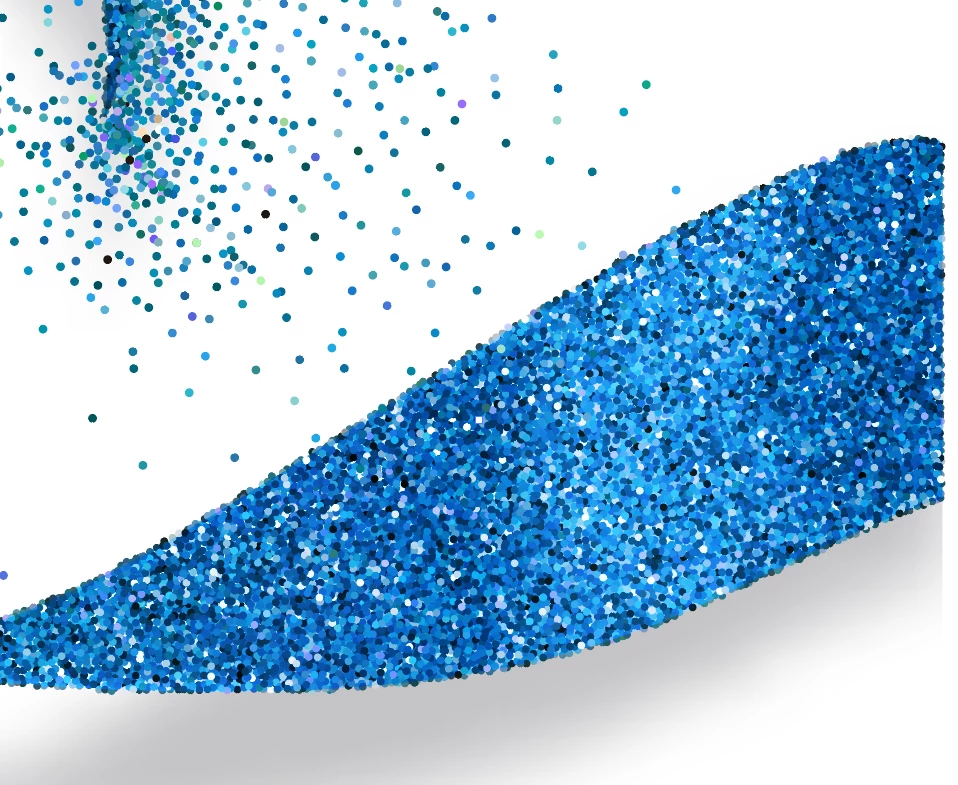
Looking to see if anyone have experience creating an effect from a shape to this? Goal is that dots have to be round (can't achieve this through built-in filters). Appreciate any input. Thanks!
 

Sample shape to create from:

This topic has been closed for replies.
Correct answer Ton Frederiks

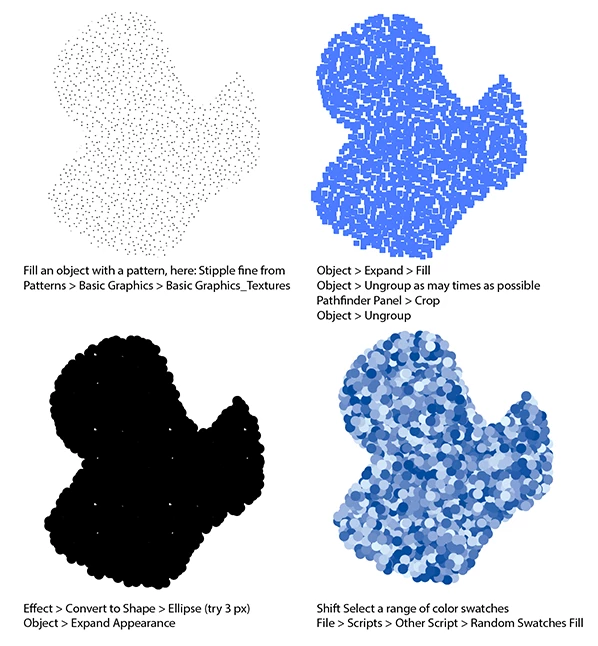
Fill an object with a pattern, here: Stipple fine from Patterns > Basic Graphics > Basic Graphics_Textures

Object > Expand > Fill

Object > Ungroup as may times as possible

Pathfinder Panel > Crop

Object > Ungroup

Effect > Convert to Shape > Ellipse (try 3 px)

Object > Expand Appearance

Shift Select a range of color swatches

File > Scripts > Other Script > Random Swatches Fill

See here for the script:

https://github.com/robotwood/Random-Swatch-Fill

4 replies

Ton Frederiks
Community Expert
Ton FrederiksCommunity ExpertCorrect answer
Community Expert
August 21, 2020

Fill an object with a pattern, here: Stipple fine from Patterns > Basic Graphics > Basic Graphics_Textures

Object > Expand > Fill

Object > Ungroup as may times as possible

Pathfinder Panel > Crop

Object > Ungroup

Effect > Convert to Shape > Ellipse (try 3 px)

Object > Expand Appearance

Shift Select a range of color swatches

File > Scripts > Other Script > Random Swatches Fill

See here for the script:

https://github.com/robotwood/Random-Swatch-Fill

Inspiring
August 23, 2020

wow. thanks so much for the illustration. am experimenting it.

KShinabery212
Community Expert
Community Expert
August 23, 2020

I think with Ton's answer.... everything works perfectly.  You just may need to manually place some of the greenish colored dots.  But his advice is spot on!

Let's connect on LinkedIn. https://www.linkedin.com/in/kshinabery/
Monika Gause
Community Expert
Community Expert
August 21, 2020

You could also check out the plugin Stipplism

Inspiring
August 23, 2020

thanks!

キィィ─!!!
Participating Frequently
August 21, 2020

In my own way,
1. Color Halftone


2. Image Trace


3. Expand
4. Ungroup
5. Transform Each


6. Duplicate and overlay on top (Multiply)

7. Transform Each


Inspiring
August 23, 2020

this sounds promising! still trying and will let you know. thanks so much.

lambiloon
Community Expert
Community Expert
August 21, 2020

Hi you can use it by scatter brush to achieve it and by playing it option like color variation...regards

Ali Sajjad / Graphic Design Trainer / Freelancer / Adobe Certified Professional
Inspiring
August 23, 2020

thanks!