
November 3, 2011
Question

How to created a 'pixelated gradient'?

  • November 3, 2011
  • 5 replies
  • 57904 views

Hi,

I'm lookinf for help on how to create a pixelated gradeint (if that's the correct term!) in Ullustrator CS5. I will be using a country map outline as the 'boundary' or container for my graphic.

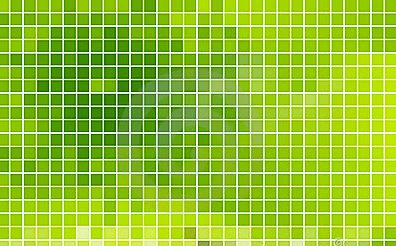
Below is a image I found on a stock website, which is basically what I want to do, but with only 2 colours. (though I'm assuming because it's a gradient I can changed them anyway). I've had a go with Live paint, which worked to some degree but it was incredibly time consuming and I have 20 or so graphics to do! Plus I want to minimise the lines as much as possible, which is not what is shows below.

Thanks for your help.
    5 replies

    Participant
    February 25, 2017

    I've got very similar question (noob) : want to create a mosaic pattern with three colors gradient from solid bottom to white top with mostly white from the middle on - also something like a stock photo I saw but with red gray and white - have already worked out how to do a total mosaic using two colors from http://robertsproductions.net/photoshop-mosaic-pattern/http:// but got stuck with (1) how to combine a gray and red version together and (2) how to apply a gradient to get them to fade out from mid screen ... any sugestions most appreciated!

    Monika Gause
    Community Expert
    Community Expert
    February 25, 2017

    That page serves a 404.

    I don't understand what you want to do.

    Known Participant
    September 12, 2016

    I have a similar project. I want to create a gradient of pixels exploding outwards. Sort of what Monika did, but actually using squares instead of a path. I just want to apply a radial gradient with mosaic look to this:

    Monika Gause
    Community Expert
    Community Expert
    September 12, 2016

    You want to fill this with a radial gradient?

    Are those single squares?

    In that case select them all, create a compound path and then apply the gradient.

    Known Participant
    September 12, 2016

    Thank you. That worked.

    Grant H
    Community Expert
    Community Expert
    November 3, 2011

    I would do this differently,

    is this something what u trying to do?

    If it is:

    1.    draw a square: 10mm x 10mm (for the purpose of this explanation)

    2.    Fill it with a 1(+1) colour gradient ( and a tint of that colour) you dont have to but end results better.

    3.    Then drag it into the symbols panel. (graphic when asked)

    4.    select the square on the art board (which is now a symbol)

    5.    then effect>distort and transform>transform

    6.    change the reference point to top left

    7.    copies 25, move horizontal 10mm, click ok

    8.    then effect>distort and transform>transform again and yes to apply new effect

    9.    change the reference point to top left

    9.    copies 25, move vertical 10mm, click ok

    10.    Then: object>expand appearence

    11.    Right click on object and ungroup TWICE

    12.    then select the symbol screen (or stainer) tool (play around with then and settings till u happy)

    13.    drag over the object.

    G

    November 3, 2011

    Grant,

    Thats kinda what I'm looking for, but I'm not using and kind of shape (you have what looks like a line?). I simply want to create a type fof radial gradient, but for it to be pixelated so there is more differenatiation between each square.

    This is what I tried earlier with Live paint. I can see that it will work if I make the squares smaller and the lines much thinner, but again, I have 20 artworks to do...

    I'll try your method shortly, I just though I'd post my goals incase you method could be altered.

    Thank You

    Monika Gause
    Community Expert
    Community Expert
    November 3, 2011

    Hi Mokina,

    Yes that's very close to what I'm looking for, howeve the only thing I would like (though could become quite troublesome) is that the gradient doesn't reach the very top of the map (In this case Scotland). But overall, that's the kind of result I want, and it looke like you applied a radial gradient straight over the UK, they made some changed in the moassaic panel? (could I fine tune the moassaic so that I don't look too much of the overall shape?)

    Thank you


    http://www.vektorgarten.de/img/tut/england-pixel.png

    Make that gradient as you like it. You can do that before making the mosaic or afterwards. When applying the gradient afterwards, single squares will have a gradient in them. The squares created by the mosaic function are solid colored.

    Monika Gause
    Community Expert
    Community Expert
    November 3, 2011

    Create a gradient structure in Photoshop or a gradient mesh or a gradient.

    Convert to pixel (rasterize) if necessary

    Object > Create Object mosaic, enter desired number of pieces

    to convert to 2 colors, use Edit > Edit colors > Recolor art

    Mylenium
    Legend
    November 3, 2011

    People call it "dithering" and once you look up the term on teh web, it becomes clear that it's just a matter of defining patterns to mimic optical density. Ergo, the process would involve using fill patterns, pattern brushes or similar to quickly create such structures in AI as well. If that's not possible because the designs exist in some fixed form as a multitude of small squares already, then indeed filling them individually is pretty much all you can do. In part it may also be possible to use combinations of live trace and the convert to mosaic function, though...

    Mylenium