Participating Frequently
December 9, 2017
Answered

How to cut a shape in 3D object?
  • December 9, 2017
  • 3 replies
  • 13648 views

Good day,

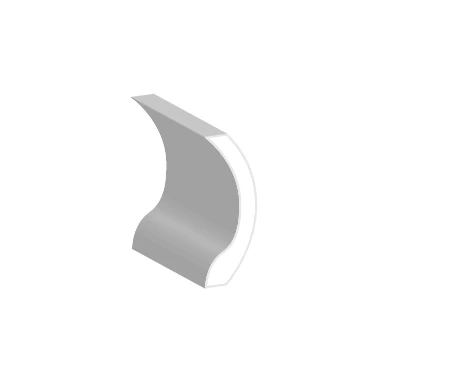
Is it possible to cut a shape in this already existing 3D object?

Thanks for every answer

This topic has been closed for replies.
Correct answer Kurt Gold

You would have to use two separate paths with appropriate arrangements (stacking order, angle).

Depending on the desired appearance you may even have to first expand the 3D effect and construct it manually.

3 replies

JETalmage
Inspiring
December 19, 2017

As explained previously, the limited feature set of 3D Effect does not let you contain different-length extrusions or differently-oriented extrusions in a single model.

Essentially, what you are wanting to do is contain the two identical extruded cross-sections in a single 3D model space, aligned concentrically in the extrusion direction (that much is possible), but with one more distant from the origin in the direction of the extrusion (that part is not possible).

If you wanted your final rendering to be parallel perspective (set the perspective slider set all the way to zero), it would be trivial to just use two separate models:

3DEffect_PerspectiveScale_01.PNG

But since your screenshot implies you want to end up a converging perspective, it would be tedious to get the perspective settings of two separate models to appear to align.

In Illustrator's 3D Effect, the shape of the sides of an extrusion is determined by shape of the Bevel profile. You can create additional Bevel profiles by [the tedious process of] opening the Bevels.ai file, drawing the profile, storing it as a Symbol in that document, saving that document, quitting and re-launching Illustrator.

A Bevel profile can have multiple "bumps":

Bevels_OuterSteps_01.PNG

If you apply a profile like those shown above using the outer bevel option, and scale the base path to a very small size, then the result will look like a row of separate extruded objects, connected by a thin "thread" through their centers. If the model is oriented so as to hide the "thread", it looks like what you are trying to do. Because your posted example is slender, the orientation you desire may not hide the "thread." But it would be fairly trivial to manually delete the paths which constitute the "thread" after expanding the Effect.

However, there's no reason why you can't combine the converging perspective generated by 3D Effect with ordinary 2D perspective techniques on the page:

3DEffect_PerspectiveScale_02.PNG

3DEffect_PerspectiveScale_03.PNG

JET

JETalmage
Inspiring
December 9, 2017

Depends on what you mean.

Assuming that is a 3D Effect object, then it is an extrusion. As long as the Effect is "live", any changes you make to the 2D base path will update the 3D extrusion. So you can make changes to the face of the object, because that is the shape being extruded. For example, you can create a hole in the face of the object by making it a Compound Path. The inner subpath(s) of the Compound Path will become Bolean subtractions in the direction of the extrusion.

But you cannot, for example, cut a hole through the sides of the extrusion because that is not derived from the base path, and because the limited feature set of 3D Effect does not let you contain different length extrusions or differently-oriented extrusions or different kinds of 3D transformations (e.g., a revolve object and an extrusion object) in the same 3D coordinate system (model).

JET

Participating Frequently
December 10, 2017

I'm actually trying to divide it into 2 halves with a hole between them like this:

Kurt Gold
Community Expert
Kurt GoldCommunity ExpertCorrect answer
Community Expert
December 10, 2017

You would have to use two separate paths with appropriate arrangements (stacking order, angle).

Depending on the desired appearance you may even have to first expand the 3D effect and construct it manually.

Monika Gause
Community Expert
Community Expert
December 9, 2017

No, Illustrator cannot do 3D boolean operations.

What you can do is map artwork to the 3D shape. Then expand the appearance and use the mapped artwork as a guide for further path editing.