matthewo78788568
Participant
March 3, 2019
Answered

How to cut out a section of a vector line art image?

  • March 3, 2019
  • 6 replies
  • 2198 views

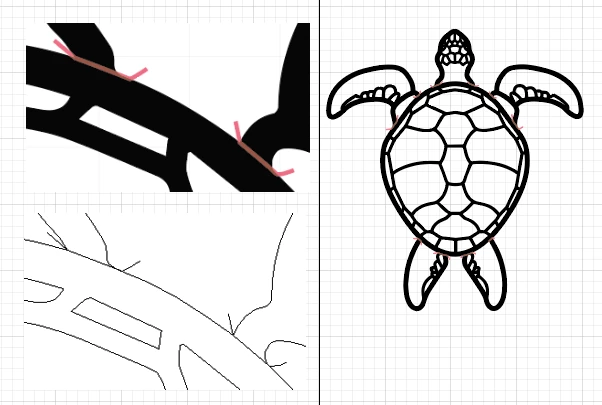
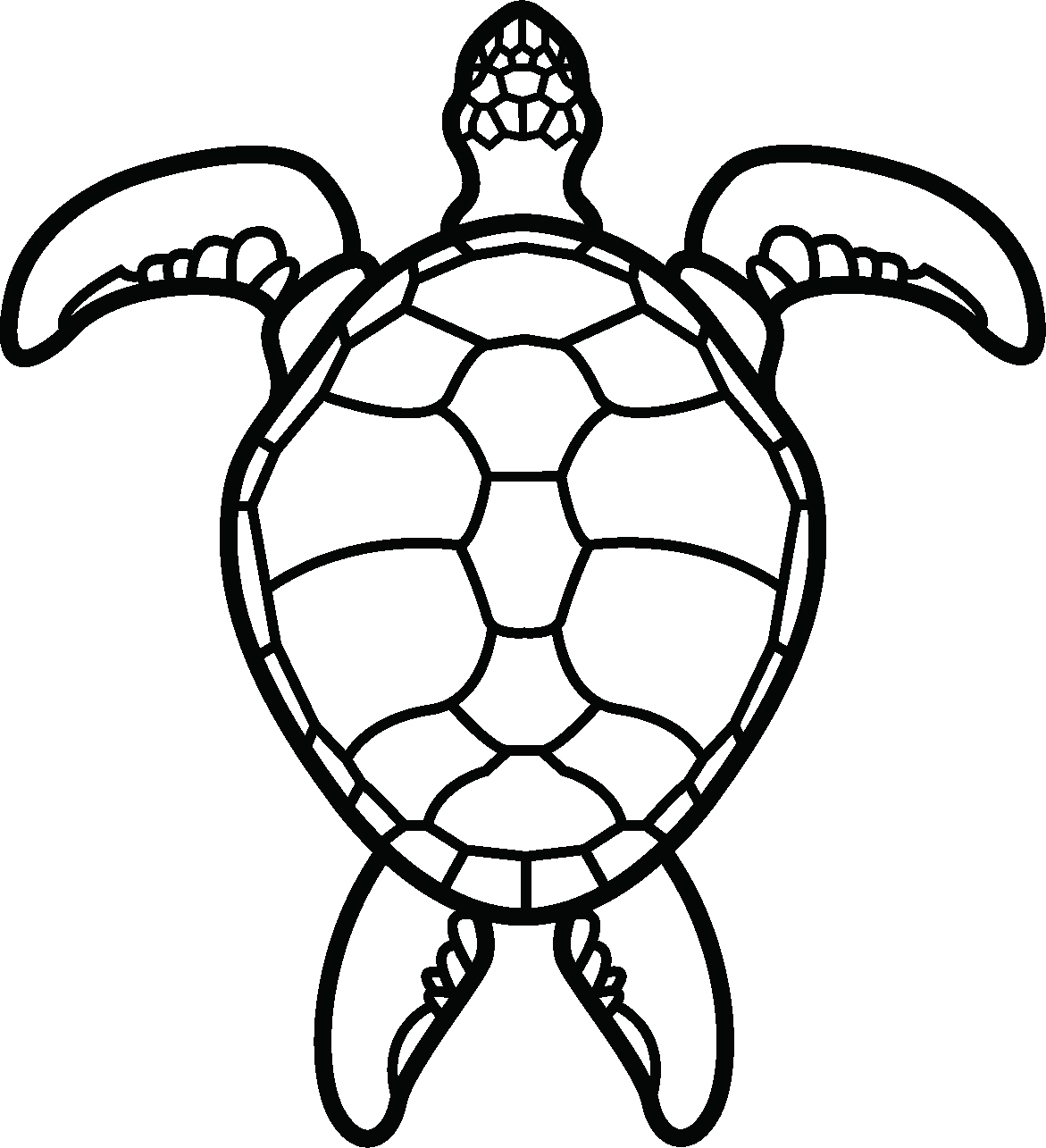
Hello. Hoping someone can help with this. I would like to just cut out the shell from this vector image. How would I go about removing the fins and head but keep the outside line smooth and uniform? Thanks for the help!
Correct answer kphotopage

Thank you for providing a screenshot with your paths selected and Layers Panel.

I'm assuming the problem here, your fill paths (turtle's shell and fins,heads) are united (in part). (compounded path)

Like Barbra said, there are many ways to do this.

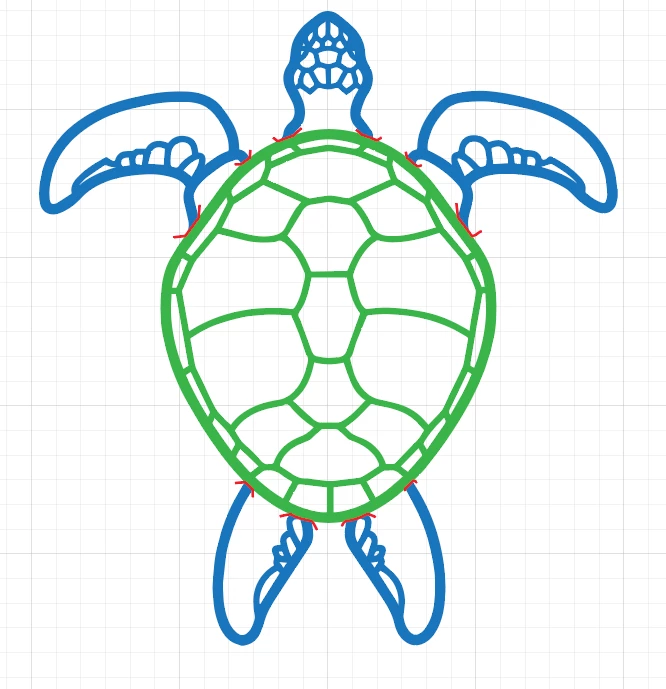
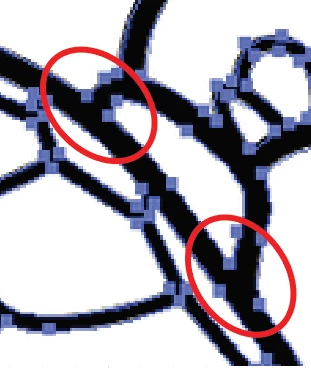
First I used the Pen tool and drew some strokes at the joints.

These strokes will be used as “cutters”. Shown in red.

Next I used Live Paint Fills.

Then Expanded Live Paint, regrouped and labeled.

6 replies

matthewo78788568
Participant
March 4, 2019

Thanks everyone for the help. I got it figured out.

kphotopage
kphotopageCorrect answer
Legend
March 4, 2019

Thank you for providing a screenshot with your paths selected and Layers Panel.

I'm assuming the problem here, your fill paths (turtle's shell and fins,heads) are united (in part). (compounded path)

Like Barbra said, there are many ways to do this.

First I used the Pen tool and drew some strokes at the joints.

These strokes will be used as “cutters”. Shown in red.

Next I used Live Paint Fills.

Then Expanded Live Paint, regrouped and labeled.

barbara_a7746676
Community Expert
Community Expert
March 3, 2019

Looks like the black areas are one filled shape, no strokes.

There are multiple ways that you approach this. One way would be to use the Eraser tool. You'll need to be careful when you get close to the edges and possibly change the eraser to a small size when close to edges.

Start by selecting the whole thing with the black Selection tool.

Select the Eraser tool.

You can use the left and right bracket keys to adjust the size of the eraser (the ones to the right of the 'P' key).

Then just drag with the eraser over any areas that you want to remove.

If any areas are a bit rough, you can use the Smooth tool to drag over them. You may need to drag over them a few times to get the smoothness you want.

Community Expert
March 3, 2019

Select all Go to object path outline stroke
Then try to use pathfinder
But you can try to remove anchor points remover or shape building tool, or you can try vectorscope plugin for illustrator.

Ray Yorkshire
Participating Frequently
March 3, 2019

Select it all , switch to Shapebuilder Tool

Hover the mouse over the parts you wish to delete , and Alt Click to remove

You might need to go Object > Unlock all , first

matthewo78788568
Participant
March 3, 2019

Thanks for the response but that did not work. As the lines are all connected.

jane-e
Community Expert
Community Expert
March 3, 2019

Hi Matthew,

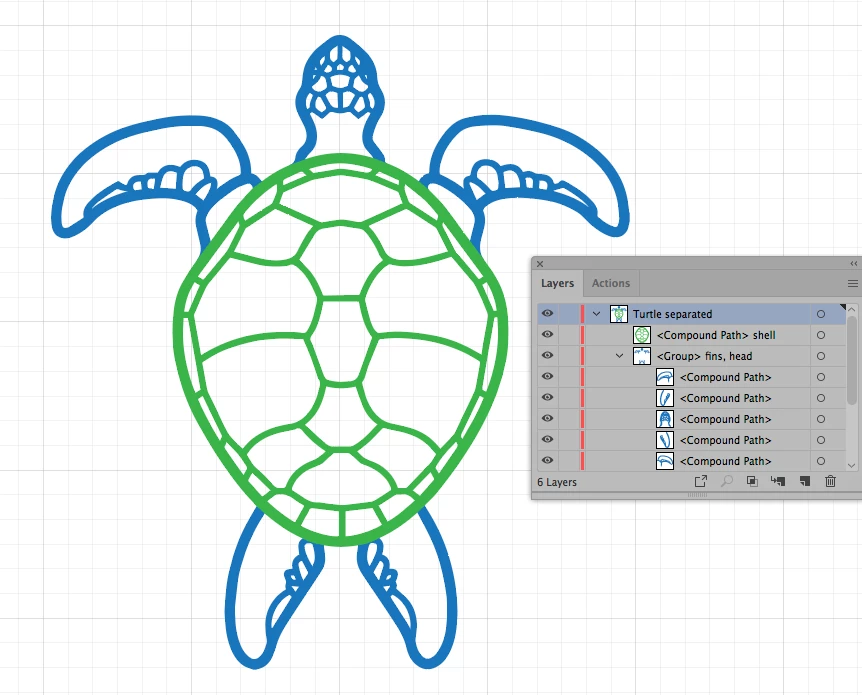
It depends on how it was made. Can you show the Layers panel and click the disclosure triangle to open it?

Is it a group? Is it made of individual pieces? Is it a compound path?

With luck, you’ll be able to select and delete the parts you don’t want. Otherwise you might need to use the eraser or scissors or Live Paint tools. We can give you a better answer when we know what you are working with.

Jane

matthewo78788568
Participant
March 3, 2019

Hi Jane,

Thanks for reaching out. Please see attached photo. I believe it is a compound path. As they are not individual pieces.

Thanks for your help.