Inspiring
September 13, 2025
Answered

How to draw a "linked spiral"?

  • September 13, 2025
  • 7 replies
  • 1723 views

Dear all,

I have a two-fold question:

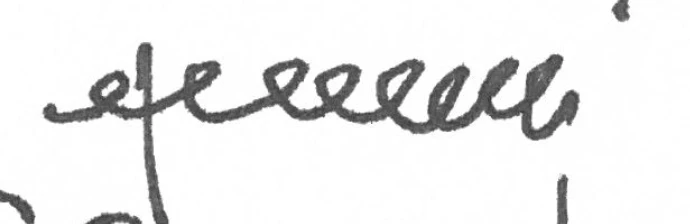
1. what is the name of the shape/path/object shown in the picture below? This was handwritten by the composer and I need to create something similar but obviously much cleaner. Linked spiral? Linked sinusoid? 

2.  How do I create this in Illustrator?

I've already tried (also badly advised by ChatGPT):

a) simple line with Zig-zag tool (only regular sine-wave)

b) curvature tool but I cannot get where I want

c) curvature + transform repeating but I cannot get the basic curve right to then repeat it.


Can you help, please? Not knowing how to call this object I am also having trouble looking for possible solutions online. 

Thanks!

Correct answer Jacob Bugge

Inélsòre,


Here is the corrected extended suggestion mentioned above, obviously to be generally scaled for final sheet use and adapted to each eolifono part.


It can be created in the way described and shown below, with Smart Guides (View>Smart Guides) being your friends, saying when you are within snapping distance,


You can look at Use Smart Guides, and specifically Set Smart Guides preferences here,
https://helpx.adobe.com/illustrator/using/rulers-grids-guides-crop-marks.html


The steps are as described and shown below, with the numbers (in pt) used in the drawings, to be scaled for final use in and adapted to each eolifono part. Always keep copies of steps that you may need to use again.


All loops are shown as stroked paths with Butt Cap for clearest view of steps; that can be changed to Round Cap for final use.


1) Create a basic loop, here corresponding to the lowest turning speed shown at the top, using two circles, one for the top and one for the bottom, at a size ratio of 1:2:
1A) For the top create a circle shown with W/H = 120, then delete the lower half; now you have a top half circle;
1B) For the bottom create a circle shown with W/H = 240, then delete the top half and cut the bottom half at the bottom Anchor Point; now you have two bottom quarter circles;
1C) Deselect, then ClickDrag each of the quarter circles from 1B) by the top Anchor Point to snap to the corresponding bottom Anchor Point of the half circle from 1A), then join the parts;


Now you have the basic loop; loops of other widths are made by horizontal scaling.


The shape of the basic loop shown is chosen as the lowest to give soft curves in he full range of loop widths.


The span of turning speed ratios shown at the top corresponds to an octave with sets of identical loops at loop widths of 120, 90, and 60. The copying can be made with the Transform effect.


The Transform effect is found in the Effect dropdown, under Effect>Distort & Transform>Transform.


2) To prepare an Accelerando from an initial loop to a final loop, apply a single Transform effect, including:
2A) A Horizontal Move equal to the initial loop width, shown as 120, the basic loop witdh from 1), and
2B) A number of Copies that is one less the desired number of loops, shown as 12 so 11 Copies, and
2C) A Horizontal Scale calculated from the ratio R of final loop width to initial loop width, shown as 60 and 120 so the ratio is 1:2 = 0.5 (0,5), and the number N of Copies from 2B so 11 Copies, the Horizontal Scale being the Nth root of R, here the Horizontal Scale 93.89% (93,89%);

Now you have the Transform as an effect applied to the initial loop; to get the actual set of loops:
2D) Select the initial loop, then Object>Expand Appearance to have the loops as individual loops;


Now you have the set of loops for the Accelerando, but there are gaps between them to be removed in 3).


The calculation of the Horizontal Scale corresponds to the calculation of descending pitches within an octave based on equal temperament.


3) To finalize the creation of Accelerando from the individual loops made with the Transform in 2):
3A) Select all the loops, then Click the intital loop, then apply the Horizontal Distribute Space with the value 0 under Distribute Spacing in the Align palette;

Now you have the individual loops abutted with the initial loop kept in place; to work with the entire Accerlerando conveniently:
3B) Group the individual loops;


Now you have the final Accelerando.


To create a Rallentando it is more accurate and consistent to create it from the corresponding Accelerando as follows:


4) To create a final Rallentando, simply select the corresponding Accelerando from 3) and reflect it with a vertical axis,


Now you have the final Rallentando.


Further to steps 1) - 4) you can create and extend sets of loops by ClickDragging additional (sets of) loops by the lower left Anchor Point to snap to the lower left Anchor Point of the previous loop (set).


This is shown in the two samples at the bottom.


The first sample at the bottom is simply the Accelerando from 3) followed by the Rallentando from 4).


To go further than an eolifono entry on the sheet and a general indication such as identical loops or (combinations of) Accelerando and Rallentando, you can draw more specific instructions with more variation where the turning speed is adapted to support/enhance the dynamics of leading instruments at specific places in the sheet, such as higher and more rapidly increasing turning speeds at Forte and Crescendo shown by narrower loops and a shorter Accelerando to new higher levels and/or adding identical loops to maintain levels.


The second sample at the bottom is a customized set of loops with more variation, with loops spanning widths from 120 over a level at 30 to a level at 18, corresponding to almost three octaves and showing that it can be drawn, built with both Transform and simple moving and scaling of individual loops.Click to get closer, Click again to get closer still


7 replies

Jacob Bugge
Community Expert
Jacob BuggeCommunity ExpertCorrect answer
Community Expert
September 22, 2025

Inélsòre,


Here is the corrected extended suggestion mentioned above, obviously to be generally scaled for final sheet use and adapted to each eolifono part.


It can be created in the way described and shown below, with Smart Guides (View>Smart Guides) being your friends, saying when you are within snapping distance,


You can look at Use Smart Guides, and specifically Set Smart Guides preferences here,
https://helpx.adobe.com/illustrator/using/rulers-grids-guides-crop-marks.html


The steps are as described and shown below, with the numbers (in pt) used in the drawings, to be scaled for final use in and adapted to each eolifono part. Always keep copies of steps that you may need to use again.


All loops are shown as stroked paths with Butt Cap for clearest view of steps; that can be changed to Round Cap for final use.


1) Create a basic loop, here corresponding to the lowest turning speed shown at the top, using two circles, one for the top and one for the bottom, at a size ratio of 1:2:
1A) For the top create a circle shown with W/H = 120, then delete the lower half; now you have a top half circle;
1B) For the bottom create a circle shown with W/H = 240, then delete the top half and cut the bottom half at the bottom Anchor Point; now you have two bottom quarter circles;
1C) Deselect, then ClickDrag each of the quarter circles from 1B) by the top Anchor Point to snap to the corresponding bottom Anchor Point of the half circle from 1A), then join the parts;


Now you have the basic loop; loops of other widths are made by horizontal scaling.


The shape of the basic loop shown is chosen as the lowest to give soft curves in he full range of loop widths.


The span of turning speed ratios shown at the top corresponds to an octave with sets of identical loops at loop widths of 120, 90, and 60. The copying can be made with the Transform effect.


The Transform effect is found in the Effect dropdown, under Effect>Distort & Transform>Transform.


2) To prepare an Accelerando from an initial loop to a final loop, apply a single Transform effect, including:
2A) A Horizontal Move equal to the initial loop width, shown as 120, the basic loop witdh from 1), and
2B) A number of Copies that is one less the desired number of loops, shown as 12 so 11 Copies, and
2C) A Horizontal Scale calculated from the ratio R of final loop width to initial loop width, shown as 60 and 120 so the ratio is 1:2 = 0.5 (0,5), and the number N of Copies from 2B so 11 Copies, the Horizontal Scale being the Nth root of R, here the Horizontal Scale 93.89% (93,89%);

Now you have the Transform as an effect applied to the initial loop; to get the actual set of loops:
2D) Select the initial loop, then Object>Expand Appearance to have the loops as individual loops;


Now you have the set of loops for the Accelerando, but there are gaps between them to be removed in 3).


The calculation of the Horizontal Scale corresponds to the calculation of descending pitches within an octave based on equal temperament.


3) To finalize the creation of Accelerando from the individual loops made with the Transform in 2):
3A) Select all the loops, then Click the intital loop, then apply the Horizontal Distribute Space with the value 0 under Distribute Spacing in the Align palette;

Now you have the individual loops abutted with the initial loop kept in place; to work with the entire Accerlerando conveniently:
3B) Group the individual loops;


Now you have the final Accelerando.


To create a Rallentando it is more accurate and consistent to create it from the corresponding Accelerando as follows:


4) To create a final Rallentando, simply select the corresponding Accelerando from 3) and reflect it with a vertical axis,


Now you have the final Rallentando.


Further to steps 1) - 4) you can create and extend sets of loops by ClickDragging additional (sets of) loops by the lower left Anchor Point to snap to the lower left Anchor Point of the previous loop (set).


This is shown in the two samples at the bottom.


The first sample at the bottom is simply the Accelerando from 3) followed by the Rallentando from 4).


To go further than an eolifono entry on the sheet and a general indication such as identical loops or (combinations of) Accelerando and Rallentando, you can draw more specific instructions with more variation where the turning speed is adapted to support/enhance the dynamics of leading instruments at specific places in the sheet, such as higher and more rapidly increasing turning speeds at Forte and Crescendo shown by narrower loops and a shorter Accelerando to new higher levels and/or adding identical loops to maintain levels.


The second sample at the bottom is a customized set of loops with more variation, with loops spanning widths from 120 over a level at 30 to a level at 18, corresponding to almost three octaves and showing that it can be drawn, built with both Transform and simple moving and scaling of individual loops.Click to get closer, Click again to get closer still
Jacob Bugge
Community Expert
Community Expert
September 19, 2025

Edited:


Inélsòre,


I really apologize for the error in the written specification of the basic loop in this reply: of course the right ratio between the two circles is 1:2 as shown throughout the drawings, not 2:3.


In order to keep everything together, and to avoid misleading anyone (else), I have replaced this reply by this corrected extended suggestion below,

https://community.adobe.com/t5/illustrator-discussions/how-to-draw-a-quot-linked-spiral-quot/m-p/15516250#M453858


Inspiring
September 22, 2025

Thank you so much for this!

As this is all quite new to me, I will need some spare time to concentrate on each step and learn the most out of it.

Thank you also for your patience, I've been travelling these last days and couldn't get near the computer. 

Jacob Bugge
Community Expert
Community Expert
September 22, 2025

You are welcome,  Inélsòre.


With the strict timeline constraint, if you get stuck, please ask so you can get unstuck as soon as possible.


Hopefully, you can create the basic loop early and build everything on that, so you can get consistent shapes throughout and  the best possible shapes for both simple and more complicated pieces.


Jacob Bugge
Community Expert
Community Expert
September 17, 2025

Inélsòre,


Edited: I have replaced this reply by this extended suggestion below,

https://community.adobe.com/t5/illustrator-discussions/how-to-draw-a-quot-linked-spiral-quot/m-p/15513175#M453703


Inspiring
September 17, 2025

I've received two answers since yesterday but both musical examples only use trill lines for the wind machine. 

They are from the first half of the XX century, though, and finding copyrighted material to just browse like this is not exactly easy (nor it should be!). 


I really like your example, though I'm not sure how you got from step 1) to the others! 🙂


PS: actually, I may be getting something. Are you using the Object > Transform > Scale set to, e.g., 90% horizontal and then hitting Copy? If so, it has a very nice effect but I'm encountering two main issues:

1) when I then go to Object > Transform Again nothing happens or, other times, the object gets moved instead of transformed

2) perhaps I'm missing something but, to repeat this action isn't there a quicker way than going every time to the app's menu at the top? Sure, shortcut for Transform > Scale but... perhaps I have a problem with Transform Again?

Jacob Bugge
Community Expert
Community Expert
September 17, 2025

Thank you for your kind words, Inélsòre.


Edited: I have replaced the reply above by an extended suggestion below with a description of the steps 1) - 4) and beyond, and an improved set of drawings, so everything is kept together.


Jacob Bugge
Community Expert
Community Expert
September 15, 2025

Inélsòre,


Am I wrong in believing that a small wavy line is used as another notation for the wind machine?


If that is the case, this would be a simpler shape to work with, based on something like the Zig Zig effect.


Edit: In order to ensure a viable solution, it would be helpful to see a few samples of what is actually desired or required, including the accelerando and rallentando, if only a hand drwan sketch however loose with a few remarks.


The composer sample seems to intend to show accelerando, mayby with the loops becoming generally narrower, but very loosely and inconsitently.


I believe there must be other samples more consistently showing the shapes and a consistent change.


It would also be good to know how many loops can be needed, including how many within a bar and the size.


Not least it could be important to know whether the notation is to specify the actual performance of the wind machine, or only to give some kind of general indication. Notations with wavy lines seem to be unnchanged, and presumably the notation can be elaborated by simply adding the word Accelerando or Rallentando.


I fully agree with this from Kurt:


"I'm not familiar with wind machines and don't know if there are specific rules for the notation of wind sequences. Or if it is rather about some rough guide for improvisations.


You may clarify that, so one can think about other approaches."


Inspiring
September 16, 2025

I will indeed come back with some examples but, for now, that's the only example I could readily find. 

Hang on! 

Jacob Bugge
Community Expert
Community Expert
September 14, 2025

Inélsòre,


1: Garlands, as opposed to arcades. Your sample is pure garland writing. But that may be a forgotten term from a distant past. Anyroad, it can hardly help you, see 2.


2: I believe it can only make sense to replace the irregular handwriting if it can be still be read and understood. The sample is loosely written, but there are differences in the garlands that may seem to be mere irregularities but are crucial in making it readable, at least for the writer or someone else knowing the context. A replacement with repeated identical loops would most likely be unreadable for the original writer, having to try to remember what was intended.


Inspiring
September 14, 2025

Thank you for helping with the terminology! That must be "ghirlanda" in Italian. As you said, that's not going to help in Illustrator. 

Luckily, this kind of writing is common and understandable for those neck-deep like me in contemporary classical music engraving. This is a technique for a percussion instrument called "wind machine" which must be rotated wildly in the air to produce a certain effect. This act of rotation is expressed with this kind of loops. 

I have now submitted my option with identical loops to the editor and will see if the composer indeed wanted somethign less regular. The main issue here, though, is the quite strict timeline constraint which will make any discussion about "what would have been better" sadly pointless.

Kurt Gold
Community Expert
Community Expert
September 14, 2025

If you want something not too clean (like a pattern brush), but also do not want to use the Pen tool, the Curvature tool or the Pencil tool (which of course are appropriate tools in this case) , you may do another approach by drawing a spiral and then take the Reshape tool to extend the spiral and get some clean but also irregular scrawls (see example below, wind some moments before Harmonica shoots Frank).


Not sure if it may be useful in conjunction with a wind machine, but you may try it.


Monika Gause
Community Expert
Community Expert
September 13, 2025

Draw one loop and then make a pattern brush.

Inspiring
September 14, 2025

Great advice, although not knowing how to do that I googled (and also looked for the same in the user manual) for "illustrator create pattern brush" which returned apparently a page in the user guide that explained it. Upon clicking it, and perhaps because the locale of my machine was not set to English or USA as region, it brought me to the homepage of Adobe learning. I browsed and browsed, never finding what I was looking for. All my limitations taken in consideration, I do not think that direct links such as https://www.adobe.com/learn/illustrator/web/illustrator-create-pattern-brush should bring anyone to this https://www.adobe.com/it/learn/illustrator?learnIn=1 — then, you can try all you want to look for pattern brushes in the search field, you will not get to what you are looking for with a realistic amount of effort. It is just frustrating and useless... luckily there was a YouTube video by Paul Trani that, in 3 minutes, explained the basics. 


Now, to this drawing. I started with a single loop and dragged it to the brush panel creating a pattern brush. Not happy with the space between the repetitions I went back to the drawing board, duplicated the loop, adjusted the connecting arms so that they could align better and tried again. While this is much better than before, I still see too much light in between the repetitions. 

Could you suggest how to improve on this? Thanks!

Inspiring
September 14, 2025

In order to make a looped spiral path repeat consistenly the start point and end point of the loop need to be placed in specific locations. I'd create a box a specific size to use as a sort of guide. With Smart Guides turned on, I'd use the Pen tool to draw the loop. I'd snap the starting point to the lower left corner of the box and snap the end point of the loop to the lower right corner of the box. I'd adjust the direction point handles on both ends of the loop where they're horizontal and snapping to the edge of the box. That's what will make the curve of the repeating loops look more seamless. The actual loop in between the start point and end point can made in any matter, even over-shooting the box guide. But you can make copies of the loop using the numerical size of the box guide to position the copies of the loop.


quote

 But you can make copies of the loop using the numerical size of the box guide to position the copies of the loop.


By @Bobby Henderson

Thanks a lot!

The quoted portion above is the only thing I'm not sure to understand.