
Participant
December 12, 2019
Answered

How to erase a layer below my selection without erasing outside the selection?

  • December 12, 2019
  • 1 reply
  • 429 views

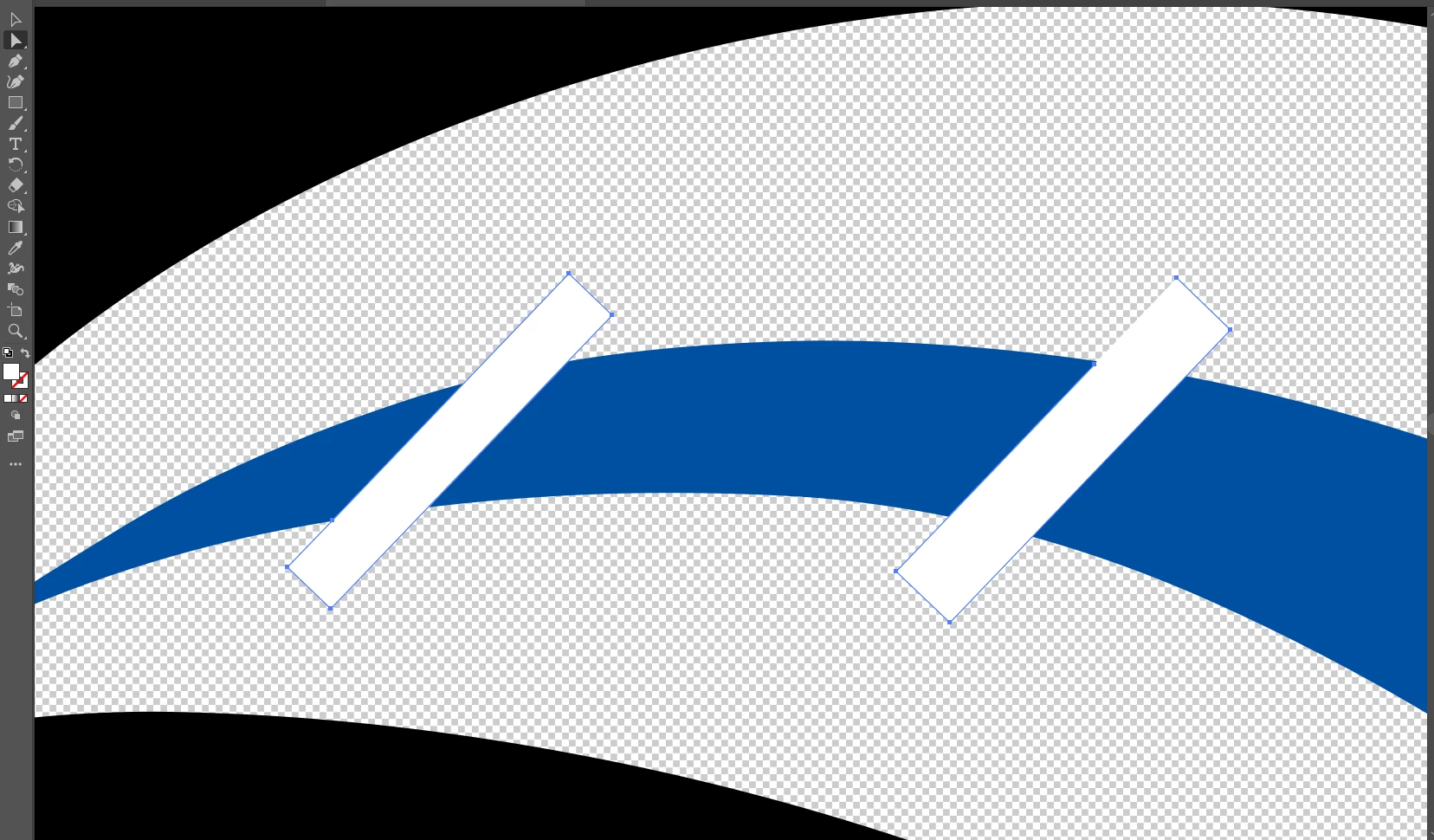
I'm trying to create a basic road icon. I used white rectangles to create the gaps in the road, but then when I changed my background to transparent, I realized the blue road needs to be transparent where those gaps are and once i've erased those gaps into the blue road, the white rectangles need to be removed.


Is there any way I can have those white rectangles selected and then erase the blue road WITHOUT erasing beyond those rectangles? I'm very new to illustrator, so I'm sorry if this is a stupid question.


Thanks!
This topic has been closed for replies.
Correct answer Ton Frederiks

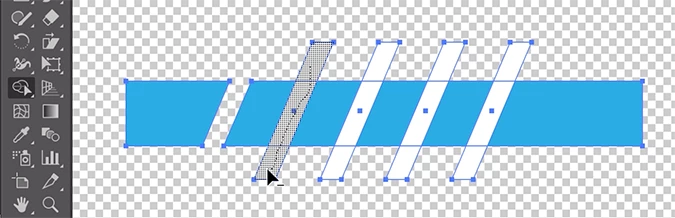
Use the Shape Builder Tool (Shift M) and drag, with the Alt key depressed over the white areas.

1 reply

Ton Frederiks
Community Expert
Ton FrederiksCommunity ExpertCorrect answer
Community Expert
December 12, 2019

Use the Shape Builder Tool (Shift M) and drag, with the Alt key depressed over the white areas.

GeneJeterAuthor
Participant
December 12, 2019

wow, you are the best! THANK YOU! At first, I couldn't get it to remove any of the blue road shape, but then I realized I just needed to have both the white rectangles and the blue road selected, and then your instructions worked beautifully. Thanks so much

Ton Frederiks
Community Expert
Community Expert
December 12, 2019

Good to hear that helped.