
Participant
February 19, 2020
Question

How to fill in an object/shape in illustrator that was drawn in autocad?

  • February 19, 2020
  • 5 replies
  • 4676 views

Hi,

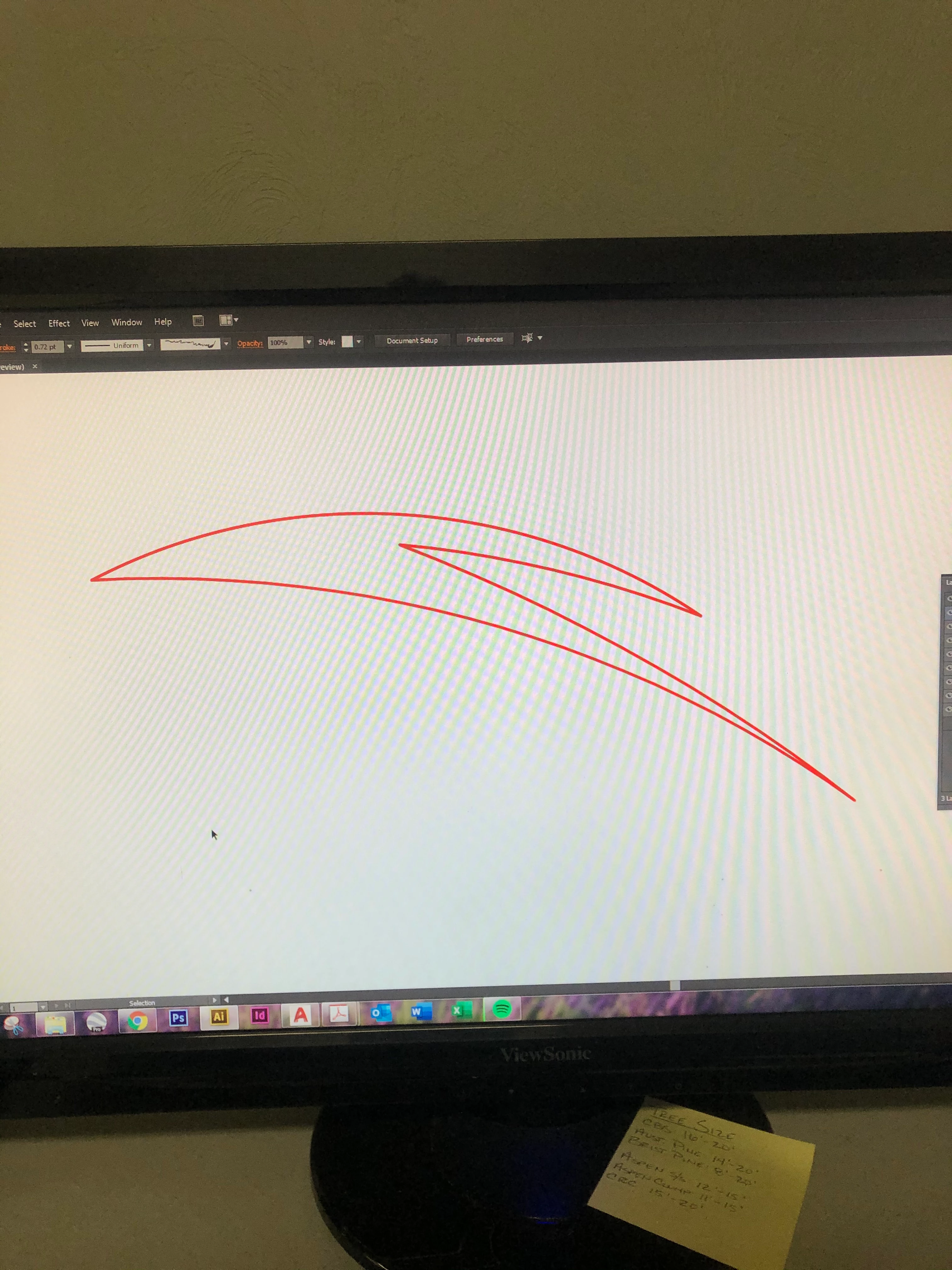
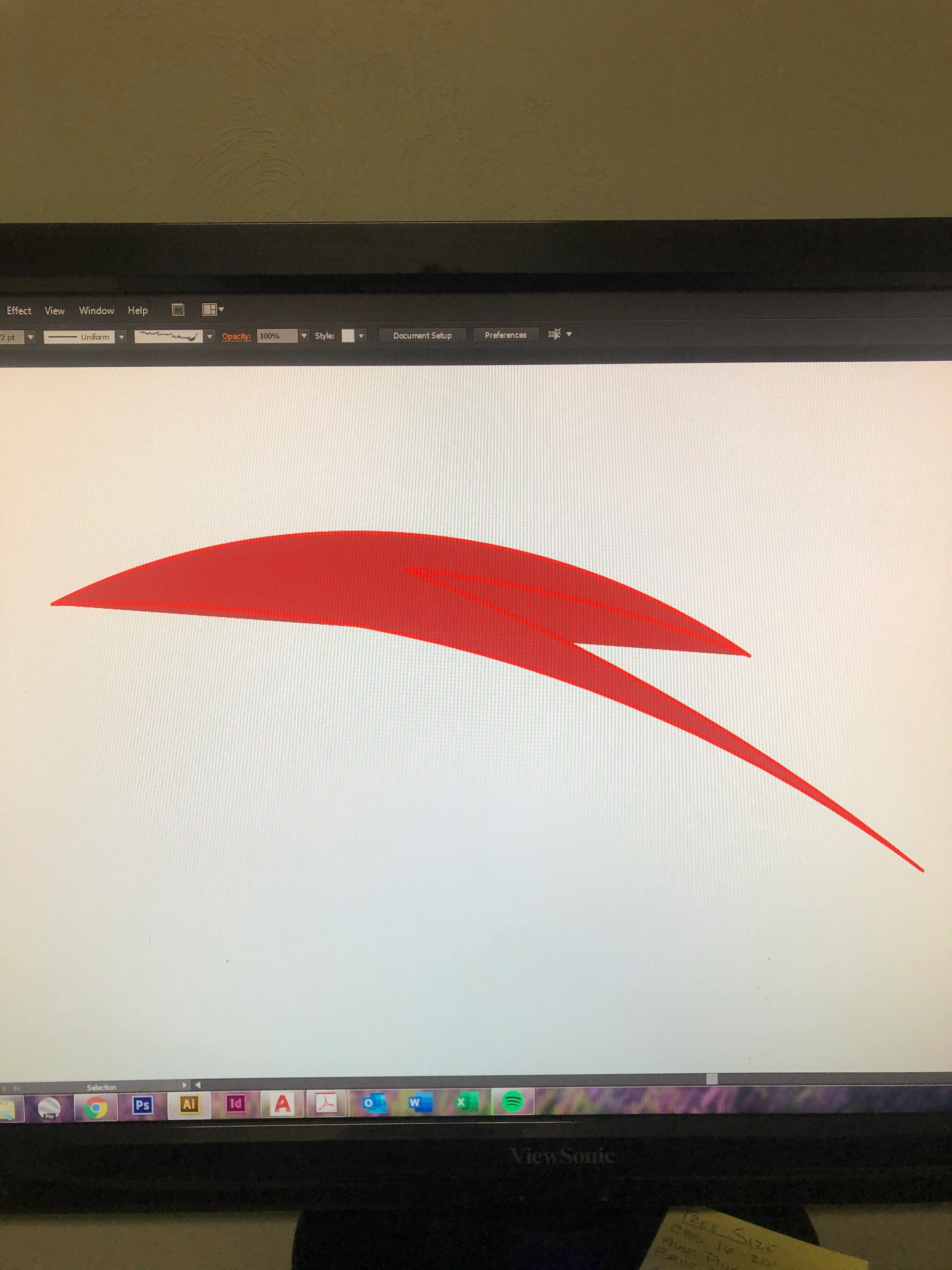
I feel this is a simply fix. But when I draw shapes in AutoCad, I export them as PDF's and open them in Illustrator. But when I try to fill in those shapes I get a weird fill. I've tried "drawing inside" but that option is grayed out. Completely lost. Would love some help.


Thanks
This topic has been closed for replies.

5 replies

Jacob Bugge
Community Expert
Community Expert
February 19, 2020

For my part you are welcome, j.


For more troublesome sets of paths there is also Join Reasonably among the free scripts by 佐藤浩之, (Satō Hiroyuki) here,

http://shspage.com/aijs/en/


John Mensinger
Community Expert
Community Expert
February 19, 2020

Yes,  Join(ery) works when there are a few un-joined gaps in the path, but stuff of AutoCAD origin typically comes in as many (potentially thousands of) individual points and segments, often with un-seeable duplicates superimposed directly in stacks. In those cases Join is practically worthless and the advent of Live Paint was a godsend. Converting to a Live Paint group produces a closed path and eliminates the duplicates, so it's useful even when a fill isn't needed.

Jacob Bugge
Community Expert
Community Expert
February 19, 2020

j,


To join in old(er) versions you need to use the Direct Selection Tool (and deselect) and Click or ClickDrag over the Anchor Points of the open ends, then Join (you can Ctrl/Cmd+J).


jbrewskiAuthor
Participant
February 19, 2020
Awesome! Thank you so much!
meganchi
Legend
February 19, 2020

Select shape, then go to Object menu...Path...Join. Now you should be able to fill the shape.

jbrewskiAuthor
Participant
February 19, 2020
Thanks for the help! It says when I try to join that I need to select two
endpoints?
meganchi
Legend
February 19, 2020

with your direct select tool, drag an imaginary square around two overlapping points to make sure both are selected, then join the points by typing Ctrl +J or Cmd +J. I would suggest doing that again where any two points might be on top of eachother.

キィィ─!!!
Participating Frequently
February 19, 2020

jbrewski, Hello
Looks like the path is chopped.
Connect the cut paths.
Or paint with a live paint bucket tool.
In many cases, the CAD data is chopped.

jbrewskiAuthor
Participant
February 19, 2020
Thanks for the help! The live bucket tool came through!