
Inspiring
August 18, 2020
Answered

How to find 'Gap tolerance' which is in CorelDraw in Illustrator?

  • August 18, 2020
  • 4 replies
  • 2689 views

Hello.
I am using the Solid Edge 2D Nesting program to nesting shapes for the laser cutting machine. But when I use that nested file in illustrator I came to realize which all of my connected paths became separated from each other.
And that is a bad thing: because the laser machine use joined paths not separated. And as I know (and I wish I am wrong) Illustrator can not join path without the problem of joining unrelated paths together too! (Image bellow:)
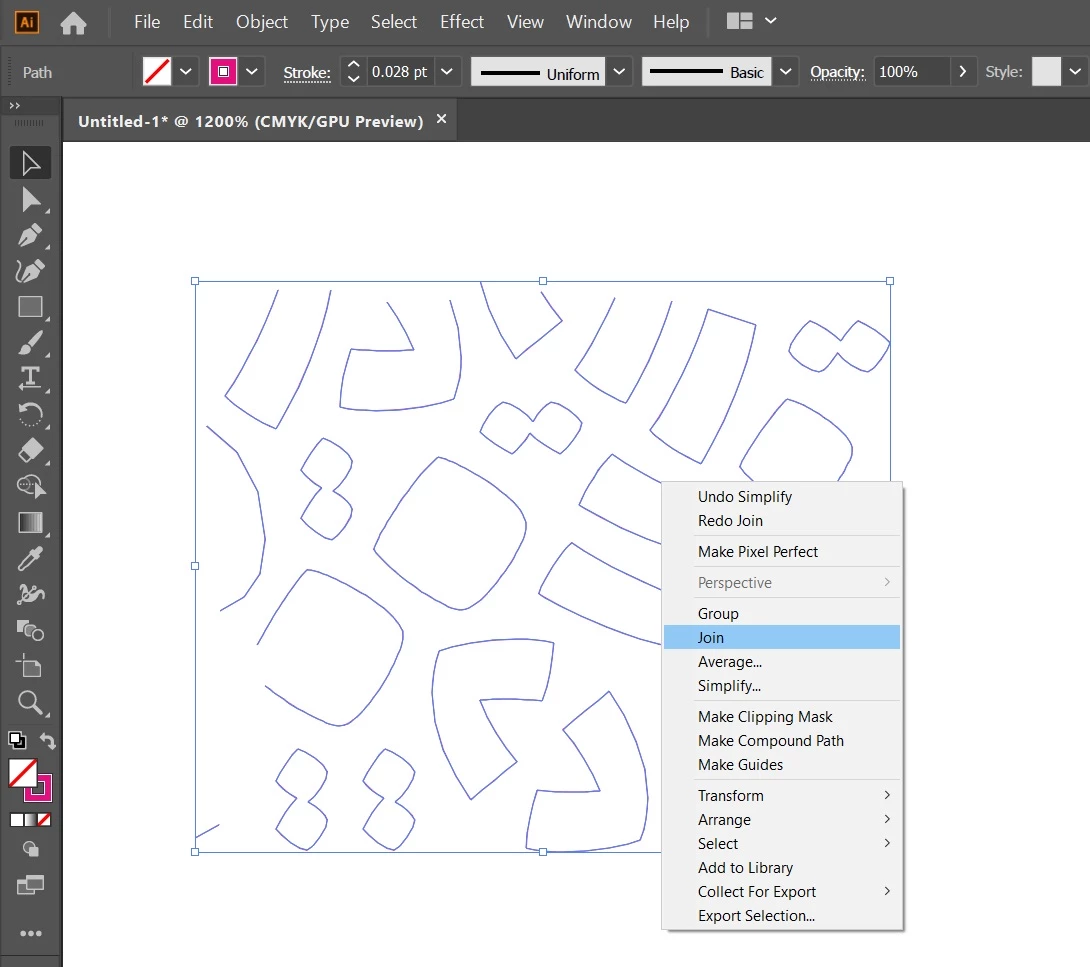


After using the join tool:
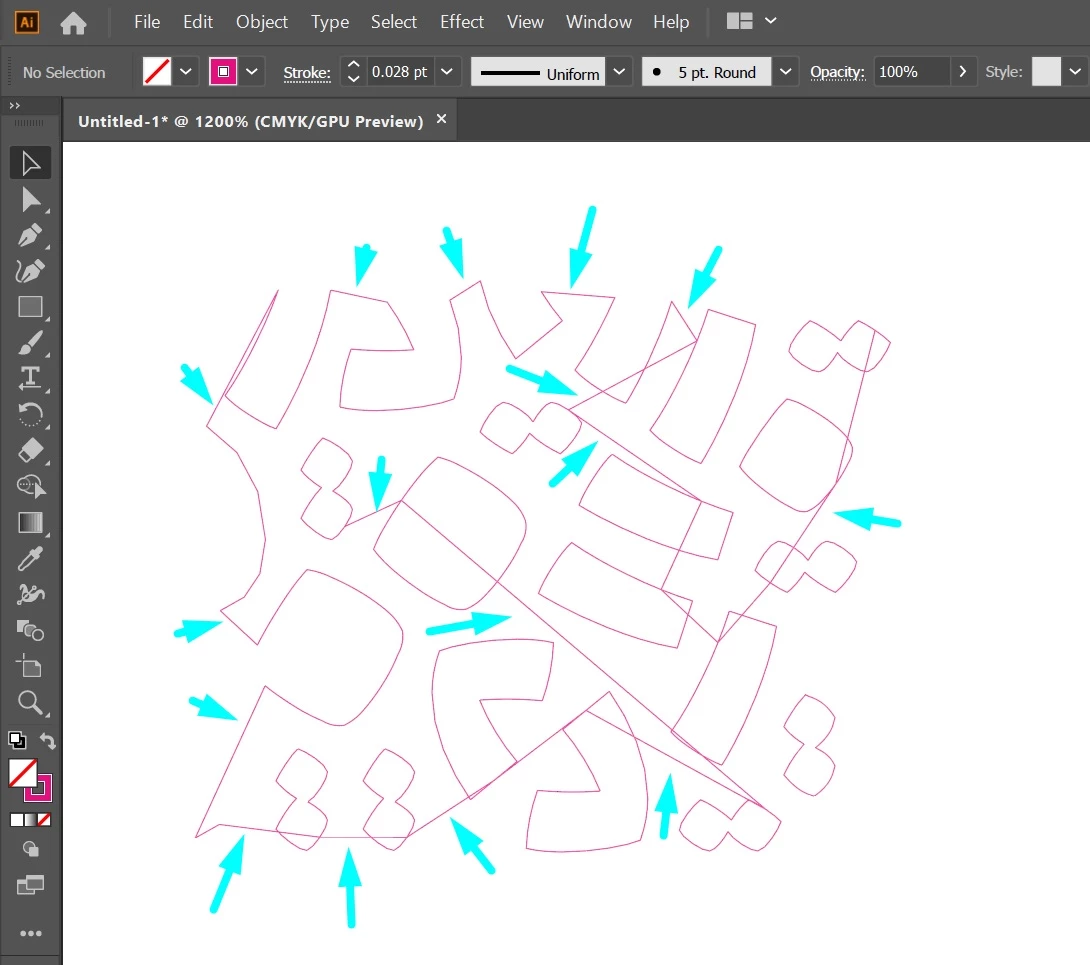
 

You can see unrelated shapes will become connected t each other too! and I do not want that.
As I know CorelDraw has a solution to that and that is the "Gap Tolerance" feature (Like the image below) :
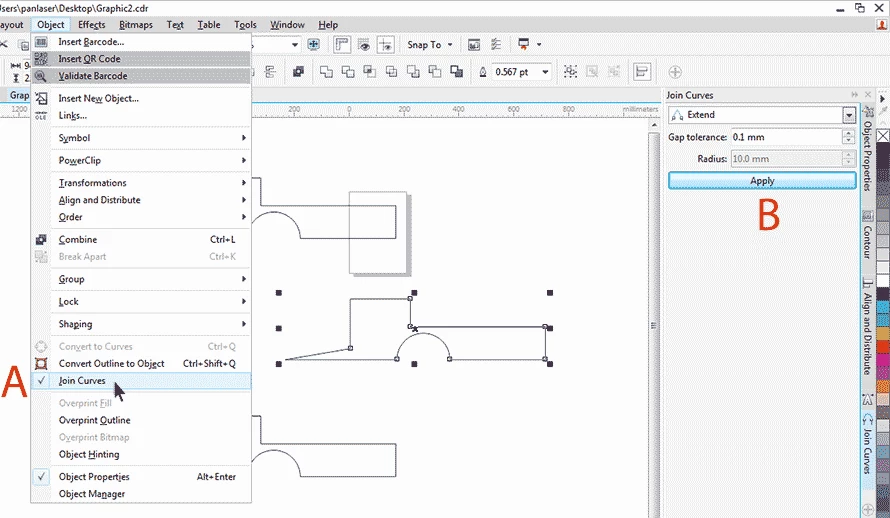
 

This feature empowering us to do not connect shapes with larger gaps between them. And separated shapes do not connect together (As I wanted to).

Is it really a way to fix that Issue in Illustrator?
I attached the file. Thanks.

This topic has been closed for replies.
Correct answer Kurt Gold

Illustrator currently does not provide features comparable to Corel Draw's excellent join mechanisms.


However, based on your sample file you may try:


  • In the main Tools palette, double click the Shape Builder tool to open its Options dialog and set up a custom Gap Detection (1 inch is the maximum).
  • Select all objects on the scratch area, take the Shape Builder tool, hold down the Shift key and drag across the entire selection.


A good portion of the objects should now be joined. The remaining (unjoined) paths would have to be joined manually with the Join command.

4 replies

Kurt Gold
Community Expert
Kurt GoldCommunity ExpertCorrect answer
Community Expert
August 22, 2020

Illustrator currently does not provide features comparable to Corel Draw's excellent join mechanisms.


However, based on your sample file you may try:


  • In the main Tools palette, double click the Shape Builder tool to open its Options dialog and set up a custom Gap Detection (1 inch is the maximum).
  • Select all objects on the scratch area, take the Shape Builder tool, hold down the Shift key and drag across the entire selection.


A good portion of the objects should now be joined. The remaining (unjoined) paths would have to be joined manually with the Join command.

imtishAuthor
Inspiring
August 23, 2020

Thank you.
The shape builder tool worked.

imtishAuthor
Inspiring
August 22, 2020

I attached my file to the discussion if that will helps you.


Monika Gause
Community Expert
Community Expert
August 22, 2020

I also didn't have success with Join Reasonably. The plugin VectorFirstAid can handle this.

imtishAuthor
Inspiring
August 23, 2020

Thank you for introducing this plugin, but I do not have that, and that's so pricey. The Shape Builder tool worked for me anyway.

femkeblanco
Legend
August 18, 2020

I've not tried it myself, but you could try Hiroyuki Sato's script "Join Reasonably".  It has variables you could set:

http://shspage.com/aijs/en/#join_reasonably

imtishAuthor
Inspiring
August 19, 2020

Thank you for that script.

this was the result of that script:


Error is telling me:


Error9090: You cannot delete all path-points of a path

Line: 142

-> p1.remove();


This is the edit I made in script settings:

var conf = {};
// Settings ==================================

conf.close = false;     // make a closed path. true/false
                        // (make closed paths when conf.ignore_if_further_than > 0)

conf.marge_if_nearer_than   = 0.5;  // merge the ends to connect within this distance
                                    // set 0 to be ignored (unit:mm)

conf.ignore_if_further_than = 0.6;  // ignore to connect if distance between the ends exceeds this value
                                  // set 0 to be ignored (unit:mm)

conf.hanLen = 0.33; // ratio of handle length to connected line. set 0 to be ignored

conf.dontAddRevHan = 120; // do not generate a handle if the angle of the connecting part is more than this value.
                          // set 0 to be ignored (unit:degree, 0-180)

// ========================================

I just set  conf.ignore_if_further_than to 0.6 from default settings.

And conf.close to false.


Maby it's better to write part of the code is the script which error showed to me:

// ------------------------------------------------
// adjust the length of handles
function adjustHandleLen(p1, p2){
  var d = dist(p1.anchor, p2.anchor);
  
  if(d == 0){ // distance is 0
    p2.leftDirection = p1.leftDirection;
    p1.remove();
    
  } else if(d < conf.marge_if_nearer_than){
    var pnt = [ (p1.anchor[0] + p2.anchor[0]) / 2,
                (p1.anchor[1] + p2.anchor[1]) / 2 ];
    p2.rightDirection = [ p2.rightDirection[0] + (pnt[0] - p2.anchor[0]),
                          p2.rightDirection[1] + (pnt[1] - p2.anchor[1]) ];
    p2.leftDirection =  [ p1.leftDirection[0] + (pnt[0] - p1.anchor[0]),
                          p1.leftDirection[1] + (pnt[1] - p1.anchor[1]) ];
    p2.anchor = pnt;
    p1.remove();
    
  } else if(conf.hanLen > 0){
    d *= conf.hanLen;
    var d2 = d * d;
    if(!arrEq(p1.anchor, p1.rightDirection)){
      if(conf.dontAddRevHan
         && getRad2(p2.anchor, p1.anchor, p1.rightDirection) > conf.dontAddRevHan){
        p1.rightDirection = p1.anchor;
      } else if(dist2(p1.anchor, p1.rightDirection) > d2){
        p1.rightDirection = getPnt(p1.anchor, getRad(p1.anchor, p1.rightDirection), d);
      }
    }
    if(!arrEq(p2.anchor, p2.leftDirection)){
      if(conf.dontAddRevHan
         && getRad2(p1.anchor, p2.anchor, p2.leftDirection) > conf.dontAddRevHan){
        p2.leftDirection = p2.anchor;
      } else if(dist2(p2.anchor, p2.leftDirection) > d2){
        p2.leftDirection = getPnt(p2.anchor, getRad(p2.anchor, p2.leftDirection), d);
      }
    }
    
  } else {
    p1.rightDirection = p1.anchor;
    p2.leftDirection  = p2.anchor;
  }
}
// ----------------------------------------------


What to do now?

My Illustrator version is Adobe Illustrator 2020 24.0.1

Monika Gause
Community Expert
Community Expert
August 18, 2020

What you want might be a compound path instead of "Join"

imtishAuthor
Inspiring
August 19, 2020

Do not work.