
JoshMozingo
Participating Frequently
October 15, 2023
Question

How to get rid of extra white space in svg export - Illustrator

  • October 15, 2023
  • 6 replies
  • 8632 views

I'm trying to export a logo as an .SVG for my website but the export keeps adding extra white space for no apparent reason.
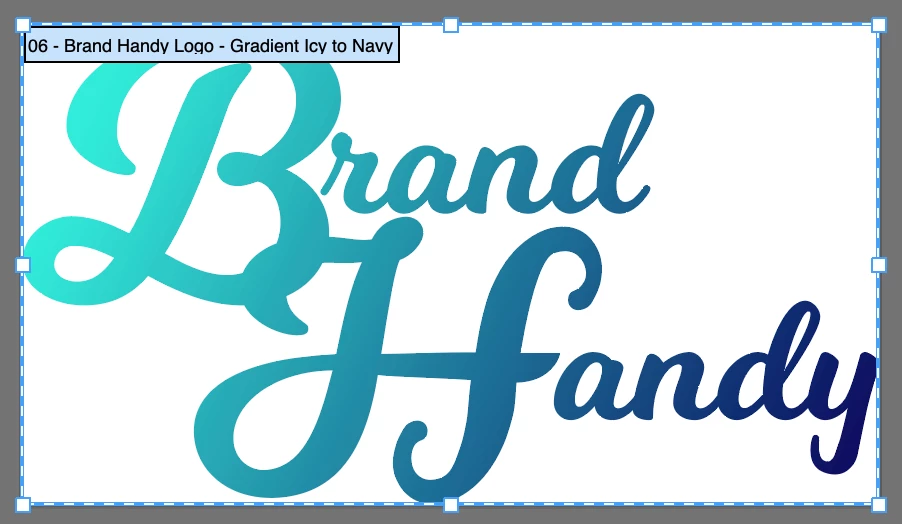


I’ve already tried Object > Artboards > Fit to Selected Art. - The artboard kisses the edges of the logo perfectly. (Looks like it's a bit cut off, but it's not when you zoom in)


I’ve also tried Object > Path > Clean Up


I’ve also tried View > Outline - So I can look for any random objects to delete; nothing.


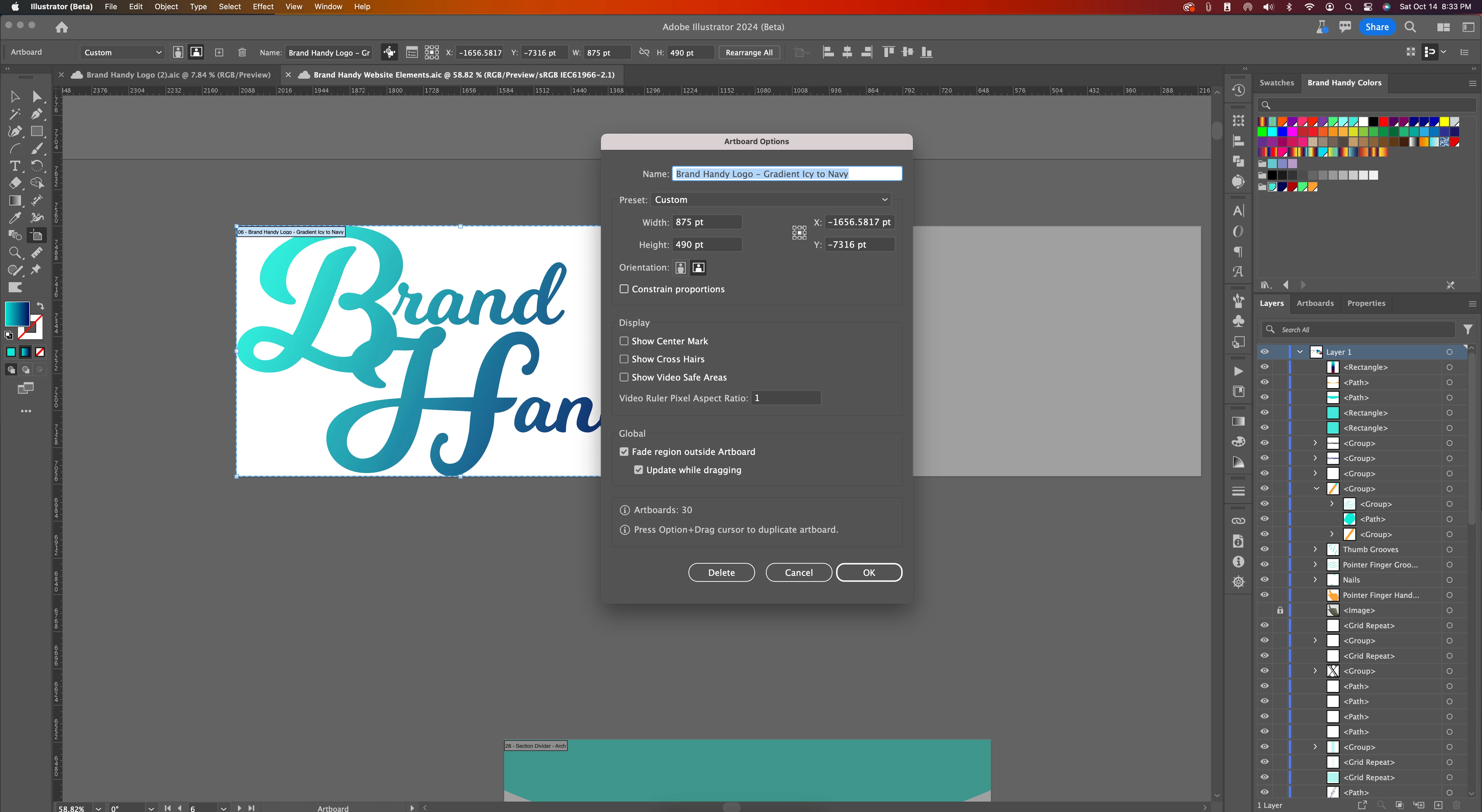
I've also tried artboard > artboard options - Ensured that the artboard ends on a solid numbers for Width & Height because I seen a forum where that was causing an issue with the exported file dimentions

I’ve also tried Export for Screens > Advanced Settings For Exported File Types > SVG > Unchecked the Responsive box - All that did was move my logo to the top of the extra white space instead of being in the middle of the extra white space. From this advanced settings panel, I’ve messed with a lot of different combinations in this panel and nothing visually changes except for when I select, or deselect, the responsive box.
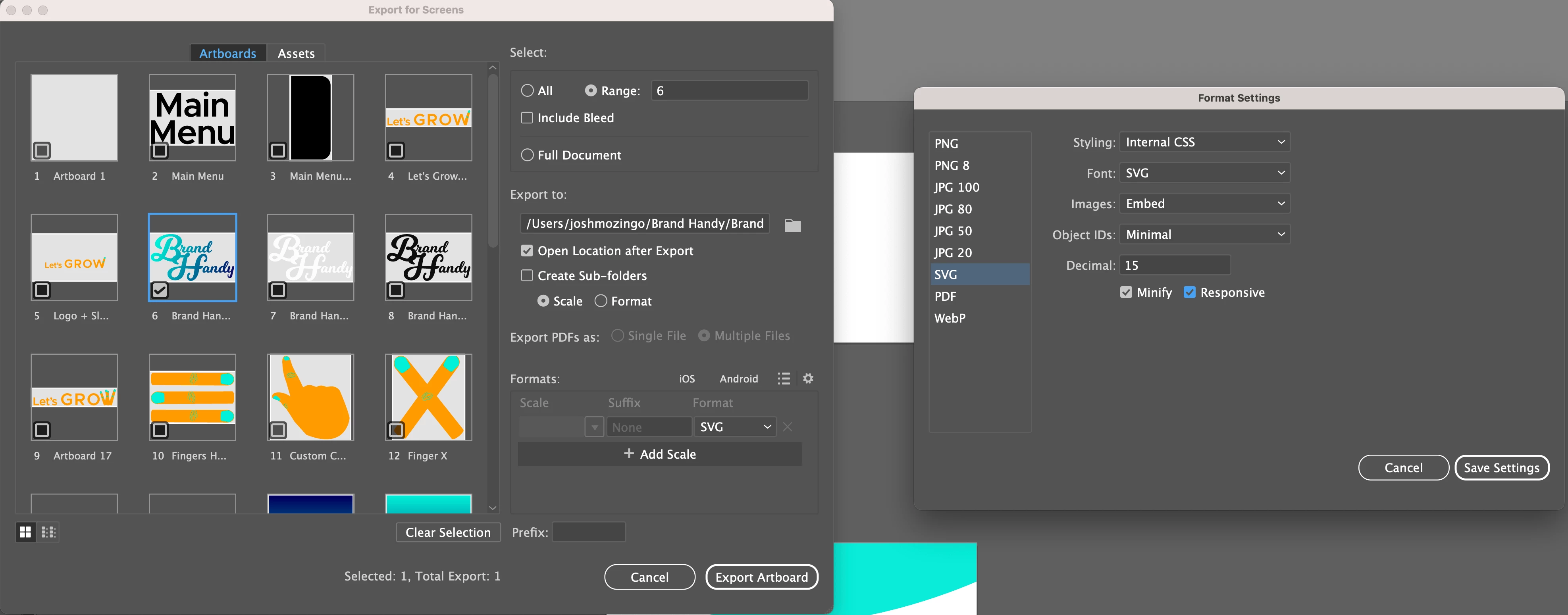

 

  Result of having the responsive box checked
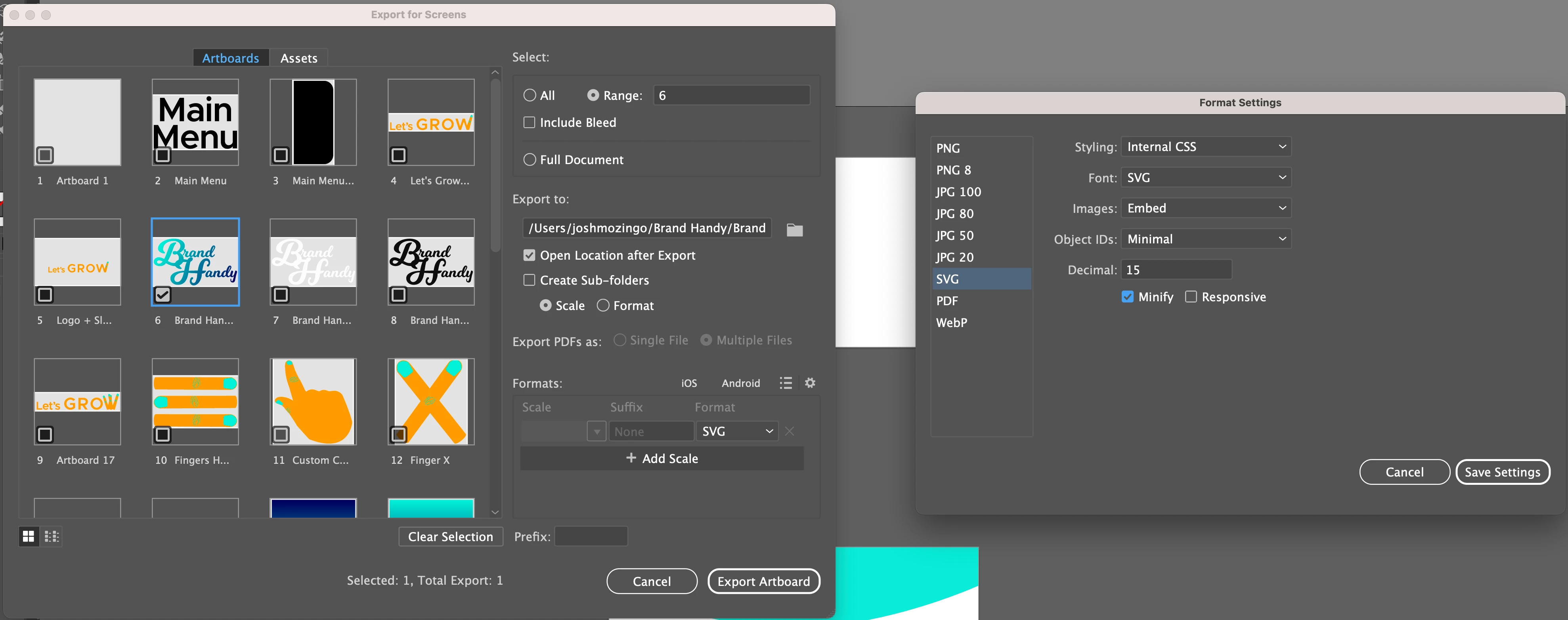


 Having the Responsive box unchecked


I've tried everything I can find and nothing seems to help. I can’t find anyone else having this exact problem. I really want to keep this logo an SVG. I know I can save it as a WebP or PNG and the problem will go away but I don't want a rasterized logo.  Will someone please help?

    6 replies

    Participant
    April 22, 2025

    I have had the exact same issue and spent days scratching my head going through all the solutions in here and elsewhere. Going through a process of elimination, deleting and exporting my artwork layer by layer, I discovered that the issue stems from the text bounding box.

    Unlike static formats such as PNG and JPEG; when exporting to SVGs, Illustrator will honour the overflowing bounding box of any unflattened text in the file, including those in hidden layers - the artboard dimensions will be ignored in favour of any hidden and visible text and/or element bounding box going beyond the artboard boundaries. The SVG language allows for clipping, but this is not implemented in illustrator's exporting functionality and neither that would be a good clean solution.

    To export a clean SVG with the same boundary dimensions as the artboard you must flatten all text in both visible and hidden layers (Type > Create Outlines).  If you, like me, like to keep the original unflattened artwork in a hidden layer in the same file, start making it a habit to create a file for the original artwork and one for exporting as SVG. 

    I haven't had any other issues with SVG files, since! Good luck.

    - Louie


    Participant
    November 19, 2025

    I was having the same issue. Found out that if you are working with layers in even if the other layers are hidden it will export that layer as white space. I deleted the content on the additional layer and it exported correctly.

    Vibrant_Enchantment15A8
    Participant
    June 12, 2024

    Hey, not sure if you were able to figure this out but I had the same problem and was able to fix it. It looks like you're uploading your SVG logo to wix and it creates that padding for the logo. When you have the logo clicked on the right hand panel where it shows your section details, scroll all the way to the bottom and look for 'Position' I was able to adjust the margins on the top and bottom and pull the Navi header background up to tighten up the spacing on the top and bottom of the logo. Hope that helps. 

    Community Expert
    October 16, 2023

    Have you tried the Export>Export As command? You can export SVG files from that command. The first dialog box where you choose file type and file location has an option to use (or not use) artboards. Leaving that option unchecked will save the artwork only. There won't be any extra space maintained around it. The only disadvantage with using this approach is it will export everything on the artboard (it doesn't have a Selection Only option). So it's usually best to paste the element you want to export into a new document by itself before using the Export>Export As command.

    JoshMozingo
    Participating Frequently
    October 21, 2023

    Thanks, I'll give this a try. 

    JoshMozingo
    Participating Frequently
    October 16, 2023

    I'm trying to export a logo as an .SVG for my website but the export keeps adding extra white space for no apparent reason.


    I’ve already tried Object > Artboards > Fit to Selected Art. - The artboard kisses the edges of the logo perfectly. (Looks like it's a bit cut off, but it's not when you zoom in)


    I’ve also tried Object > Path > Clean Up


    I’ve also tried View > Outline - So I can look for any random objects to delete; nothing.


    I've also tried artboard > artboard options - Ensured that the artboard ends on a solid numbers for Width & Height because I seen a forum where that was causing an issue with the exported file dimentions


    I’ve also tried Export for Screens > Advanced Settings For Exported File Types > SVG > Unchecked the Responsive box - All that did was move my logo to the top of the extra white space instead of being in the middle of the extra white space. From this advanced settings panel, I’ve messed with a lot of different combinations in this panel and nothing visually changes except for when I select, or deselect, the responsive box.


     Result of having the responsive box checked and below is what it looks like when I place it on my website.
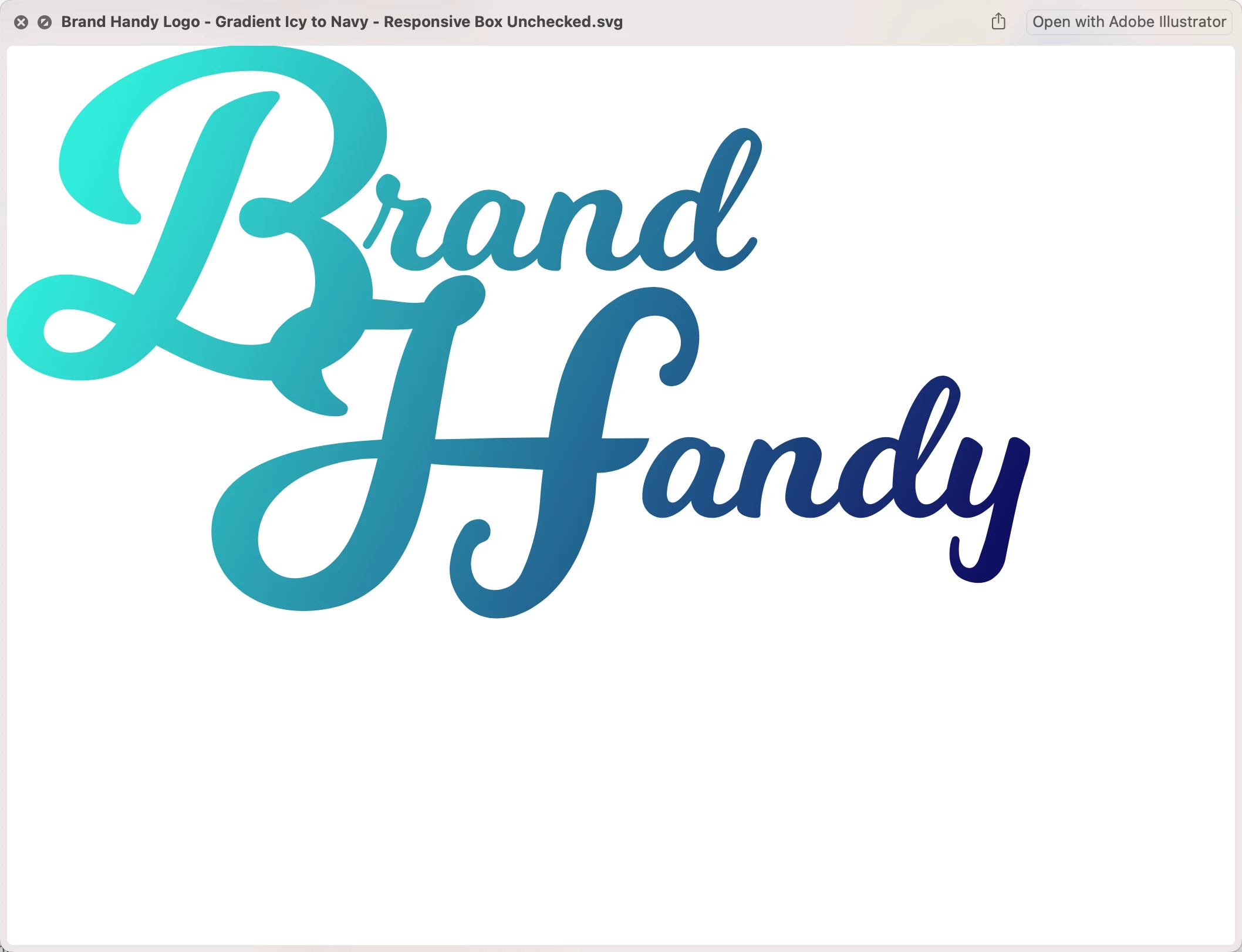


     Having the Responsive box unchecked


    I've tried everything I can find and nothing seems to help. I can’t find anyone else having this exact problem. I really want to keep this logo an SVG. I know I can save it as a WebP or PNG and the problem will go away but I don't want a rasterized logo.  Will someone please help?

    Monika Gause
    Community Expert
    Community Expert
    October 16, 2023
    Monika Gause
    Community Expert
    Community Expert
    October 15, 2023

    And you are sure that the browser displays the SVG it its viewbox size?

    You might want to check the code of your SVG if it's really the wrong size.

    JoshMozingo
    Participating Frequently
    October 16, 2023

    Hi Monika, 


    here's what it looks like when I try using the .SVG logo on my site (This is the version with the responsive box checked)


    It does add that additional white space above and below the .SVG when I use it on my website which is very problematic when used in the header of my site. 


    Monika Gause
    Community Expert
    Community Expert
    October 16, 2023

    Why are you using Responsive at all? 


    What about the SVG code? Did you check it?

    How is the logo made? Is it a gradient in a compound path? 

    A clipping mask?

    kglad
    Community Expert
    Community Expert
    October 15, 2023

    in the future, to find the best place to post your message, use the list here, https://community.adobe.com/

    p.s. i don't think the adobe website, and forums in particular, are easy to navigate, so don't spend a lot of time searching that forum list. do your best and we'll move the post (like this one has already been moved) if it helps you get responses.


    <"moved from using the community">