
Inspiring
July 8, 2020
Answered

How to get rid of several stroke which layouts underneath each other?

  • July 8, 2020
  • 5 replies
  • 858 views

Hello.
I am using Illustrator for design cut files in cutter plotter. The machine uses 'Strokes' for cut lines. So if we have several strokes on top of each one, this machine will cut twice because of those extra strokes.
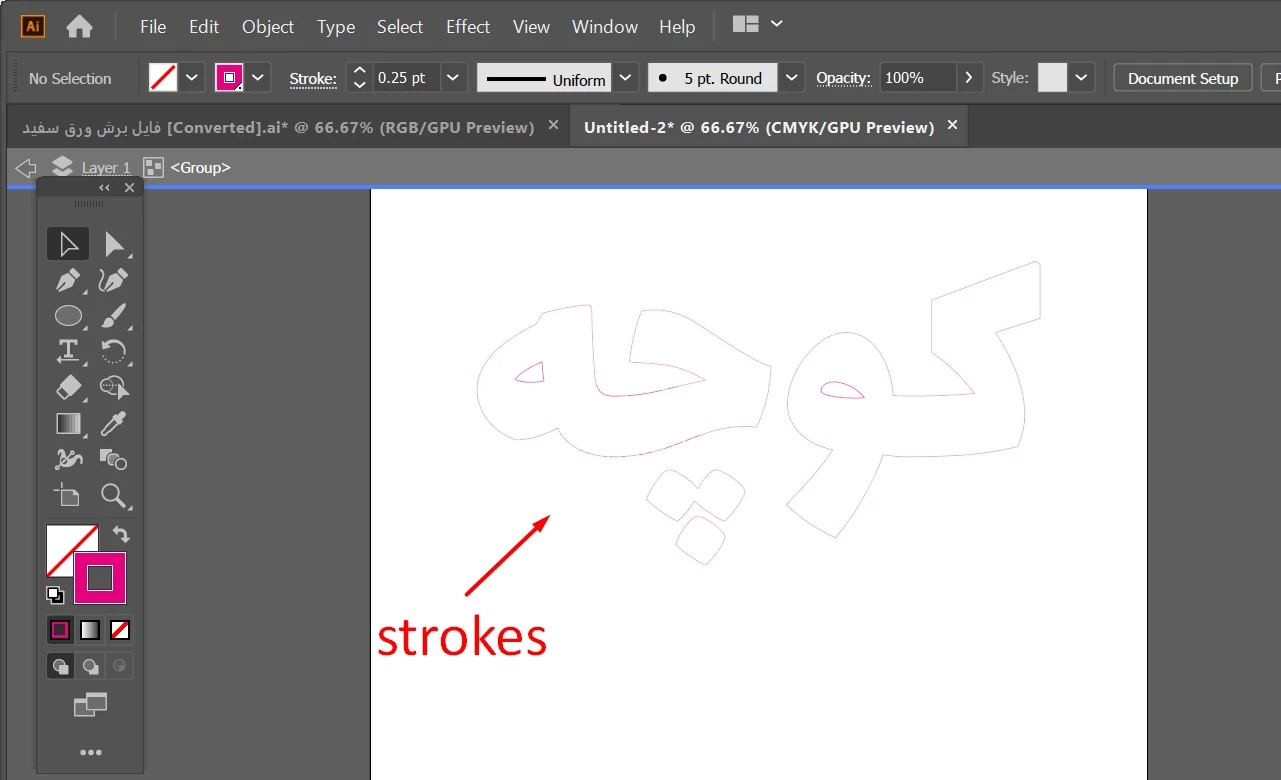
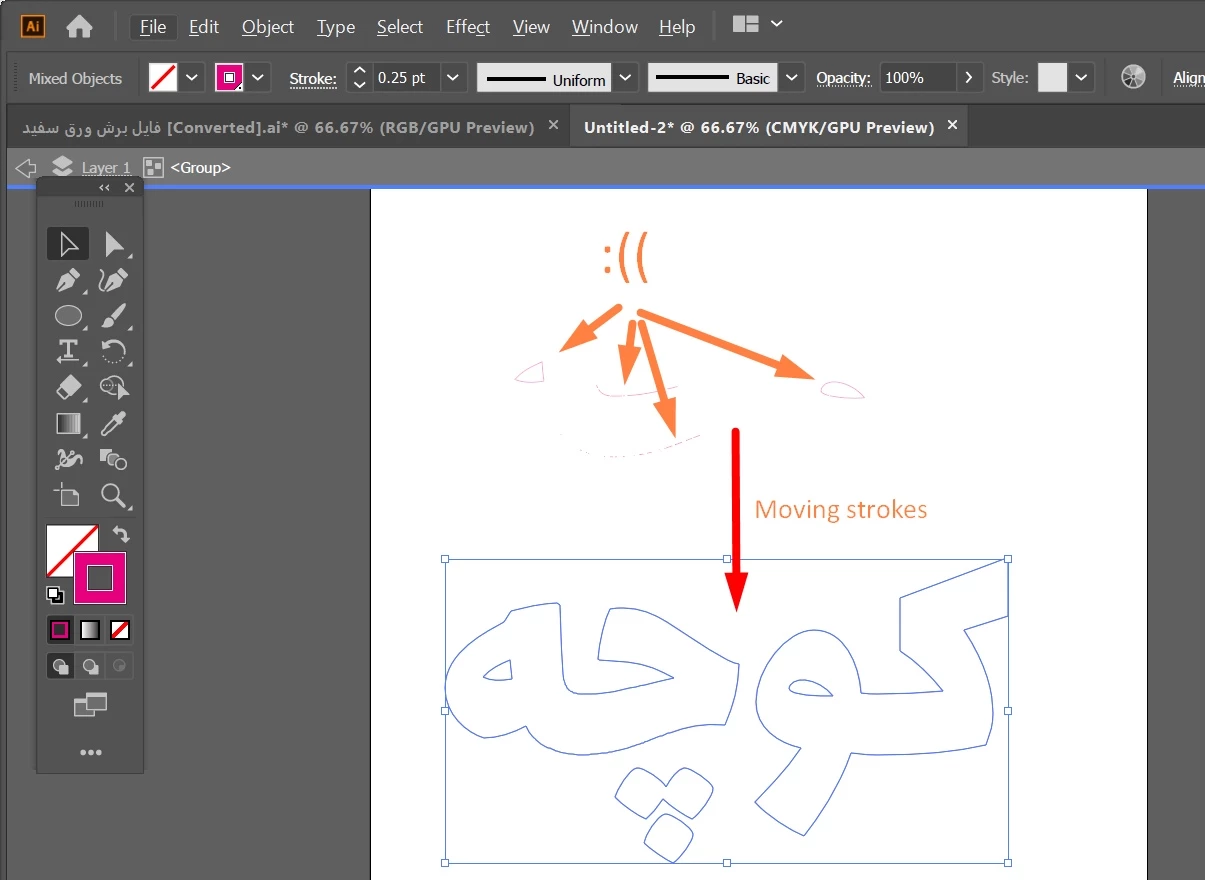
My design is a huge file. How can we do not edit those extra strokes one by one (and fix those lines all at once)? Or in other words, can we merge strokes underneath of each other into one stroke? Or Can we somehow delete strokes that are behind to fix the issue? 
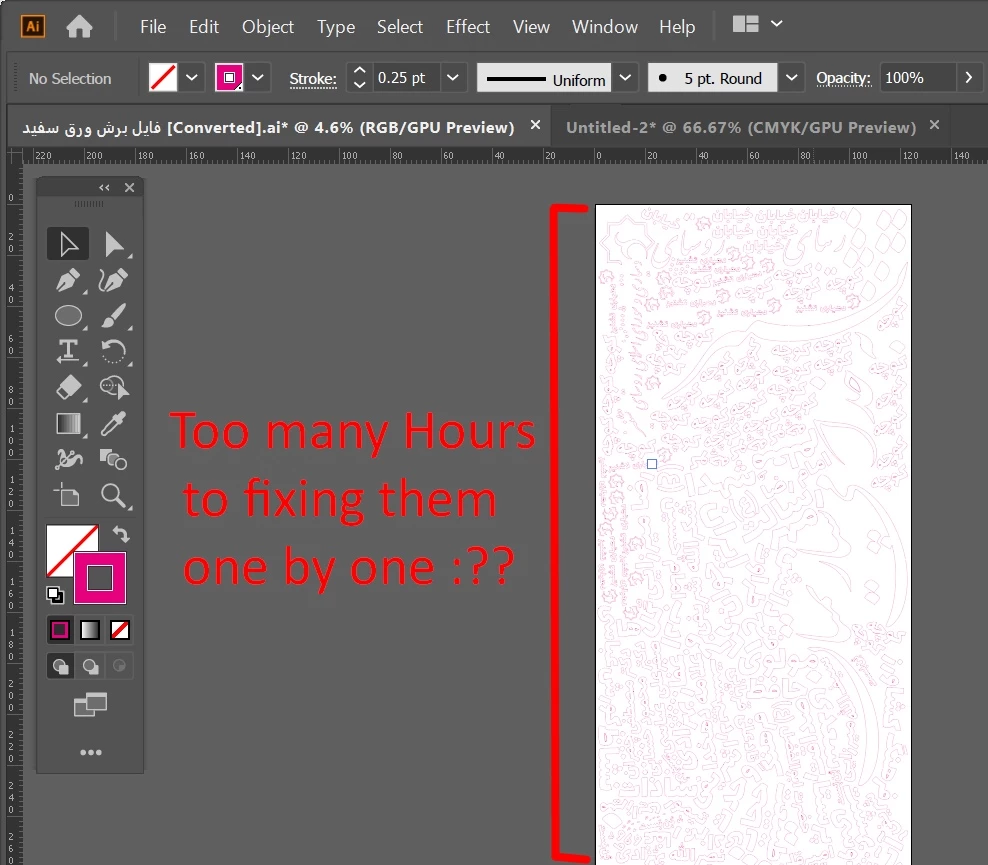
I attached the File.


Thanks.

This topic has been closed for replies.
Correct answer imtish

Voila! Worked.
Thank You bro.

5 replies

Kurt Gold
Community Expert
Community Expert
July 10, 2020

Just to show that the Live Paint trick is no reliable way in all cases, here is a simple sample file.


https://drive.google.com/file/d/1RZ7PLUPWJ4SXtPs-K9rbjykhC0jryi3h/view?usp=sharing


Select all (17 paths), make a Live Paint group, then expand it.


Result: about 60 paths


Instead of creating a Live Paint group, in this case it would be better to select all and then do a Pathfinder Crop.

Kurt Gold
Community Expert
Community Expert
July 9, 2020

Thanks for sharing the sample file. Seems like it is working pretty well in that case.


The credit, however, goes to Ton Frederiks who – as far as I remember – first discovered that secret capability (perhaps just a side effect) of Live Paint technology in a slightly different scenario.


Nevertheless, be careful as it may fail in other cases.

Ton Frederiks
Community Expert
Community Expert
July 9, 2020

Thanks for the credit Kurt. I think I first discovered it when someone had a problem with a cutting machine that would cut rectangles twice where they shared the same border.

I knew that this trick could remove multiple anchor points exactly on top of each other and found that it worked with lines too. But it is a trick, so be careful.

Kurt Gold
Community Expert
Community Expert
July 8, 2020

Based on what you show in screenshot 2 in your initial post, I'm rather sceptical if the trick really worked as expected (you show a lot of separate tiny paths). Given that, the Live Paint route may even make it worse, so I'd recommend to carefully recheck if the result you got is what you were going to get.


Just out of curiosity, would you mind sharing the original .ai file as per your post 1? I'd like to take a look at it.


Thanks.

John Mensinger
Community Expert
Community Expert
July 8, 2020

.

Kurt Gold
Community Expert
Community Expert
July 8, 2020

You may try this trick:


- Select all
- Object > Live Paint > Make
- Object > Live Paint > Expand


There are also scripts that may delete the unwanted stuff.


------------


Edit: I overlooked that you obviously have a lot of fragmentary paths. In this case the Live Paint trick won't work. It just works with identical congruent paths.

imtishAuthorCorrect answer
Inspiring
July 8, 2020

Voila! Worked.
Thank You bro.