

Supernaut63
Inspiring
November 11, 2021
Answered

How to keep file sizes smaller????

  • November 11, 2021
  • 4 replies
  • 1579 views

Hey all,

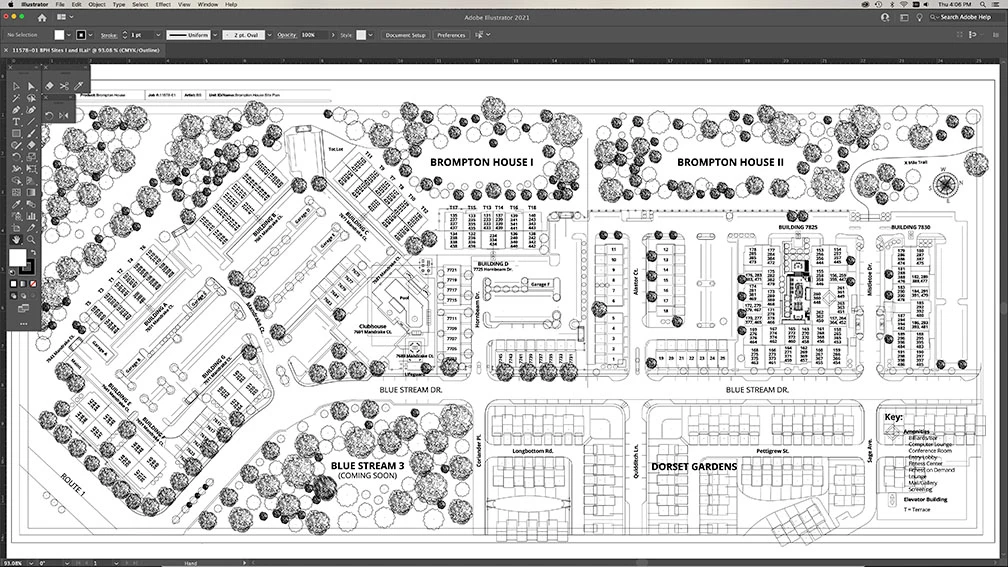
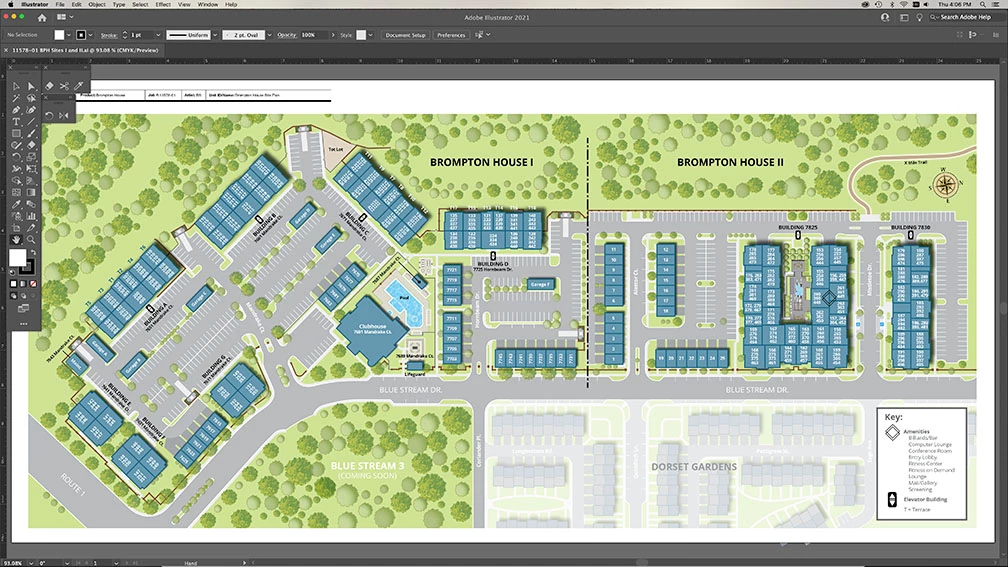
Was wondering if I could get some advice in keeping file sizes smaller. I have a drawing here that I've been working on that has grown to 371.6Mb. It's way bigger than I want to deal with. The element of the drawing that has caused the file to grow are the trees. All of the trees are on one layer. If I remove the tree layer from the file and resave it, the file goes down to 69Mb.


Outline mode:
Preview mode:
 

This topic has been closed for replies.
Correct answer Ton Frederiks

Hey Ton,

Thanks! Why exactly does saving it as a "static" symbol save file size as opposed to "dynamic"? What are my editing limitations with saving it as "static"?


When you use a Static Symbol, all instances will look the same (except for attributes like scale, rotation). They all refer to a single symbol that is stored only once in the file, change that symbol and all instances will change.

With Dynamic Symbols you have more editing flexibility (you can direct select a single leaf of a tree and change it's color), you can have more variation within the instances of that symbol. But these instances are all stored individually in the file, making it much larger.

I made a small test with 128 trees. With the tree as static symbol the file was 342KB, without symbols or with dynamic symbols the file is around 14MB.


4 replies

Lukas Engqvist
Community Expert
Community Expert
November 13, 2021

It is a reasonable file size for that balance of editability and compatibility.

You would get a smaller file size if you would sacrifice some aspect of your work.
Exporting to a PDF, PNG or JPG would lose editability but cut the size. PDF being able to keep most vectors, but would rasterise certain effects.
An Ai file with symbols and no PDF compatibility would give the smallest editable file, but you could not place that file in other applications (InDesign) and you would not see a preview in your operating system.

Supernaut63
Inspiring
November 14, 2021

Arrrgh! This might be a problem then.

If I use Symbols will this file work and preview in InDesign?

Doug A Roberts
Community Expert
Community Expert
November 15, 2021

Okay, but the company I am doing these drawings for has requested that I save these files "with PDF compatibility". So what you are saying is that if I use Symbols and don't save with PDF compatibility my Symbols won't work in InDesign's preview? Sorry, I just want to clarify this as I want to supply them with the best solution.


No, I'm saying the two things are unrelated.

If you don't save with PDF compatibility, you won't see previews in InDesign. This has nothing to do with whether or not you have used symbols. It's another way of cutting down file size.

Met1
Legend
November 12, 2021

Use links instead?

Jacob Bugge
Community Expert
Community Expert
November 12, 2021

Supernaut,


In addition to what Bill said, to the extent that you can reuse individual tree shapes, you can also use symbols, one for each shape.

.

Supernaut63
Inspiring
November 12, 2021

It's funny, but I have been using Illustrator since it's inception and I have NEVER used Symbols. Guess I need to explore them. If a shape is complex, and it's turned into a Symbol, does it really save file size if it's been used multiple times instead of the original vector? Do you think if I had used all "symbol" trees this file would be smaller? 

Ton Frederiks
Community Expert
Community Expert
November 12, 2021

Yes, but use the Static Symbol type to make the files smaller. Create a tree, define it as a Static Symbol in the Symbol options and use it multiple times.

Bill Silbert
Community Expert
Community Expert
November 12, 2021

It looks like you've drawn each tree using an abundance of anchor points which will definitely bump up your file size as well as making saving the document very time consuming. It may be time consuming to do so but you may want to cutdown on the number of "tree points" using the simplify path feature (see https://helpx.adobe.com/illustrator/using/simplify_paths.html). 

Supernaut63
Inspiring
November 12, 2021

The trees were drawn with alot of detail I suppose. It's hard to draw tiny trees without lots of vector points. I'll have to look into the "simplify path feature". I have avoided using it in the past for fear of it softening and rounding my edges.