Inspiring
January 31, 2024
Answered

How to make a character perfectly symmetrical

  • January 31, 2024
  • 2 replies
  • 1257 views

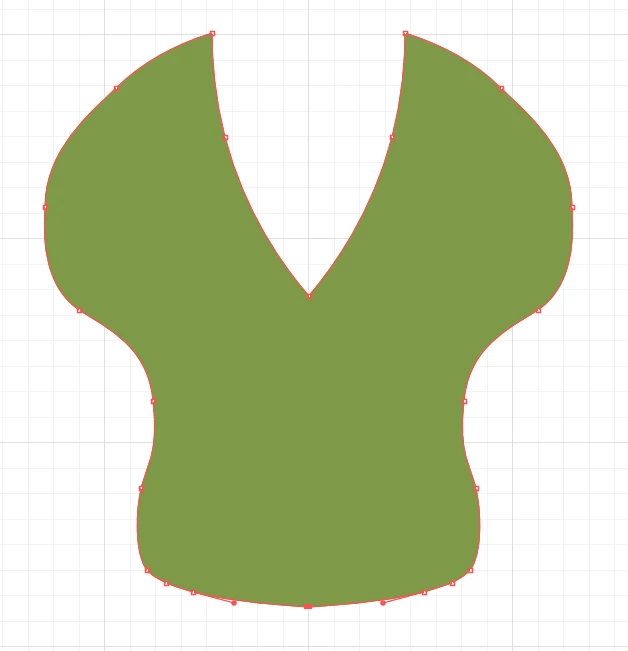
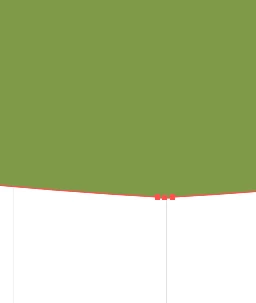
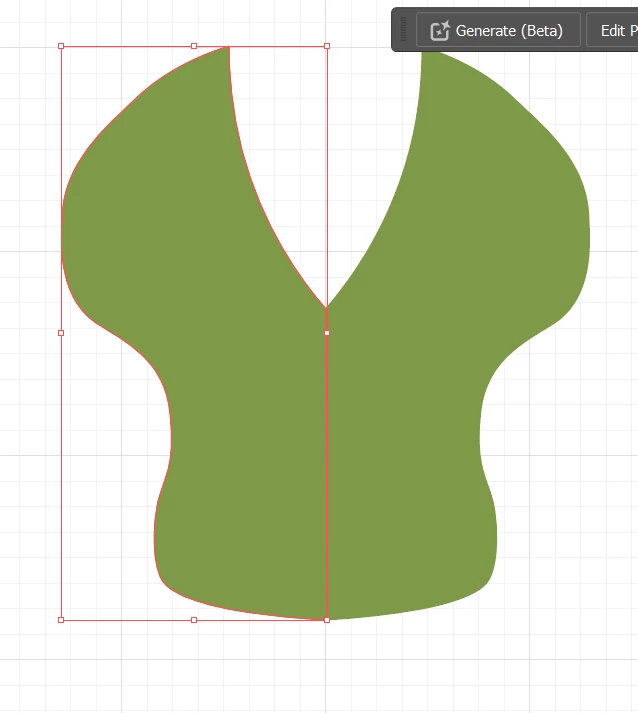
Hi everyone. I have a character I am building that I will eventually move to Animate. My current process is create a shape, then chop it in half, next bring the shapes together and unit or shape builder them. This usually results in two tiny anchor points right next to eachother which is annoying and doesn't creat perfect symmetry. One side of the character is always just a little bit different than the other. Surely, SURELY, there is a better way to do this. Other problem solutions, besides manually subtracting anchors, was also selecting and "averaging" the anchors but that always seems to create a twisted path... Simplifying works until it has two anchors left, and won't simplify more after that. Thank you in advance for the insight. 
 

This topic has been closed for replies.
Correct answer Tgibs2

This worked perfectly, though I modified it but perhaps this is also what you intended.

  • Dragged a guide
  • I turned on only snap to points
  • Use rectangle and shape builder to divide shape in half
  • Select both hafls, then pathfinder>>divide
  • Next I clicked unit. That perfectly joined the shapes without creating extra anchor points close together. 

Your an amazing individual for responding so fast and also solving a very simple problem that has taken me hours to try and figure out. But, that's adobe for you. Thanks again. 

2 replies

Monika Gause
Community Expert
Community Expert
January 31, 2024

Drag a guide and then align the anchors precisely to it.

Or align the 2 anchors before uniting.

Or use the join tool from the tool panel for joining.

Or use the shapebuilder tool.

Tgibs2Author
Inspiring
January 31, 2024
  • Used the guide and align options after chopping in half with shape builder. Couldn't get join tool to work. Thanks for the feedback especially for the guide. For those in the future looking to solve the same problem, this video was super helpful for figuring out how to snap points to a guide. 
  • How to make anchor points snap to guide 
Monika Gause
Community Expert
Community Expert
January 31, 2024

Glad you could solve it. You should give the Join tool another try: https://helpx.adobe.com/illustrator/using/tool-techniques/join-tool.html

Hugh Betcha
Legend
January 31, 2024

I'd say: Make the two sides offset/overlap each other a bit, then use Pathfinder --> Divide tool to get rid of extras

Tgibs2AuthorCorrect answer
Inspiring
January 31, 2024

This worked perfectly, though I modified it but perhaps this is also what you intended.

  • Dragged a guide
  • I turned on only snap to points
  • Use rectangle and shape builder to divide shape in half
  • Select both hafls, then pathfinder>>divide
  • Next I clicked unit. That perfectly joined the shapes without creating extra anchor points close together. 

Your an amazing individual for responding so fast and also solving a very simple problem that has taken me hours to try and figure out. But, that's adobe for you. Thanks again.