

Exit
  • Global community
    • Language:
      • Deutsch
      • English
      • Español
      • Français
      • Português
  • 日本語コミュニティ
  • 한국 커뮤니티
0

How to make a shape transparent on background?

Explorer ,
Jan 15, 2018 Jan 15, 2018

Hello,

I am just frustrated. I forgot how to do something. I have here a logo on a white background. The background color is white and the text and eyeglasses logo is grey. I want to take the eyeglasses logo and cut it out so you only see a transparency grid on the white background. How do I do this? Thank you.
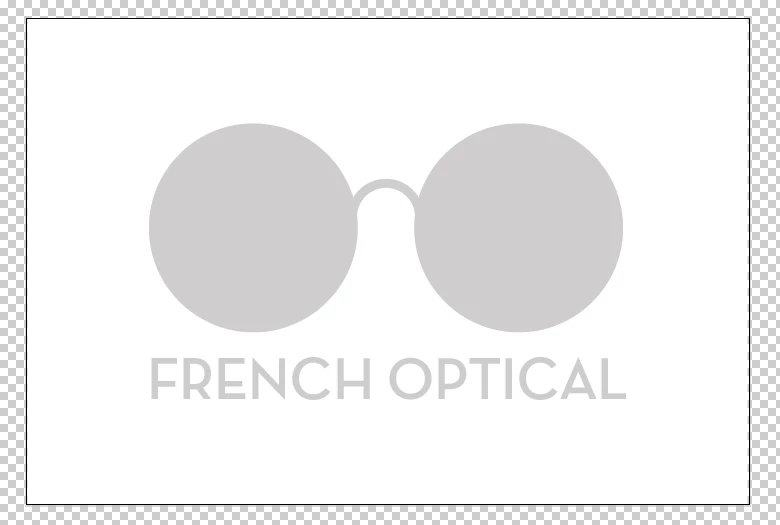
Screen Shot 2018-01-15 at 4.44.04 PM.png

1.1K
Translate
Report
Community guidelines
Be kind and respectful, give credit to the original source of content, and search for duplicates before posting. Learn more
community guidelines

correct answers 1 Correct answer

Community Expert , Jan 15, 2018 Jan 15, 2018

You didn't select all. But the screenshot shows that there are other issues.

The white background shape needs to be unlocked.

in case there are any live strokes, convert them to paths.

Then combine the elements that form the glasses using the pathfinder panel.

In case the text is still live, convert it to paths.

But in case you want this to be editable, you will need a different approach.

Translate
Adobe
Community Expert ,
Jan 15, 2018 Jan 15, 2018

Select all and make a compound path:

Object > Compound path > Make

Translate
Report
Community guidelines
Be kind and respectful, give credit to the original source of content, and search for duplicates before posting. Learn more
community guidelines
Explorer ,
Jan 15, 2018 Jan 15, 2018

Thank you, I did this and this was the result. I don't see the eyeglasses as a transparent grid behind the white background. I want to cut out the eyeglasses so that you see the eyeglasses as a transparent grid.

Screen Shot 2018-01-15 at 5.30.55 PM.png

Translate
Report
Community guidelines
Be kind and respectful, give credit to the original source of content, and search for duplicates before posting. Learn more
community guidelines
Community Expert ,
Jan 15, 2018 Jan 15, 2018

You didn't select all. But the screenshot shows that there are other issues.

The white background shape needs to be unlocked.

in case there are any live strokes, convert them to paths.

Then combine the elements that form the glasses using the pathfinder panel.

In case the text is still live, convert it to paths.

But in case you want this to be editable, you will need a different approach.

Translate
Report
Community guidelines
Be kind and respectful, give credit to the original source of content, and search for duplicates before posting. Learn more
community guidelines
Community Expert ,
Jan 16, 2018 Jan 16, 2018
LATEST

David,

As Monika mentioned, you can make it editable. To do that while keeping each grey path, you may:

1) Select all the grey objects and Ctrl/Cmd+G to Group them, then change the colour to black;

2) Select the Group from 1) along with the white rectangle and then in the Transparency palette (flyout) click (Make) Opacity Mask with both Clip and Invert Mask unticked.

Translate
Report
Community guidelines
Be kind and respectful, give credit to the original source of content, and search for duplicates before posting. Learn more
community guidelines