Copy link to clipboard
Copied
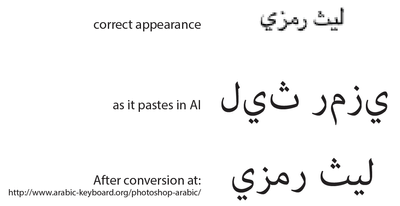
When pasting Arabic text into AI CC 2015 the text does not preview properly. I found a great website (http://www.arabic-keyboard.org/photoshop-arabic/) that converts the text to preview properly in AI, but I cannot rely on an external website for mission-critical processes. Can anyone explain what this site is doing to make the Arabic text paste properly in AI?
Copy link to clipboard
Copied
Arabic type should be supported according to these pages which were updated October 15, 2018:
https://helpx.adobe.com/illustrator/using/asian-scripts.html
https://helpx.adobe.com/illustrator/using/arabic-hebrew.html
It might help to update to the current version of Illustrator. However, I did see this post on Illustrator's Uservoice (https://illustrator.uservoice.com/forums/333657-illustrator-feature-requests/suggestions/36518167-me...) which says it's not supported on the Windows version. If you're on Windows and find that issue to be your case, upvote the request on Uservoice for the Illustrator Team to see.
Copy link to clipboard
Copied
Thank, Myra. We are Mac-based. Because our production process relies on custom scripting upgrading requires extensive testing. There have to be compelling reasons to "upgrade" when things are already working. The Arabic issue is an infrequent issue that we can live with for now. 🙂
Copy link to clipboard
Copied
This post solve my issue:
https://community.adobe.com/t5/Illustrator/Enable-Arabic-in-Ai-CC/td-p/5316875#10361426
Text shows properly.
Copy link to clipboard
Copied
You can always have another Illustrator version downloaded on your Mac that supports Arabic so as you may use this version when you have Right-to-Left projects.
Here are the steps with illustrations…
Before attempting to install a previous version, switch the language to "English يدعم العربية" from the Preferences if you want to have an older Illustrator version that supports Arabic.
From the Adobe CC desktop menu, scroll up/down to Illustrator, click on the down-pointing arrow on the right and click on “Manage”, then choose "Other Versions"
From the same Adobe CC desktop menu, click on "Install" link to start downloading and installing a previous version, this way you may download Illustrator CC 23.0 or any other.
You may proceed to download Illustrator CC 23.0 with Arabic / Persian / Urdu capabilities and have both Illustrator versions on the same machine and both are visible in the Adobe CC desktop menu. This way you may run both Illustrator versions at the same time if needed hence keeping your English version. But don't forget to switch Creative Cloud language in the Preferences menu back to English.
Get ready! An upgraded Adobe Community experience is coming in January.
Learn more