
Participant
December 22, 2024
Answered

How to make text with 5000 people's names

  • December 22, 2024
  • 4 replies
  • 665 views

Hello friend,
Do you know how to quickly create text for people's names?

If I created one text at a time it would definitely take a long time.

My plan is to make someone's name around 5000 people's names

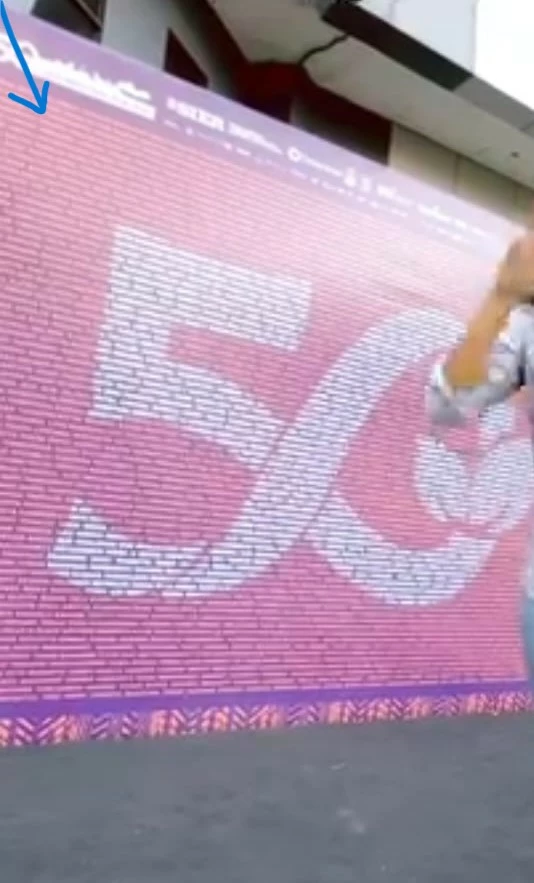
*For example like this

*For example like this


This topic has been closed for replies.
Correct answer Monika Gause

In your second image it looks like one huge text frame. You could just copy and paste. Afterwards the text is used as a clipping mask on an image with the logo.

4 replies

Monika Gause
Community Expert
Community Expert
December 26, 2024

If you need to go that character replacement route: do the replacement with InDesign's Find/Change function.

Then copy the text back. You only need to be careful to use only spaces that Illustrator can deal with.

Conrad_C
Community Expert
Community Expert
December 23, 2024

My earlier demo used a clipping mask, but you might have noticed that when I created the clipping mask, a message appeared warning that the clipping mask might be complex enough to cause output problems. I realized that this might be avoided by using a different method. In the demo below, there are again two copies of the text frame set to different colors, but the upper layer (white text) is restricted by an opacity mask made from the large type.


So, using an opacity mask is an alternate and possibly simpler solution that might have a lower chance of causing a production problem. Another advantage of using an opacity mask is that the large character does not need to be converted to outlines, it can remain editable text.


Conrad_C
Community Expert
Community Expert
December 23, 2024

Below is a demo of one way to do it completely in Illustrator, in only a minute or two, including Monika’s great ideas.

1. Paste your list into a text frame. 

2. Select a paragraph return. I enabled Show Hidden Characters to see it more easily. 

3. Copy the return character, choose Edit > Find and Replace, and paste it into the Find field. 

4. Click the Replace All button to instantly replace all return characters with em spaces (or another space character that you choose to distinguish names), and make sure paragraph alignment is justified. 

5. Copy the entire text frame, and paste it in front of the large character layer. (The large character was converted to a graphic object in advance using Type > Create Outlines.)

6. Select both the text frame copy and the large character layer, and choose Object > Clipping Mask > Make. 

7. Adjust the color of each copy of the text frame, as needed. 


For a more professional look, I should have also adjusted the letter and word spacing in the Justification dialog box, as Monika suggested.


Kurt Gold
Community Expert
Community Expert
December 23, 2024

Just keep in mind that finding paragraph returns and replacing them with other characters does not work in the Windows version of Illustrator, Conrad.


One would have to take another application that is capable of that part.

Conrad_C
Community Expert
Community Expert
December 23, 2024

Oh…! I had no idea that feature wasn’t in the Windows version. Good to know.


If @demcorp is using Windows, fortunately the ability to replace characters is available in any decent word processor, even many free ones. So the text can be pre-processed there to quickly convert a list of names into one big paragraph, and then that paragraph of names can be copied and pasted into an Illustrator area text frame.

Monika Gause
Community Expert
Community Expert
December 22, 2024

I'm not sure where exactly your problem is? Writing 5000 names? Pulling that from a database?

demcorpAuthor
Participant
December 22, 2024

I already have data on 5000 people's names, but if I enter these names one by one my work will take a long time.

Do you know how to speed up the time by entering the 5000 names into Adobe Illustrator?

Monika Gause
Community Expert
Monika GauseCommunity ExpertCorrect answer
Community Expert
December 22, 2024

In your second image it looks like one huge text frame. You could just copy and paste. Afterwards the text is used as a clipping mask on an image with the logo.