Participating Frequently
August 23, 2018
Answered

How to make the circles round?

  • August 23, 2018
  • 8 replies
  • 5071 views

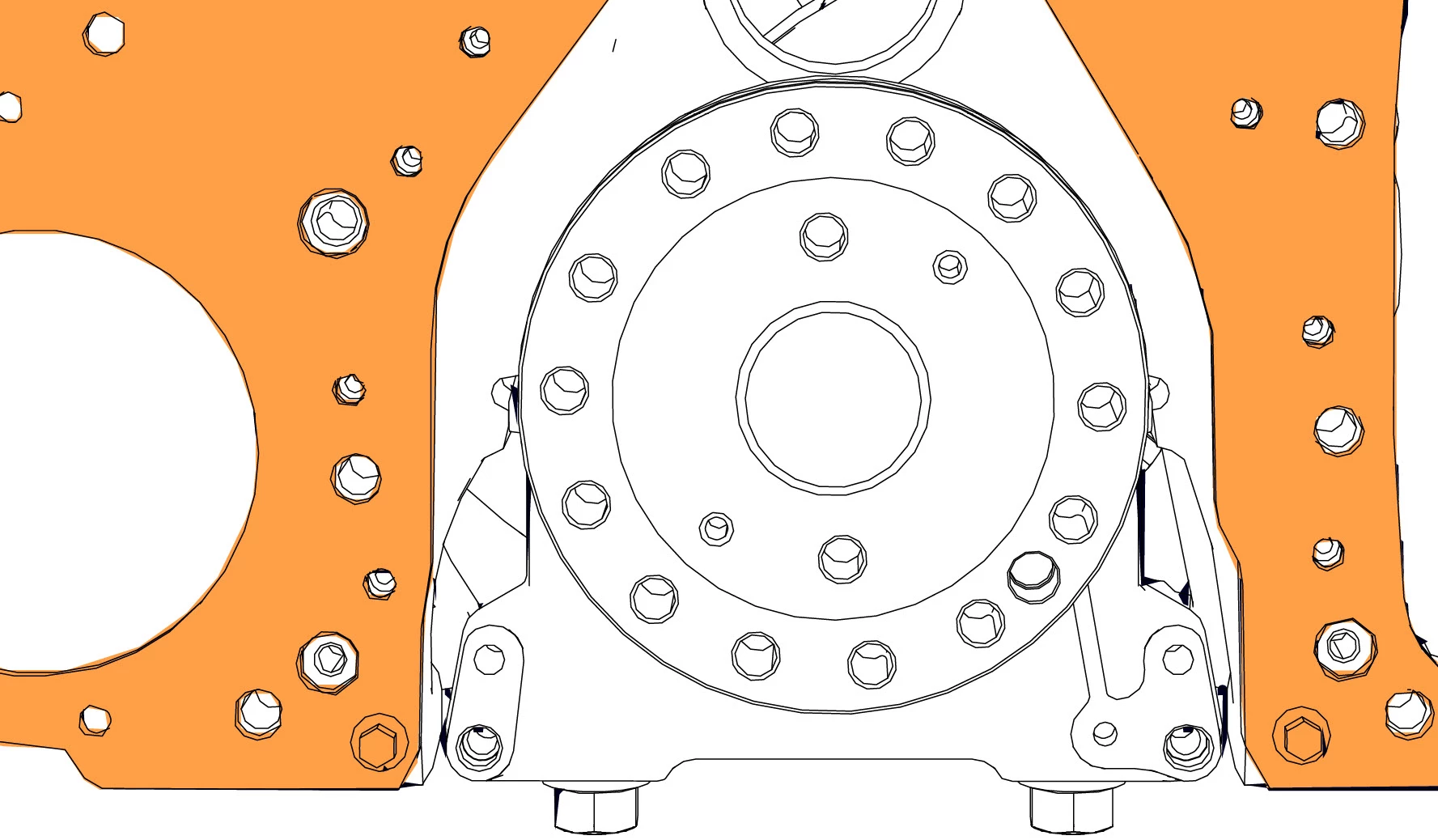
I use a 3D program to export illustrations from. As you can see in the image all objects are made from several straight lines. I want the circles to be round and not angular. Is there any way to do that?

Thanks,

Martina

    This topic has been closed for replies.
    Correct answer CarlosCanto

    Hi martina, here's a script to get you started, it will basically get a selected shape, get it's dimensions and position, create a circle from scratch and place it on top of your selection, then it will remove your selection. Use it with care, it doesn't have any error handling and it will need a lot more work to make it deal with archs...but it works fine with those "circle" polygons.

    select one or more objects before running the script. Also, if you have a "circle" that is not one piece, but it is broken down into multiple separate line items, grouped them together and the script will turn the group into one circle.

    // selectionToCircles.jsx

    // carlos canto 8/25/18

    // https://forums.adobe.com/thread/2527376

    // script will turn selected items into circles

    // if you don't get the results you want, UNDO is your friend

    function main() {

        var idoc = app.activeDocument;

        var selec = idoc.selection;

        var sel, d, r, pos, blackColor;


        for (var a=0; a<selec.length; a++) {

            sel = selec;

            d = sel.width;

            r = d/2;


            pos = [sel.position[0]+sel.width/2-r, sel.position[1]-sel.height/2+r];


            // create color

            blackColor = getThisColor([0, 0, 0, 100]);


            drawCircle(sel, sel.parent, r, pos, blackColor);

        }


        app.executeMenuCommand('clear');

    }

    main();

    function drawCircle(sel, container, r, pos, color) {

        var icircle = container.pathItems.ellipse(pos[1], pos[0], r*2, r*2);

        icircle.filled = false;

        //icircle.fillColor = color;

        icircle.stroked = true;

        icircle.strokeWidth = sel.strokeWidth || sel.pageItems[0].strokeWidth;

        icircle.strokeColor = color;

    }

    // create new cmyk color

    function getThisColor (c /* array [46, 4, 1, 0] */) {


        var newColor = new CMYKColor();

        newColor.cyan = c[0];

        newColor.magenta = c[1];

        newColor.yellow = c[2];

        newColor.black = c[3];


        return newColor;

    }

    Jacob Bugge
    Community Expert
    Community Expert
    August 23, 2018

    Martin, others,

    This reminds me of a circle thread from some days ago.

    Illustrator Windows hints

    jane-e
    Community Expert
    Community Expert
    August 23, 2018

    I love that, Jacob—especially the "silly" one!

    Jacob Bugge
    Community Expert
    Community Expert
    August 24, 2018

    Jane,

    Back then, in the days of the fair forums, there was quite a lot of silliness and banter; and very often a friendly competition of getting to post first/fastest, with little distinction between joking/silliness and serious answers, the latter often wrapped in the former, and to conjure up yet more different ways, silly or serious, so threads could grow quite long and give rise to a great sharing of knowledge, and maybe drift far away from the original subject.

    Among the highest aspirations was to (be the first to) present a usable answer in an almost entirely unintelligible way.

    I hope you have also enjoyed the three Phantom threads and the Recovery thread. Unfortunately, I never found the time to stitch together some more threads, still hidden in my rather large archive.

    rcraighead
    Legend
    August 23, 2018

    I agree, redrawing in AI is the best solution. 3D images are by nature faceted. Any overlapping will also cause elements to be clipped.

    You could probably create a handful of Symbols and position/rotate them to quickly recreate the image in AI. You may find a workflow that will allow you to recreate it in only a few minutes.

    Kurt Gold
    Community Expert
    Community Expert
    August 23, 2018

    Which version of Illustrator are you using?

    Can you provide a sample file?

    Participating Frequently
    August 23, 2018

    I am using Illustrator CC. Link to the file: https://we.tl/t-Yx7ovJarh6

    CarlosCanto
    Community Expert
    CarlosCantoCommunity ExpertCorrect answer
    Community Expert
    August 25, 2018

    Hi martina, here's a script to get you started, it will basically get a selected shape, get it's dimensions and position, create a circle from scratch and place it on top of your selection, then it will remove your selection. Use it with care, it doesn't have any error handling and it will need a lot more work to make it deal with archs...but it works fine with those "circle" polygons.

    select one or more objects before running the script. Also, if you have a "circle" that is not one piece, but it is broken down into multiple separate line items, grouped them together and the script will turn the group into one circle.

    // selectionToCircles.jsx

    // carlos canto 8/25/18

    // https://forums.adobe.com/thread/2527376

    // script will turn selected items into circles

    // if you don't get the results you want, UNDO is your friend

    function main() {

        var idoc = app.activeDocument;

        var selec = idoc.selection;

        var sel, d, r, pos, blackColor;


        for (var a=0; a<selec.length; a++) {

            sel = selec;

            d = sel.width;

            r = d/2;


            pos = [sel.position[0]+sel.width/2-r, sel.position[1]-sel.height/2+r];


            // create color

            blackColor = getThisColor([0, 0, 0, 100]);


            drawCircle(sel, sel.parent, r, pos, blackColor);

        }


        app.executeMenuCommand('clear');

    }

    main();

    function drawCircle(sel, container, r, pos, color) {

        var icircle = container.pathItems.ellipse(pos[1], pos[0], r*2, r*2);

        icircle.filled = false;

        //icircle.fillColor = color;

        icircle.stroked = true;

        icircle.strokeWidth = sel.strokeWidth || sel.pageItems[0].strokeWidth;

        icircle.strokeColor = color;

    }

    // create new cmyk color

    function getThisColor (c /* array [46, 4, 1, 0] */) {


        var newColor = new CMYKColor();

        newColor.cyan = c[0];

        newColor.magenta = c[1];

        newColor.yellow = c[2];

        newColor.black = c[3];


        return newColor;

    }
    Ares Hovhannesyan
    Community Expert
    Community Expert
    August 23, 2018

    Try this

    Simplify a path

    1. Select the object.
    2. Choose Object > Path > Simplify.
    3. Set the Curve Precision to control how closely the simplified path follows the original path. Note: ...
    4. Select additional options, and click OK: Curve Precision.

    Smooth and simplify paths

    You can smooth the appearance of paths as well as simplify paths by removing excess anchor points.

    Smooth a path

    • Select the object.

    • Select the Smooth tool .

    • Drag the tool along the length of the path segment you want to smooth out.

    • Continue smoothing until the stroke or path is the desired smoothness.

      Using the Smooth tool
      Using the Smooth tool


      A. Original path B. Dragging across path with the Smooth tool C. Result
    • To change the amount of smoothing, double-click the Smooth tool and set the following options:

      FidelityControls how far you have to move your mouse or stylus before Illustrator adds a new anchor point to the path. For example, a Fidelity value of 2.5 means that tool movements of less than 2.5 pixels aren’t registered. Fidelity can range from 0.5 to 20 pixels; the higher the value, the smoother and less complex the path.

      SmoothnessControls the amount of smoothing that Illustrator applies when you use the tool. Smoothness can range from 0% to 100%; the higher the value, the smoother the path.

    How to edit and reshape paths in Illustrator

    Doug A Roberts
    Community Expert
    Community Expert
    August 23, 2018

    I think that would be as much work as redrawing it completely.

    jane-e
    Community Expert
    Community Expert
    August 23, 2018

    martinaclasson  wrote

    I use a 3D program to export illustrations from. As you can see in the image all objects are made from several straight lines. I want the circles to be round and not angular. Is there any way to do that?

    Hi Martina

    These shapes are polygons, not circles. You could try Effect > Convert to Shape > Ellipse. IMHO, there won't be an easy one-button fix to this. You may have to re-draw parts of it. The inner shape has a connecting line that has to be kept.

    ceyhun_akgun
    Legend
    August 23, 2018

    The primary problem is caused by file transfer. When you can not solve this, I suggest you to do it in Illustrator.

    1- Object / Path / Simplify. Erases unnecessary points.
    2- By selecting the paths, you can convert the "Corner" structure of the points to "Smooth".

    Graphic Designer Educator / PrePress Consultant
    Ray Yorkshire
    Participating Frequently
    August 23, 2018

    What is  the 3d program?

    some have settings to increase the number of line segments used to approximate a smoother circle.

    Doug A Roberts
    Community Expert
    Community Expert
    August 23, 2018

    isn't this a question for the particular 3D program you're exporting from rather than Illustrator?

    Participating Frequently
    August 23, 2018

    Unfortunately there are no settings for that in the 3D program.

    Doug A Roberts
    Community Expert
    Community Expert
    August 23, 2018

    are you after some way of converting polygons to ellipses in illustrator? there's Effect > Convert to Shape > Ellipse, but it's difficult to imagine you'll get anything like what you want out of it.