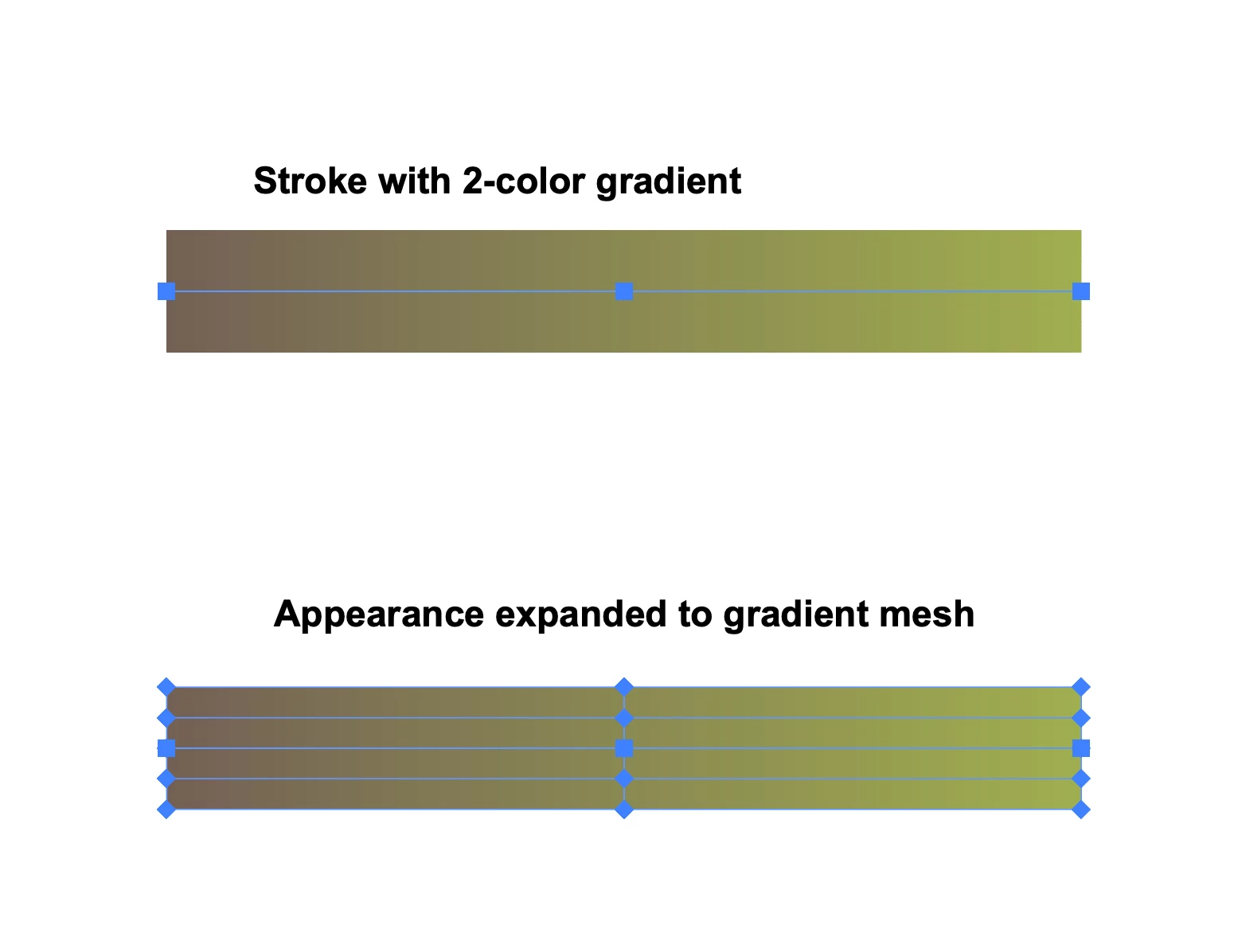
!. Draw a straight horizontal line segment, and go to Object menu > Path > Add Anchor Points to add a point at the center of the line segment. Make the stroke weight large enough to be easily seen, say 30-40 points.
2. To the line segment apply gradient along stroke, made from the two colors, brown and green, that you want to blend.
3. Expand Appearance. This will create a Gradient Mesh.
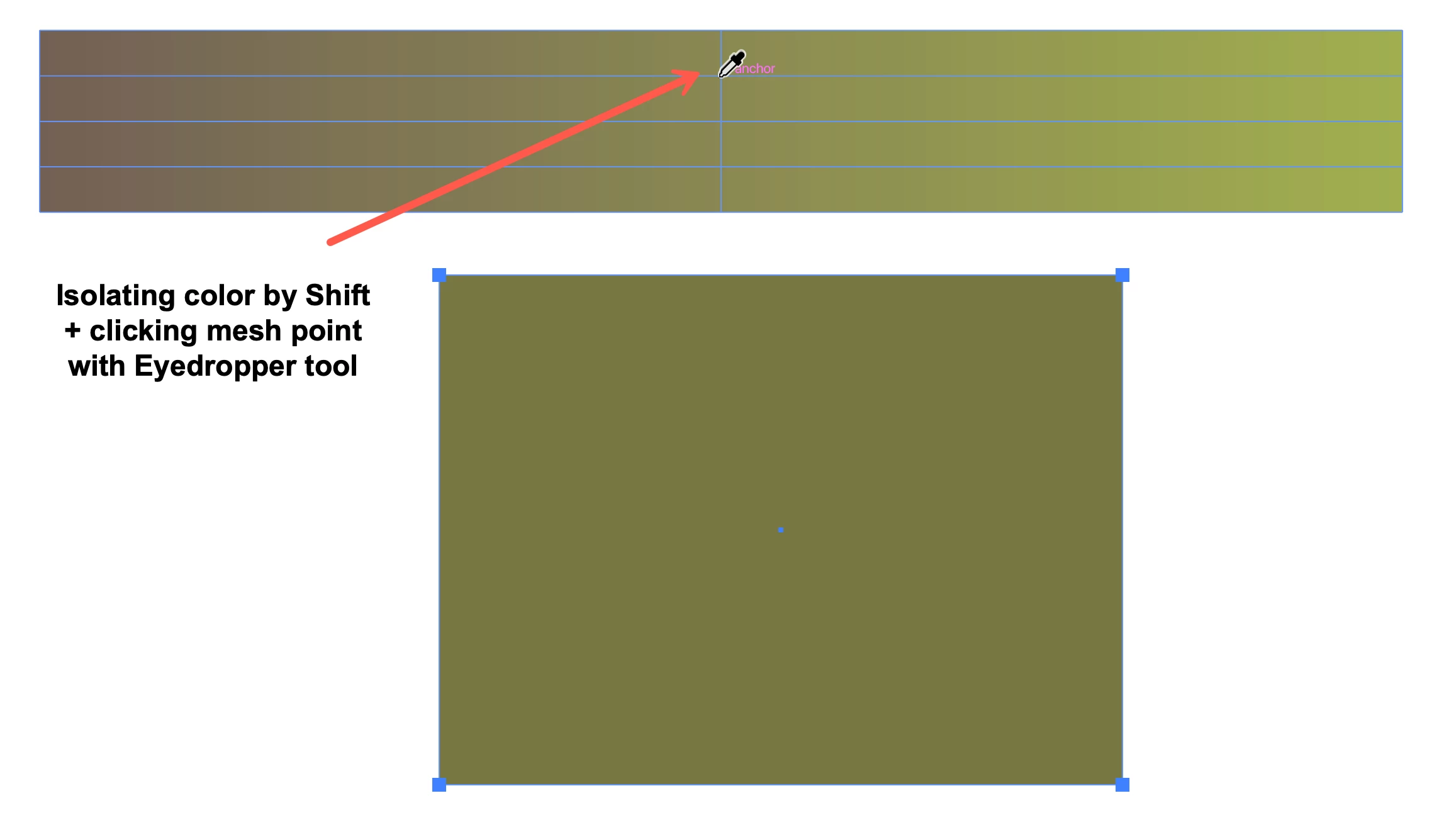
4. Draw a path—probably easiest to see if it’s a closed path such as a rectangle, and put the focus on the fill—and keep it selected.
5. Go to the gradient mesh from step 3, and with the Eyedropper tool Shift + click on one of the center mesh points. This isolates the color that’s midway between the brown and the green.
6. Save this color in the Swatches panel.
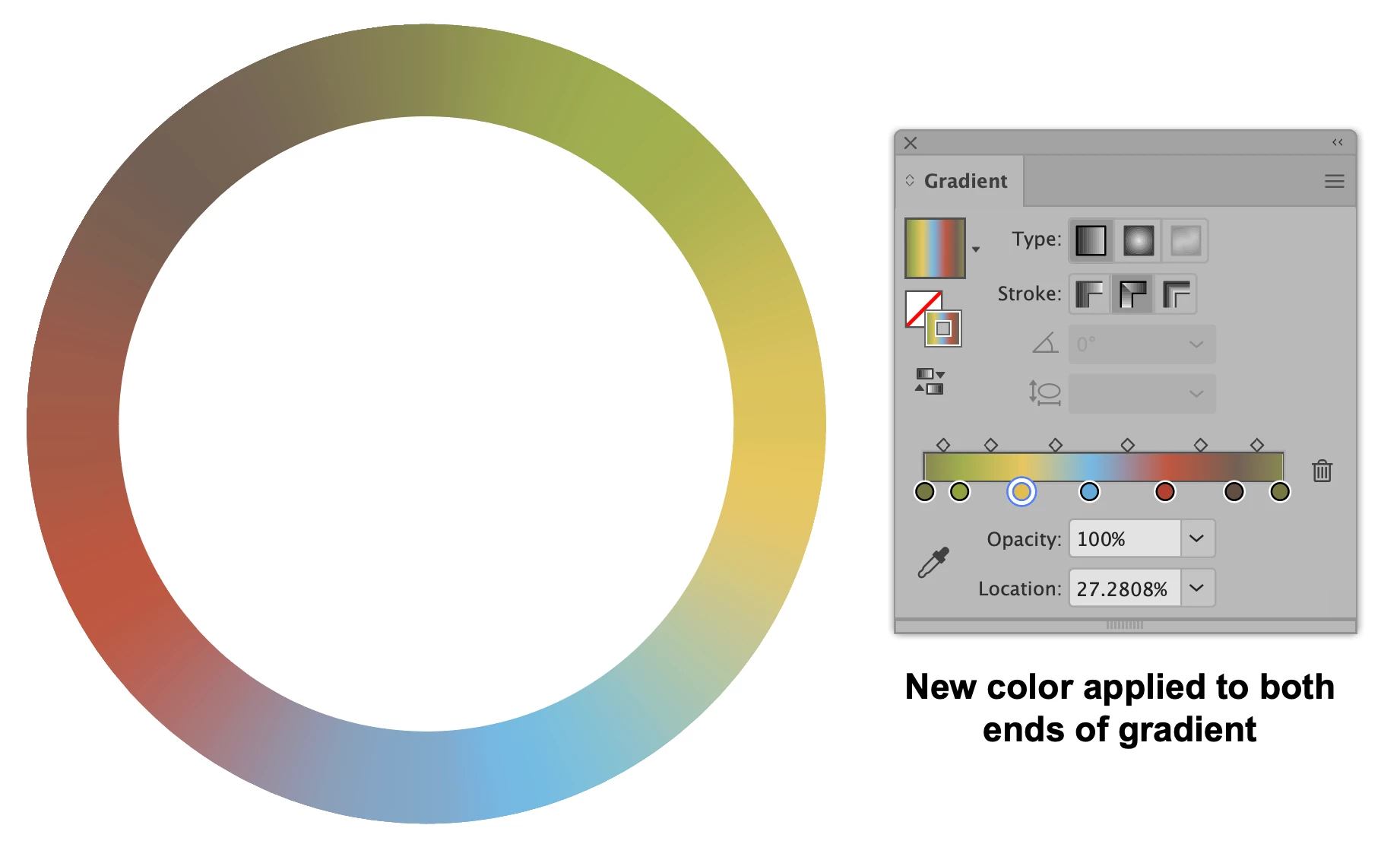
7. Go to the circle with the multi-colored gradient and add stops at both extreme ends of the gradient, applying the new color to each.
8. Adjust the color stops to distribute the colors as you wish.
I hope this is reasonably clear.
Peter

 AdChoices