
November 30, 2010
Answered

How to make trapezoids?

  • November 30, 2010
  • 3 replies
  • 104176 views

I'm pretty new to Illustrator and can't seem to find a good way to make trapezoids (something I will need to create often).  I have tried using the line tool and drawing out each leg to the exact sizes I need, but that is not very easy or efficient. I have also tried making a rectangle and then using the sheer tool to slope the legs as needed.  That way is very limiting as you can not slope the legs in opposite directions and two of the sides have to be parallel to each other.

Is there a better way to do it?

Thanks,

Keith
    This topic has been closed for replies.
    Correct answer Mike_Gondek10189183
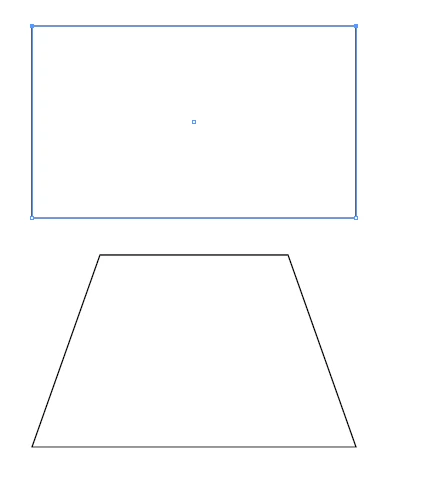
    1. Draw a rectangle
    2. Switch to the hollow(Direct) select tool
    3. Drag an drop a selection over 2 corners of your rectangle (2 selected vector points will be solid, the hollow ones are not selected and remain stationary)
    4. Switch to scale tool, hold down shift and scale
    5. Nudge your selection if needed

    3 replies

    Jacob Bugge
    Community Expert
    Community Expert
    November 30, 2010

    Keith,

    Or, if you wish to move single Anchor Points by specific amounts based on known side lengths, you may (presuming a longer bottom segment and oppositely slanting side segments, and your deselecting/switching to the Direct Selection Tool after creating the rectangle):

    1a) Create a rectangle as long as the top segment:

    1b) Direct Select the lower right corner, Ctrl/Cmd+Shift+M, and apply value,

    1c) Repeat 1b) for the lower left corner with - sign.

    2a) Create a rectangle as long as the bottom segment:

    2b) Direct Select the upper left corner, Ctrl/Cmd+Shift+M, and apply value,

    2c) Repeat 2b) for the upper right corner with - sign.

    3a) Create a rectangle as long as the average of the top and bottom segments:

    3b) Direct Select the lower right corner, Ctrl/Cmd+Shift+M, and apply value,

    3c) Direct Select the upper left corner and Ctrl/Cmd+D to just repeat 3b).

    Mike_Gondek10189183
    Community Expert
    Mike_Gondek10189183Community ExpertCorrect answer
    Community Expert
    November 30, 2010
    1. Draw a rectangle
    2. Switch to the hollow(Direct) select tool
    3. Drag an drop a selection over 2 corners of your rectangle (2 selected vector points will be solid, the hollow ones are not selected and remain stationary)
    4. Switch to scale tool, hold down shift and scale
    5. Nudge your selection if needed

    November 30, 2010

    Sorry, I am using CS5.


    JETalmage
    Inspiring
    November 30, 2010

    1. Rectangle tool: Draw a rectangle.

    2. White Pointer. Deselect. Click a side (not an anchorPoint).

    3. Scale the selection.

    JET

    November 30, 2010

    Perfect man!  Thank you very much.