


Copy link to clipboard
Copied
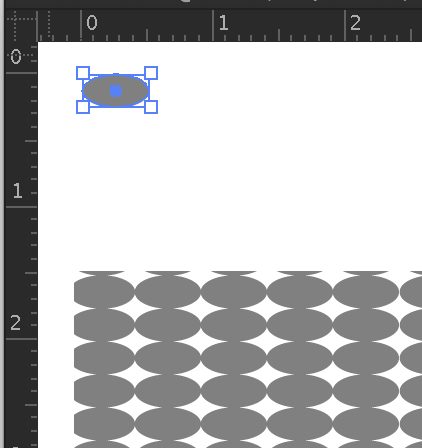
I'm trying to create a pattern swatch of closely-spaced gray ovals. I made one oval, 0.5mm x 0.25mm, and dragged it into the swatches panel. The grid pattern that Illustrator made for me is too loosely spaced. How do I change the spacing? I thought I'd be able to do it from this menu, but it isn't working. When I try to reduce the dimensions in the Width and Height boxes, I get the "boop" error sound.



 1 Correct answer


You have run into a minimum amount for spacing. I believe that is 2pt which equals .7056 mm
Try making your .5 x .25mm shape 200% of size, that should give you enough room to get the spacing you need. Then after you pour your pattern into something, scale it 50% to get back to your original size you desired if that was important.


Explore related tutorials & articles
 17
Replies
17
17
Replies
17


Copy link to clipboard
Copied
Did you possibly have a second object selected when you dragged the oval into the Swatch panel, or perhaps a white stroke on the oval? This is what I'm getting by dragging only an ellipse into the Swatch panel:

Copy link to clipboard
Copied
Good question. So I deleted everything and tried again, and got the same result as last time.
I'm using CC, if it matters.
Copy link to clipboard
Copied
Or perhaps a white stroke on the oval?
Copy link to clipboard
Copied
You have run into a minimum amount for spacing. I believe that is 2pt which equals .7056 mm
Try making your .5 x .25mm shape 200% of size, that should give you enough room to get the spacing you need. Then after you pour your pattern into something, scale it 50% to get back to your original size you desired if that was important.
Copy link to clipboard
Copied
Mike, you are correct. How do I scale a pattern down after using it?
Copy link to clipboard
Copied
Double click on the pattern name in your swatches, and you get to the pattern editing mode.
Thanks for posting a question with screenshot and accurate description, we so rarely get that is a pleasure to reply to your post.
Copy link to clipboard
Copied
Thanks! I've now got a grid of 2mmx1mm ovals. I'm still not clear on how I now shrink them to the small size that I want. I don't see how to do it in the pattern editing mode:


Copy link to clipboard
Copied
Adjust the size in Pattern editing mode and scale the Pattern only 25% when used in an object.

The minimum size of a pattern seems to be 2 X 2 px.
Copy link to clipboard
Copied
"scale the Pattern only 25% when used in an object"
How do I scale a pattern?

Copy link to clipboard
Copied
The Scale tool (S key is the shortcut) and Opt(Alt) click should give you the Scale dialog. At the bottom are a couple of options. Untick the Scale Object and tick the Scale Pattern. Select Uniform and enter 25 in the dropdown.

Copy link to clipboard
Copied
When I use Object > Pattern > Make I get the same spacing you do. If, however, I drag the oval into the Swatches panel, the pattern has the shapes touching.
Copy link to clipboard
Copied
Ahh! That explains it, tromboniator. I dragged mine into the Swatch panel (old-school).
Copy link to clipboard
Copied
I don't have problem creating a .5x.25mm pattern. I think it must be a white stroke.
Copy link to clipboard
Copied
I am on Mac CC2018 and the cutoff seems to be exactly at .7056mm on an oval with no stroke.
Copy link to clipboard
Copied
I'm using CC 2015
Copy link to clipboard
Copied
Mike is right, your original object is too small (height is less than a pixel/point)
Make your object much larger and use the Object > Pattern > Make option to finetune.
Copy link to clipboard
Copied
Thank you all - I'm now getting the result I wanted.


Get ready! An upgraded Adobe Community experience is coming in January.
Learn more
 AdChoices