sheepdreams
Participant
December 13, 2020
Answered

How to print list of colors in artwork

  • December 13, 2020
  • 2 replies
  • 658 views

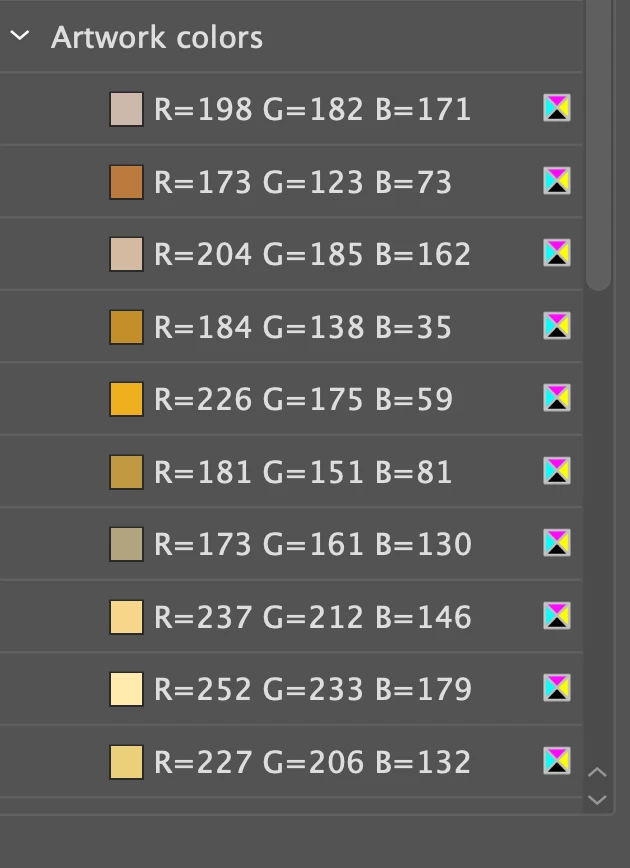
I would like to print a list of the colors found in the artwork that show the CMYK values such as you see in the artwork folder when recoloring artwork. Any ideas? Thanks!

 

This topic has been closed for replies.
Correct answer Ares Hovhannesyan

You have to save it in txt first from the menu of Documet Info panel, then print it from txt file. But the report will include only colors that have been used in your document.


Another option is File=Package option to package your file. You will get something like this.


Package Report

-----------------------------------------------------------------------------
Document:
Name: Alina Sahakyan.ai
Color Mode: CMYK color
Color Profile: none
Ruler Units: centimeters
Artboard Dimensions: 21 cm x 29.7 cm
Show Images in Outline Mode: OFF
Highlight Substituted Fonts: OFF
Highlight Substituted Glyphs: OFF
Preserve Text Editability
Simulate Colored Paper: OFF

-----------------------------------------------------------------------------
Spot Color Objects:
C=18 M=19 Y=33 K=0 1 (RGB)
C=9 M=15 Y=39 K=1 (CMYK)
R=101 G=89 B=82 (CMYK)
R=142 G=26 B=53 (CMYK)
R=209 G=113 B=112 (CMYK)

-----------------------------------------------------------------------------
Missing Fonts:NONE

-----------------------------------------------------------------------------
Protected Fonts that were not packaged:NONE

-----------------------------------------------------------------------------
Fonts:
Myriad Pro (OTF)
ArTarumianBarak Bold (TrueType)

-----------------------------------------------------------------------------
Embedded Fonts:
NONE

-----------------------------------------------------------------------------
Missing Links:
NONE

-----------------------------------------------------------------------------
Linked Images:
NONE

2 replies

sheepdreams
Participant
December 13, 2020

Thanks but I went to document info and don't actually see where I can print the list of colors within that panel. Can you point me in the right direction more specifically?

Ares Hovhannesyan
Community Expert
Ares HovhannesyanCommunity ExpertCorrect answer
Community Expert
December 14, 2020

You have to save it in txt first from the menu of Documet Info panel, then print it from txt file. But the report will include only colors that have been used in your document.


Another option is File=Package option to package your file. You will get something like this.


Package Report

-----------------------------------------------------------------------------
Document:
Name: Alina Sahakyan.ai
Color Mode: CMYK color
Color Profile: none
Ruler Units: centimeters
Artboard Dimensions: 21 cm x 29.7 cm
Show Images in Outline Mode: OFF
Highlight Substituted Fonts: OFF
Highlight Substituted Glyphs: OFF
Preserve Text Editability
Simulate Colored Paper: OFF

-----------------------------------------------------------------------------
Spot Color Objects:
C=18 M=19 Y=33 K=0 1 (RGB)
C=9 M=15 Y=39 K=1 (CMYK)
R=101 G=89 B=82 (CMYK)
R=142 G=26 B=53 (CMYK)
R=209 G=113 B=112 (CMYK)

-----------------------------------------------------------------------------
Missing Fonts:NONE

-----------------------------------------------------------------------------
Protected Fonts that were not packaged:NONE

-----------------------------------------------------------------------------
Fonts:
Myriad Pro (OTF)
ArTarumianBarak Bold (TrueType)

-----------------------------------------------------------------------------
Embedded Fonts:
NONE

-----------------------------------------------------------------------------
Missing Links:
NONE

-----------------------------------------------------------------------------
Linked Images:
NONE

Ares Hovhannesyan
Community Expert
Community Expert
December 13, 2020

Metadata is a set of standardized information about a file, such as author name, resolution, color space, copyright, and keywords applied to it.

File information found in the Document Info panel provides general file information and object characteristics, as well as the number and names of graphic styles, custom colors, gradients, fonts, and placed art.


About the XMP standard

Working with metadata in Adobe Bridge and Adobe Creative Suite components

Document Info panel overview

You use the Document Info panel to see listings of general file information and object characteristics, as well as the number and names of graphic styles, custom colors, patterns, gradients, fonts, and placed art. To display the panel, choose Window > Document Info.

  • To view a different type of information, select an option from the panel menu: Document, Objects, Graphic Styles, Brushes, Spot Color Objects, Pattern Objects, Gradient Objects, Fonts, Linked Images, Embedded Images, and Font Details.

  • To view information on only the selected object, choose Selection Only from the panel menu. Leaving this option deselected lists information about the entire document.

  • To save a copy of the file information as a text file, choose Save from the panel menu. Specify a name and location, and then click Save.

  • To view artboard dimensions, click the Artboard tool, choose Document from the panel menu, and then click to select the artboard you want to view.


Resourse https://helpx.adobe.com/illustrator/using/file-information-metadata.html


Or you can do screenshot from recolor panel