Participating Frequently
March 12, 2024
Answered

How to put numbers around a circle "horizontally"?

  • March 12, 2024
  • 3 replies
  • 2989 views

I have experimented with the type on path function, but I cannot figure this out.

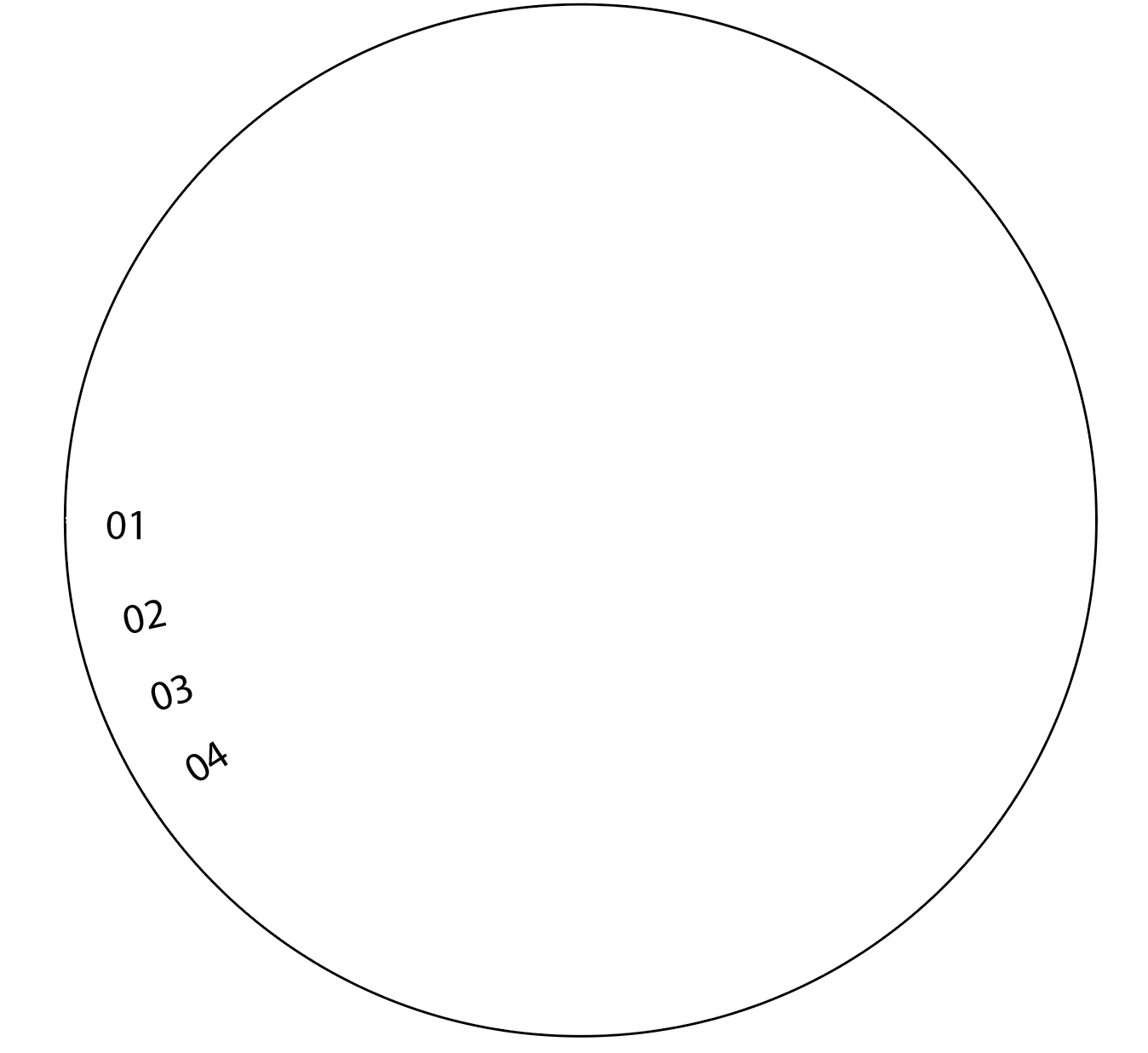
I want to put numbers 00 to 49 around a circle, and all numbers should follow the circle vertically. It's hard to explain, so I've made an example for number 01 to 04:

Any idea how to accomplish this? 🤔 🤔

Correct answer kphotopage

Andreas, hi.

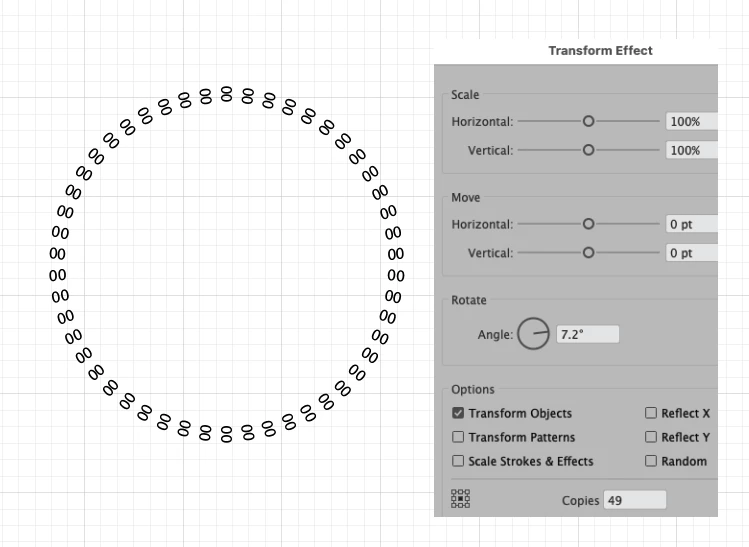
To put numbers 00 to 49 around a circle here are the steps I used.

Basically, I used Text on a path and Effects>Transform. All text is live.


Draw a circle. Stroke Color None, Fill Color None.

With the Line Tool, Draw a stroke line.

Align your line inside circle and align center.


With Type on Path Tool, Click on line. I typed in 00 for placeholder text. I used Myriad Pro 14pt, Paragraph is Center aligned


With White arrow tool, adjust both Handles to the ends.

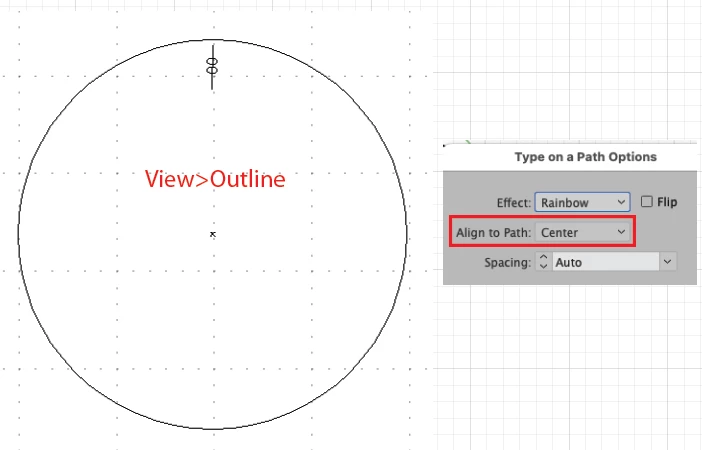
Type>Type on a Path>Type Options, Change to Center.


Select both your circle and Type on a Path. Group.

Effect>Transform. Here on my settings. (360/50=angle 7.2) need 49 copies.


Expand Effect>Transform.

I ungrouped x2

Type in your numbers.


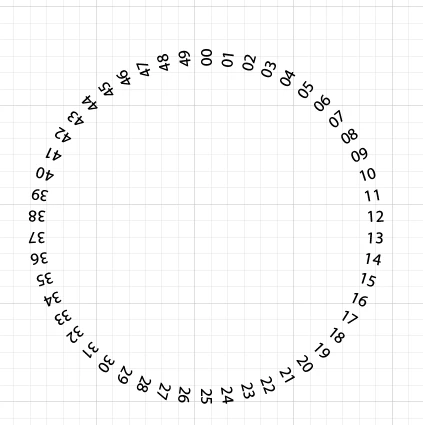
As you can see, the left side, the numbers are upside down.

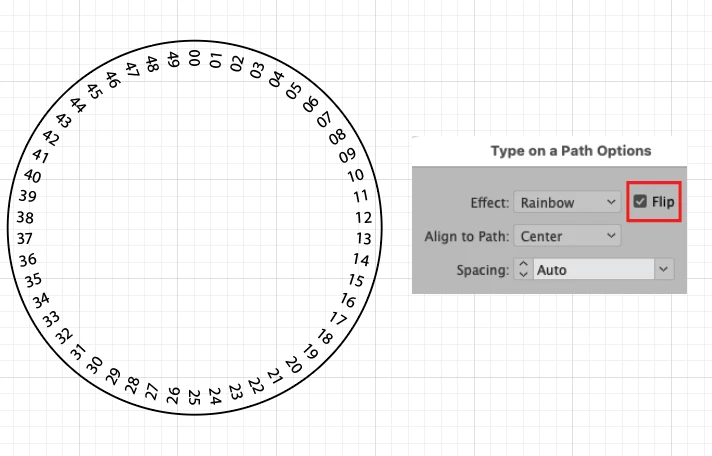
So, Select numbers 26-49, Type>Type on a Path>Type Options, Check Flip.


K
3 replies

Monika Gause
Community Expert
Community Expert
March 15, 2024

Like this: https://youtu.be/npuIc8tt_r0


If the Warichu trick doesn't work anymore.

kphotopage
kphotopageCorrect answer
Legend
March 15, 2024

Andreas, hi.

To put numbers 00 to 49 around a circle here are the steps I used.

Basically, I used Text on a path and Effects>Transform. All text is live.


Draw a circle. Stroke Color None, Fill Color None.

With the Line Tool, Draw a stroke line.

Align your line inside circle and align center.


With Type on Path Tool, Click on line. I typed in 00 for placeholder text. I used Myriad Pro 14pt, Paragraph is Center aligned


With White arrow tool, adjust both Handles to the ends.

Type>Type on a Path>Type Options, Change to Center.


Select both your circle and Type on a Path. Group.

Effect>Transform. Here on my settings. (360/50=angle 7.2) need 49 copies.


Expand Effect>Transform.

I ungrouped x2

Type in your numbers.


As you can see, the left side, the numbers are upside down.

So, Select numbers 26-49, Type>Type on a Path>Type Options, Check Flip.


K
Alliess
Participant
October 15, 2024

@kphotopage Hi! Just came here to thank you!! That was exactly what I was looking for. 

Jacob Bugge
Community Expert
Community Expert
March 12, 2024

Andreas,


You can use a 1 step blend fake based on live Type, as in this simplified set of steps (only from 00 to 06 in big numbers), which looks funny while you are at it (until you delete the temporary parts),


Click to get closer, Click again to get closer still