
Participant
June 20, 2017
Question

How to remove/delete black color around image (or make transparent)

  • June 20, 2017
  • 3 replies
  • 2331 views

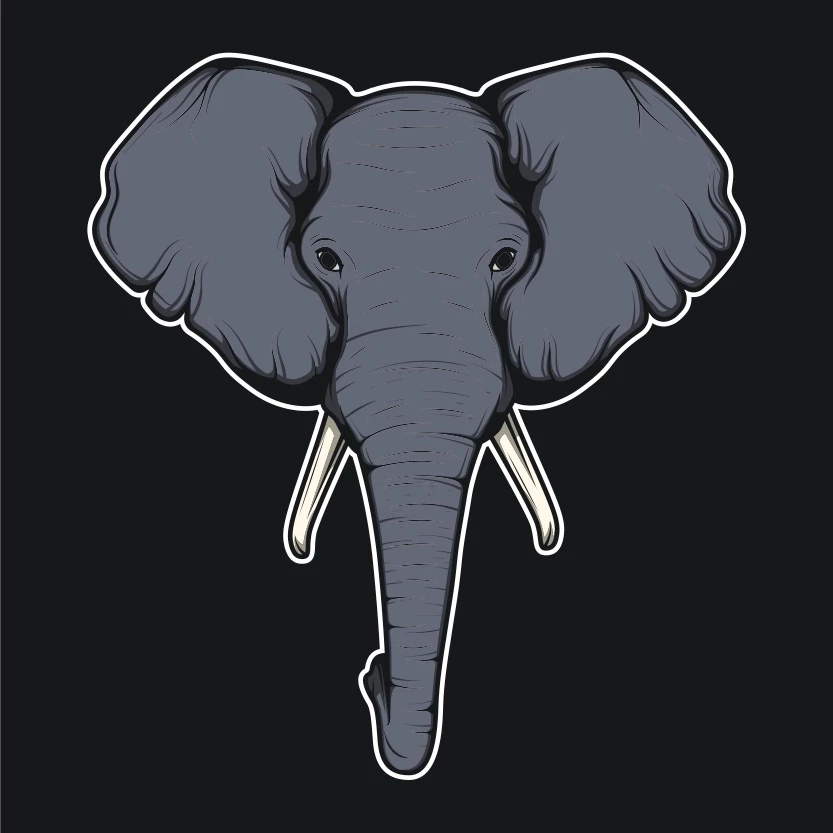
I have an image of an elephant.  I want to take out the black surround and make transparent.  Can you point me in the right direction?  Yes, I have the legal right to do so, I bought the image.  Thanks.
    This topic has been closed for replies.

    3 replies

    barbara_a7746676
    Community Expert
    Community Expert
    June 21, 2017

    If there is a clipping mask or compound path preventing you from selecting the black backround, you can double click on the Illustration to enter isolation mode and delete it.

    Monika Gause
    Community Expert
    Community Expert
    June 20, 2017

    Open the layers panel. Most probably the black in just a black rectangle in the background of the image (which is at the bottom of the layers panel). It might be locked. Unlock and delete.

    If that does not solve it, please show a screenshot of the layers panel.

    Mike_Gondek10189183
    Community Expert
    Community Expert
    June 20, 2017

    Hit A to switch to the direct select (AKA: hollow or white)  arrow tool and do a Command Y to see in key lien view who this is constructed. Command Y again to go back to preview. Select what I suspect you to have an outer rectangle and delete.

    To confirm transparnecy do a shift command D to show transparency. Hit that key compound again to go back to normal view. This will help you with the white outline around the elephant.