New_guy1
Inspiring
December 9, 2016
Answered

How to reverse colors on a two color logo

  • December 9, 2016
  • 3 replies
  • 15378 views

I have a simple one-color logo (red) on a white background.

I'd like to reverse it so that my background is red and the logo is white.

how can I do this?

    This topic has been closed for replies.
    Correct answer PrepressPro1

    You will first need to make a white background box if you don't have one behind the logo. Best to know what color mode you are working in and why. I will assume for the time being you are working in RGB. Make sure you have all your color swatches, Red, White in a color group. Now make a third color, because if you just try to trade out red for white the logo just disappears. I used blue as a third "dummy" color. You can even call it dummy. Select all objects, Logo and White background square. Go to Menu>Edit>Edit Colors>Recolor Artwork. The dialog presented when you have the Assign is selected shows Current Color and New Color columns. The Red block in the New Color column can be double clicked to allow you to select a new color to replace, use the dummy blue color and replace the Red. Double click the New Color column to the right of the Current Color White. You will be asked if you want to add a new color to your current harmony. Say yes. In the color picker you are presented choose the Red swatch in the Swatches.
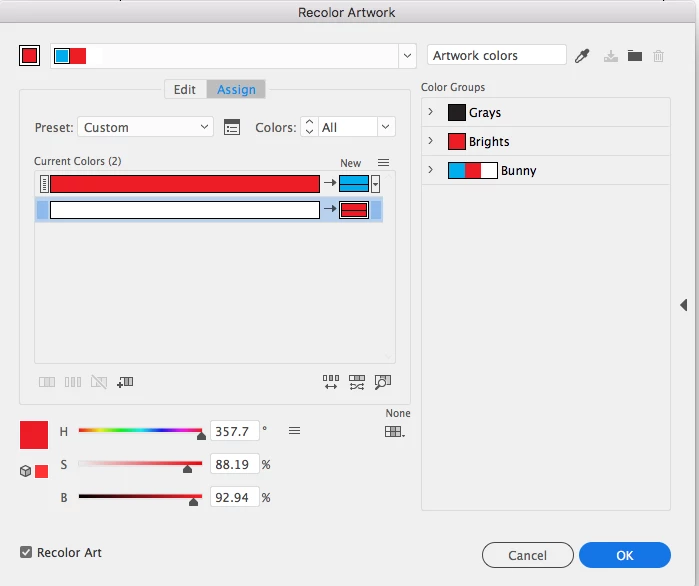
    Click OK and you should have a blue logo on a red background. Now go back to the Recolor Artwork dialog and double click on the Dummy blue New Color column and change the Dummy blue to White.

    Edit Color>Recolor Artwork is a powerful tool with many uses and you would do well to read what Illustrator documentation says on this topic.

    3 replies

    Ton Frederiks
    Community Expert
    Community Expert
    December 9, 2016

    Convert the colors to Global swatches and they are easy to change.

    Select both the red logo and the white background

    At the bottom of the Swatches Panel, click the "New Color Group" icon.

    Check the “Convert Process to Global” checkbox.

    Deselect your logo, double click the swatches and change the colors and Swatch Names.

    PrepressPro1
    PrepressPro1Correct answer
    Legend
    December 9, 2016

    You will first need to make a white background box if you don't have one behind the logo. Best to know what color mode you are working in and why. I will assume for the time being you are working in RGB. Make sure you have all your color swatches, Red, White in a color group. Now make a third color, because if you just try to trade out red for white the logo just disappears. I used blue as a third "dummy" color. You can even call it dummy. Select all objects, Logo and White background square. Go to Menu>Edit>Edit Colors>Recolor Artwork. The dialog presented when you have the Assign is selected shows Current Color and New Color columns. The Red block in the New Color column can be double clicked to allow you to select a new color to replace, use the dummy blue color and replace the Red. Double click the New Color column to the right of the Current Color White. You will be asked if you want to add a new color to your current harmony. Say yes. In the color picker you are presented choose the Red swatch in the Swatches.

    Click OK and you should have a blue logo on a red background. Now go back to the Recolor Artwork dialog and double click on the Dummy blue New Color column and change the Dummy blue to White.

    Edit Color>Recolor Artwork is a powerful tool with many uses and you would do well to read what Illustrator documentation says on this topic.

    Participating Frequently
    January 19, 2023

    THANK YOU!!!

    barbara_a7746676
    Community Expert
    Community Expert
    December 9, 2016

    Is your logo an image or is it vector?

    New_guy1
    New_guy1Author
    Inspiring
    December 9, 2016

    It's vector.