Answered
How to split up one shape into several shapes with text in
Hi!
I have a shape filled in with text and I want to split up that shape into several shapes but still have the text in perfect order. Make sense? 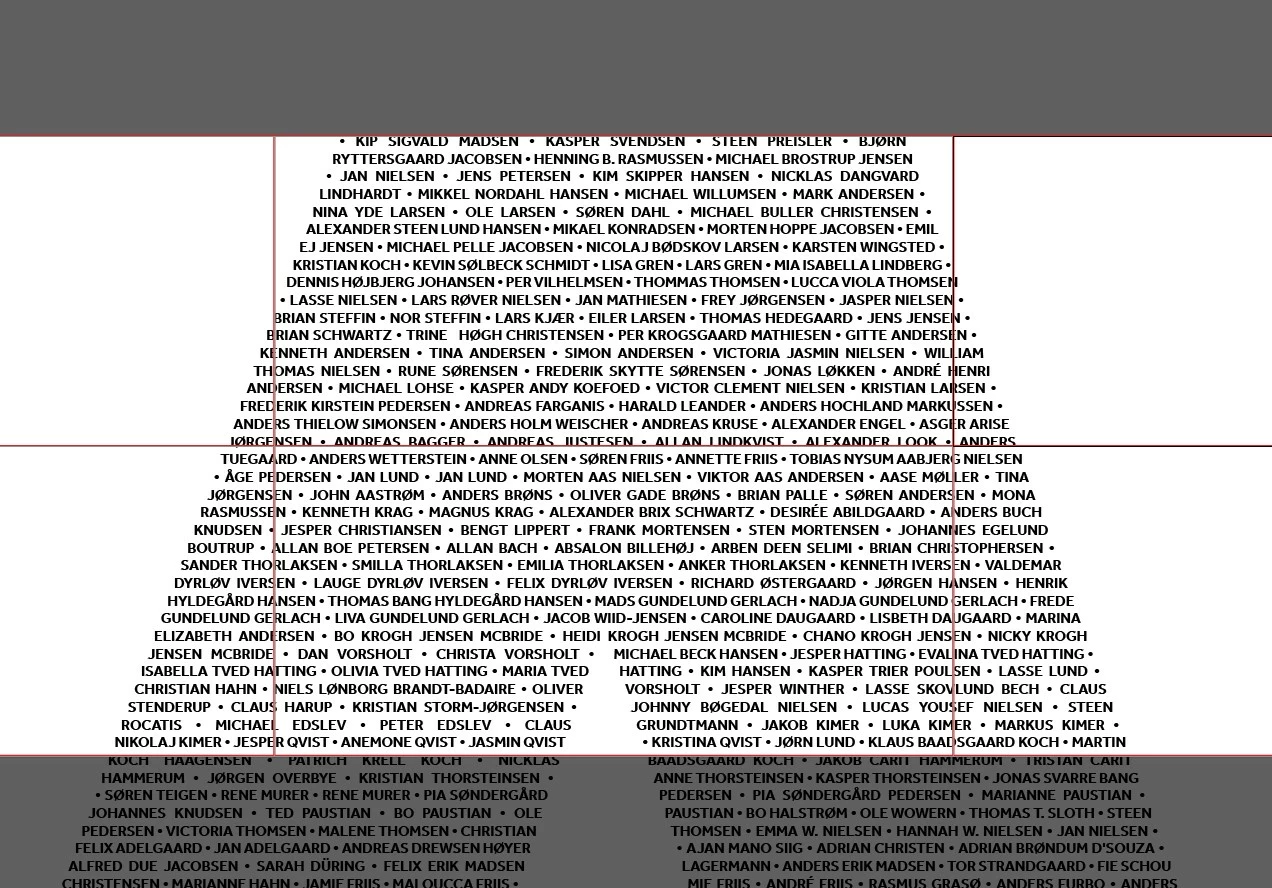

Hi!
I have a shape filled in with text and I want to split up that shape into several shapes but still have the text in perfect order. Make sense?
It's pretty easy, Kasper.
- Draw an area type object and fill it with some placeholder text.
- Open the Area Type Options (see Type menu).
- Choose the number of rows and columns and the gutter settings.
- Type a big "R" in a separate type object and convert it to paths.
- Draw a rectangle around the "R" shape, select both and make a compound path (see Object menu).
- Select the area type object and the compound path.
- Go to the Object menu > Text Wrap > Make.
- Modify the text wrap options, if desired.
There may be some overset text. Delete it.
Already have an account? Login
Enter your E-mail address. We'll send you an e-mail with instructions to reset your password.
 AdChoices