
jaimes17321370
Participant
July 19, 2017
Answered

How to Transform/Distort Shapes in Illustrator CC?

  • July 19, 2017
  • 5 replies
  • 2927 views

I am working in the latest version of Adobe Illustrator CC, and I am not able to transform a square. It used to be that I could create a square, then select an anchor point on one corner, hold option/alt, and turn it into a narrower diamond (not preserving corner angles). Now, I cannot transform the shape in any way but its size. The only option I've found is to pull up the transform menu, select "transform each..." and adjust the vertical scale separately from the horizontal. But this is controlled by a percentage, which is enforcing mathematical specificity which I neither require nor want as I'm attempting to experiment quickly.
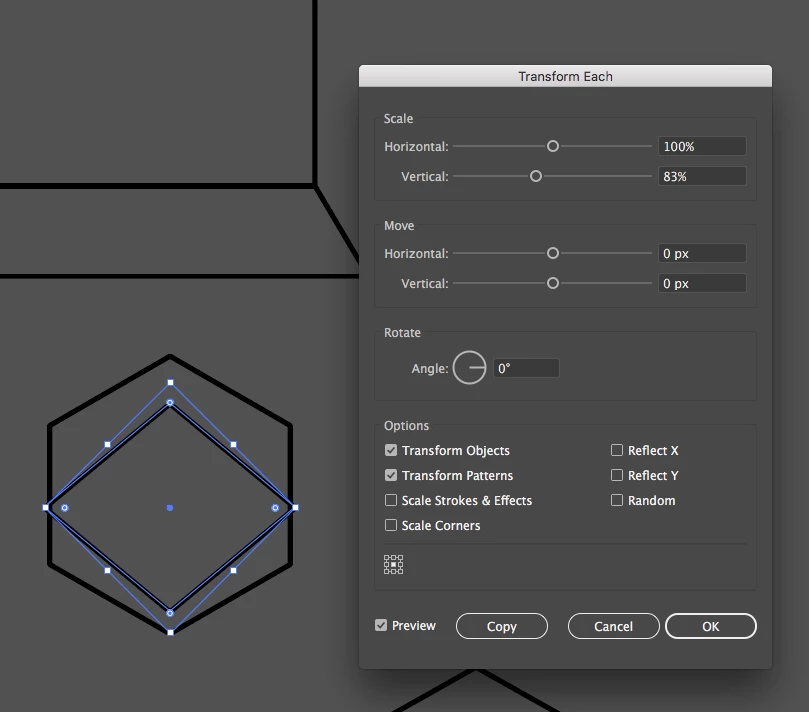
I would think unchecking "scale corners" would give me the flexibility I'm seeking, to control the square's distortion with just a mouse click and drag on an anchor point. Basically, I want my basic functionality to be available as hot key controls, or a mouse click. In older versions of Illustrator, all I had to do was move an anchor point, and if I CHOSE to constrain proportions, I could by holding Shift. This seems like a less user friendly evolution for this software. Anyone have an alternative?

    This topic has been closed for replies.
    Correct answer Monika Gause

    After expanding the shape you might need to Object > Transform > Reset Bounding box

    5 replies

    Ray Yorkshire
    Participating Frequently
    July 20, 2017

    Maybe just use the Scale tool,on your rotated square, with the rotation set at the objects centre, and drag up or down from the top anchor point,

    Jacob Bugge
    Community Expert
    Community Expert
    July 20, 2017

    Jaimes,

    In addition to what John said, to easily get rid of multiple Live Shapes, you may make an action or a shortcut for Object>Shape>Expand Shape.

    For the latter, you may:

    Edit>Keyboard Shortcuts>Menu Commands>Object>Shape>Expand Shape, then click the first little box to the right, then press the desired key on the keyboard, then press OK, and name it.

    First suggested by Ray in post 9# here:

    https://forums.adobe.com/message/8492214#8492214

    This is what Live Shapes are about:

    https://helpx.adobe.com/illustrator/how-to/live-shapes.html

    sharp_hands16B8
    Community Expert
    Community Expert
    July 20, 2017

    Both Monika and John are right. The newer versions of Illustrator frustrated me with this and I wasn't sure when it changed. But...

    I got in the habit of grabbing those opposing corners with the Direct Select Tool (White Arrow) and then using a transform box. For example then I can hold option and move the opposing points closer or farther apart from one another. It's about the same amount of clicks, and works fine, still keeping it as a shape and not an expanded path.

    John Mensinger
    Community Expert
    Community Expert
    July 19, 2017

    jaimes17321370  wrote

    I am working in the latest version of Adobe Illustrator CC, and I am not able to transform a square. It used to be that I could...

    Not sure how/why you developed a habit of holding Opt/Alt, but in any case, I suspect you're discovering that the current version of Illustrator, now by default, draws a "Shape," rather than a Path. Try this: With the object selected, choose Object > Shape > Expand Shape, then see if the accustomed, used-to-be behavior returns.

    Monika Gause
    Community Expert
    Monika GauseCommunity ExpertCorrect answer
    Community Expert
    July 19, 2017

    After expanding the shape you might need to Object > Transform > Reset Bounding box

    Bill Silbert
    Community Expert
    Community Expert
    July 19, 2017

    As far back as I can remember (I've been using Illustrator since 1989) holding the option (or alt) while dragging a point or even a whole shape merely makes a copy of whatever you're dragging. Have I missed something all these years?