
Participant
December 17, 2019
Question

How to turn outlines into solid shapes

  • December 17, 2019
  • 4 replies
  • 6397 views

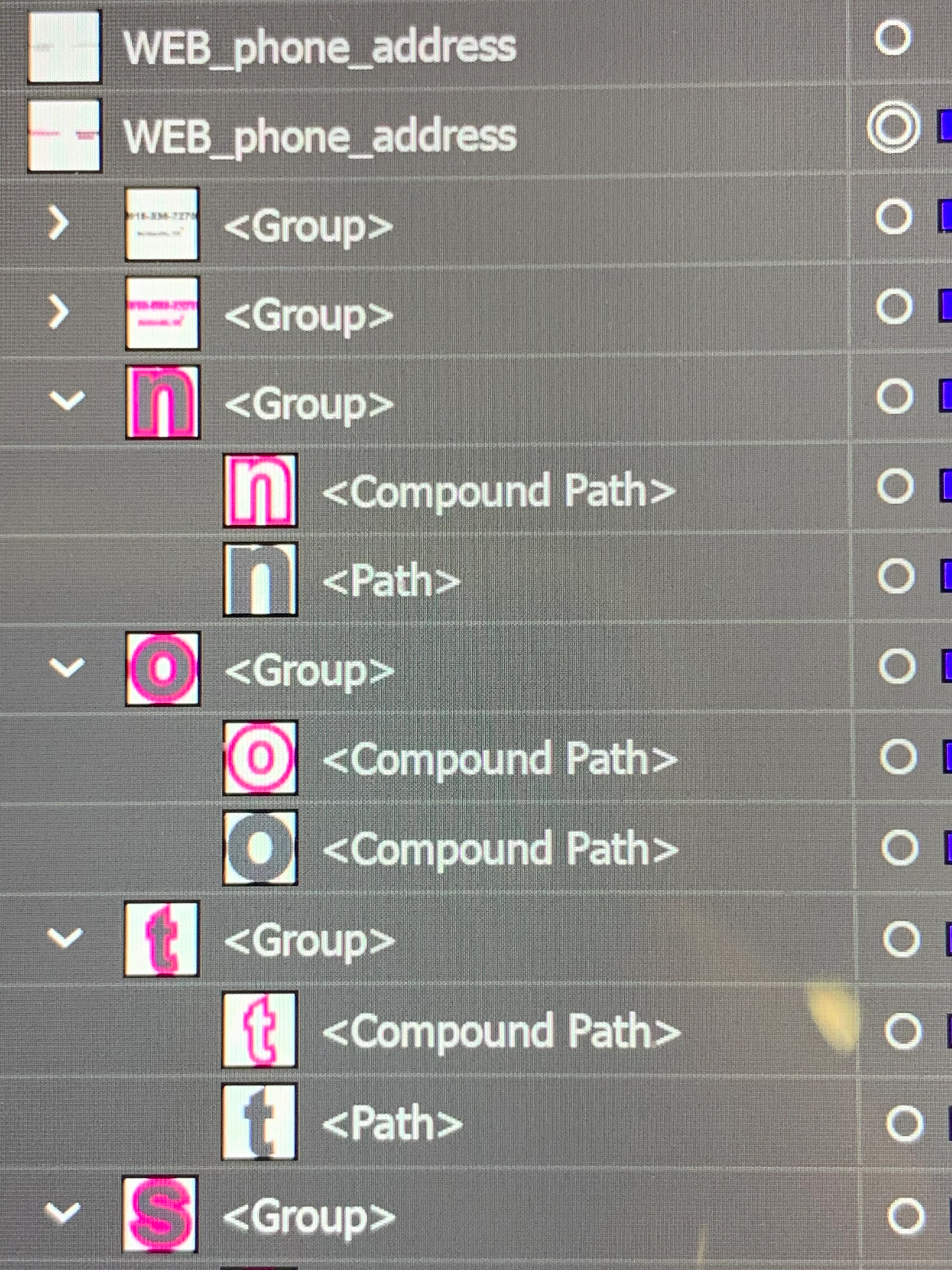
Hi, I have a set of words with outlines. For this,  I first turned type to outlines so I could apply the strokes on the outsides of the letters. Then I outlined the strokes (I have tried it with offset as well, but no difference for what I'm needing).  My problem is that I need 2 separate layers: the layers of the strokes themselves, and these have to be totally solid (except for the inside of an O, for instance) under the other letters, plus the layers of the letters.  So, now I have to be sending each of the 2 letter components to a separate group. And, then, on top, each outline has to be manually edited to remove the inside lines and turn it into a solid fill (this is because this will be used not only for print but to create a cutting path, and I only need the cuts on the outside of the outlines).  


Sorry the picture loaded up sideways.

Appreciate your comments!
This topic has been closed for replies.

4 replies

Jacob Bugge
Community Expert
Community Expert
December 19, 2019

akuarela,


I thought that the other part would be obvious, implied by 3), sorry.


Here is a slightly extended version with a comment in 3) and the addition of 7) - 9) to move to layers:


I believe you may, 4) - 6) applying to the O and similarly for other instances, and 3) + 7) - 9) hopefully taking care of the other part:


1) Outline the font;

2) Object>Path>Offset Path with the desired offset and turn the offset paths pink;

3) Ctrl/Cmd+Shift+G to Ungroup, this prepares for the splitting into layers;

4) Switch to the Direct Selection Tool and deselect (click an empty spot), then Alt/OptionClick the inner path of the black O and Ctrl/Cmd+C+F+X, then Alt/Option+ShiftClick the pink filled O, then Ctrl/Cmd+F to get a separate path between the black O and the filled pink O;

5) Object>Path>Offset Path with the same offset as in 2), only negative;

6) With the Selection Tool ShiftClick the filled pink O and the new path from 5), then Pathfinder>Minus front,

7) Select one of the pink paths and Select>Same>Fill Color, then Ctrl/Cmd+G to Group them, then change the colour to white;

8 ) 7) Select one of the black paths and Select>Same>Fill Color, then Ctrl/Cmd+G to Group them;

9) Move the Groups from 7) and 8 ) to the desired Layers.


Jacob Bugge
Community Expert
Community Expert
December 18, 2019

aktuarela,


As I (mis)understand it, you are using an ailing font, hence the O issue.


I believe you may, for the O and similarly for other is´nstances:


1) Outline the font;

2) Object>Path>Offset Path with the desired offset and turn the offset paths pink;

3) Ctrl/Cmd+Shift+G to Ungroup;

4) Switch to the Direct Selection Tool and deselect (click an empty spot), then Alt/OptionClick the inner path of the black O and Ctrl/Cmd+C+F+X, then Alt/Option+ShiftClick the pink filled O, then Ctrl/Cmd+F to get a separate path between the black O and the filled pink O;

5) Object>Path>Offset Path with the same offset as in 2), only negative;

6) With the Selection Tool ShiftClick the filled pink O and the new path from 5), then Pathfinder>Minus front.


That ought to rid you of the inner part of the pink O.


akuarela7Author
Participant
December 18, 2019

The O issue could be annoying but that is not what I’m needing to solve. Here is a picture of how they should look, together and the layers separate. Also will put an example of the finished product, instead of pink, the outline is white, the pink actually does not print but makes an instruction for a cutting path to the plotter.


Kurt Gold
Community Expert
Community Expert
December 17, 2019

Admittedly, I'd rather agree with Monika. Your request is a bit hard to understand although you are trying to explain it pretty clear. But - frankly - I don't get it.


At least - to me - it is a bit hard to unravel what problems you are facing when doing what you want to do.


Can you perhaps provide a sample .ai file with some more instructions?

Monika Gause
Community Expert
Community Expert
December 17, 2019

Sounds complicated. Can you show a picture of what this is supposed to look like?

akuarela7Author
Participant
December 17, 2019

Thanks, Monika. Actually my sign program allows me to do it without any hassle, but I have not found a pathfinder option or something else that will let me do what I need.  So, after doing the steps above, outlining the stroke, it looks like the letters on the left 'nline" - I need them to look like the the right side ".com" (although something happened with this o that should have had the middle clear. To do this, currently I have to remove each inside path of the pink letters, the gray letters are the ones that will actually be seen, and the border of the pink is where the plotter will cut. 

Monika Gause
Community Expert
Community Expert
December 17, 2019

Like this?