Participating Frequently
December 26, 2018
Question

I'd like to preserve the position of objects when I export a layer

  • December 26, 2018
  • 3 replies
  • 5273 views

Hi folks,

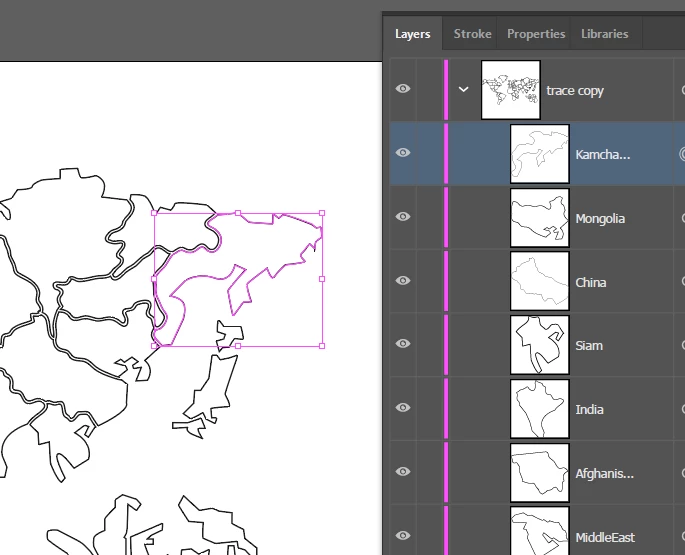
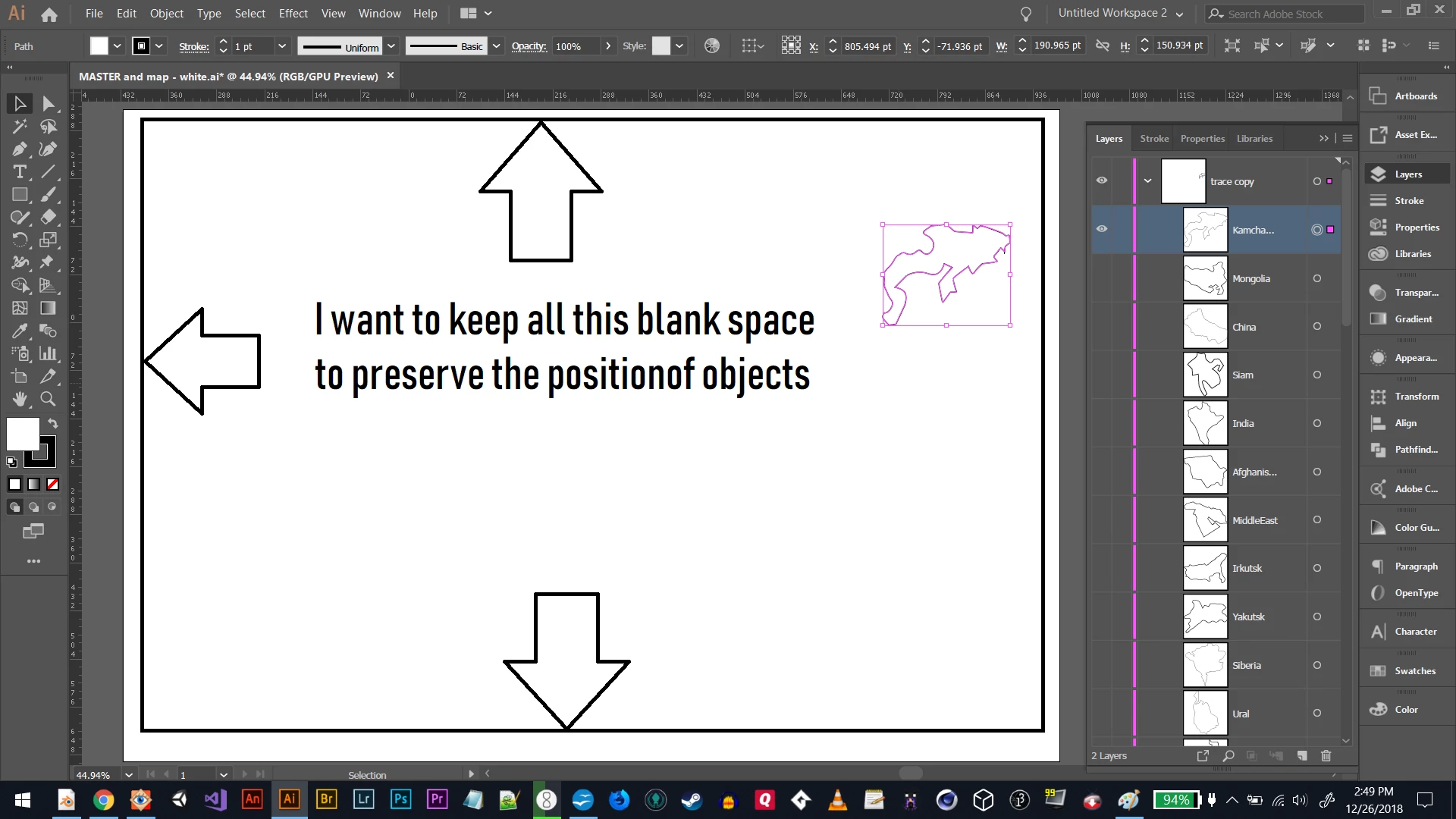
I have a map of the world with countries on different layers. I need to end up with every country on it's own png file, and I need to keep the position of the object.  (I'm importing the png's to Unity and I don't want to manually place each country). I've figured out how to export the layers as separate png's, but the result is an image cropped to just the country object.

Hopefully the images explain what I'm looking for.

Thank you!
    This topic has been closed for replies.

    3 replies

    fahad_dexter
    Participating Frequently
    December 28, 2018

    clayr95172224​ I understand your query and I've no idea whether the above answers are helpful fro you or not. I just know a simple way I can do this.

    1) Separating layers as of each country.
    2) Hiding all layers except the one which has to be exported.
    3) Press Ctrl+Shift+S or Ctrl+Shift+Alt+S and save.
    4) Repeat this for all the layers (countries).

    As the canvas is same for each layer. Each PNG will retain its position.

    Participating Frequently
    December 28, 2018

    fahad_dexter, thanks that's probably the easiest thing to do. I was hoping to save the png's more automatically, but the most important thing was getting them to stay in position.

    Thanks!

    CarlosCanto
    Community Expert
    Community Expert
    December 28, 2018

    Hi so you're selecting and dragging all the countries to the assets panel in one go? And when you export your pngs you want to keep the names of the countries.

    The only way I can think of is by grouping each country with a copy of the border rectangle, then naming the group as the country...but sounds tedious.

    I could write a script to help you group and rename. Is this a one-time project or do you do this often?

    CarlosCanto
    Community Expert
    Community Expert
    December 27, 2018

    Hi, yes add a new layer on top of the stack then add the border rectangle in that new layer

    Participating Frequently
    December 27, 2018

    Okay I've tried adding a layer with the rectangle border, but it's not being applied to the other layers. I'm using the Asset Export window, and it looks like this (pic1). Alternatively, I can drag and drop the rectangle onto each layer one at a time, and that works in the Asset Export (pic2). Doing it that way, even though it works, is prone to lots of little mistake as I drag and drop.

    (I've also tried having the countries as objects and also as layers, made by: "Release to layers - sequence" but that doesn't help. It creates a layer, but doesn't grab the name which would be nice.)

    CarlosCanto
    Community Expert
    Community Expert
    December 26, 2018

    make a no-fill, no-stroke border around the artboard, include it when you export your individual countries

    Participating Frequently
    December 26, 2018

    Okay, I made a rectangle (no fill/no stroke) but how do I include it in the layers? Would I need a border like this for every sub-layer?

    CarlosCanto
    Community Expert
    Community Expert
    December 26, 2018

    no, you can put it on a new layer on top of trace copy layer.