
Inspiring
October 20, 2017
Answered

Illustrator 2018 importing .dxf files at extremely tiny size

  • October 20, 2017
  • 6 replies
  • 20834 views

I regularly get .dxf files from our mechanical engineers and import them into illustrator to save as eps files. Suddenly, with Illustrator 2018 they are importing so small they can barely been when I import at original size. For example, the  drawing below is magnified at 3200%. Since the stroke is coming in at .75pt, it is just a bunch of thick black lines and blobs, but you can see the objects when you highlight the drawing, as shown below.
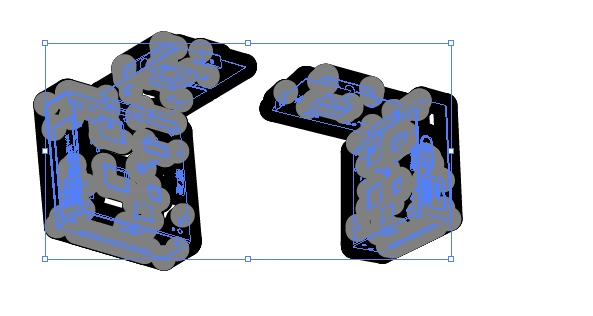
I was able to open it to normal size by scaling it to about 6400% , but I have been doing this for many years with multiple previous versions of Illustrator and never encountered this. In fact, I opened this specific drawing in Illustrator 2017 just a couple of days ago and it opened normally.

So is there some setting I am not aware of that got changed in the new version of Illustrator, or did Adobe just screw this up? Note that I have tried this with multiple files and all had the same problem.

    This topic has been closed for replies.
    Correct answer Stephen25605932v3zs

    Thanks for this thread-caused me to go back to Onshape and work out what was going on when I export as DXF. I have solved my issue by going right back to the drawing options when creating an Onshape drawing. Select ISO units rather than ANSI. DXF imports to Illustrator as correct size (NB all drawings constructed using millimeters.

    6 replies

    Participant
    September 4, 2020

    Hi,


    When you recieve the Dxf file or any CAD file, please know what is the unit they have created it. When you open them from illustrator, before you open them, make a new document with the specific unit. and then try to open the dxf file.

    opening window settings should be like below.

    remove the tick from scale lineweight box. so that the lines will come as it is. if you keep the tick in that box you will get a huge line weight.

    Stephen25605932v3zsCorrect answer
    Participant
    October 11, 2022

    Thanks for this thread-caused me to go back to Onshape and work out what was going on when I export as DXF. I have solved my issue by going right back to the drawing options when creating an Onshape drawing. Select ISO units rather than ANSI. DXF imports to Illustrator as correct size (NB all drawings constructed using millimeters.

    Participant
    August 20, 2020

    Hi all,

    I faced a problem with Adobe_Illustrator_CC_2018_v22.1.0.312x64. Autocad (.dwg) file not open with original size in illustrator. Example, a single line size is 480.5mm in original autocad file, but when I opened that file in illustrator then that size is 146.3mm. Please solve this issue. Thanks is advance.

    Participant
    February 5, 2020

    @dfkurz. I too have this same issue, but just found the solution. Open the DXF or DWG and select the "Original Size" or "1:1", doesn't really matter the units as you've mentioned. Once the file is open, select all of the imported artwork. On the Properties Manager on the top that indicates the height (H) and width (W), just change the units shown to the units that are intended for the DXF or DWG. I was also able to do "Original Size" and then change the units on the import upon a second try, but I needed to change the scaling to 1:1 to update to the new units. I hope this helps.

    Participant
    October 7, 2021

    YES!!!!


    This was the magic trick exporting from SolidWorks.  Thanks!!


    Jake

    Participant
    March 24, 2018

    Hi all. This took me a long time to figure out. Here's the answer/trick:

    DXF files are referred to as unitless. If I'm working on an architectural document set to feet and I export a 100' object as a DXF file, the Illustrator import/place dialog box just sees that the object is 100 "things" long. In order to size an object accurately upon import, there needs to be a clear relationship between the object-to-be-imported units and the document units. If Illustrator had the option to view documents in feet, there wouldn't be an issue. But Illustrator was born of Graphic Design, and its measurement options are limited: points, picas, inches, millimeters, centimeters, pixels.

    The trick is to temporarily change the units of your source document to one of the native Illustrator measurement options before generating the DXF files. I'll pick inches. So now, in Revit or Rhino or whatever I am working in, my 100-foot object is registering as 1200 inches. Export the object as a DXF file.

    Since I'm preparing architectural surfaces for laser cutting and eventual assembly into scale models, I'll use that scenario as my example. In Illustrator, I choose File > Place, select my file and the DXF/DWG Options dialog box appears. I'm making a 1/48 model, so for every 48 units in my DXF file, I want 1 unit in my Illustrator file. You can see the options I selected here. If I set everything up correctly, my 100' (1200") wall should import as a 24.96" object. And it does​. Hope this helps some people out. Cheers

    September 23, 2022

    Thank you! I've been struggling with this ridiculous issue for too long, setting the import settings to 100% Scale at a 1:1 ratio with units set to inches works for me. (Exported in inches from Solidworks)

    Mike_Gondek10189183
    Community Expert
    Community Expert
    October 23, 2017

    This is a long outstanding problem well before 2018 with auto cad not tagging the file with what units this is saved in. Have a feeling who sent you the file changed the units they work in.

    The secret is in this popup window which you should be getting.

    First change to a smaller until such as millimeters or points. Then change the Unit(s) to 1, then open.

    Also remember first thing to do is  check your file >> document >> color mode >> is CMYK if print job or RGB if for digital.

    dfkurzAuthor
    Inspiring
    October 24, 2017

    Mike,

    That is not the answer. First off, as I originally stated, this specific file opened up without problems 2 days before I updated to Illustrator 2018. Second, when the dialog opens it is set with a value of 1 for units and set to Points. I have then selected Scale by and set it to 100%. I have tried selecting Millimeters, pixels, and inches, and they all open the same way.

    Mike_Gondek10189183
    Community Expert
    Community Expert
    October 24, 2017

    Can you  post a copy of one of these .dxf with dropbox or similar ftp sharing link. .

    Ray Yorkshire
    Participating Frequently
    October 21, 2017

    maybe in the import options for DFX DWG

    you have scale 1, units 1,  pixels

    when it should be, for example,   1 ,1, inches

    dfkurzAuthor
    Inspiring
    October 23, 2017

    That did not solve the problem. First of all, if you have selected Original Size, I don't think the Scales setting would matter. But either way, no matter what unit value I pick - points, pixels, inches - it still always comes in super tiny.