Participating Frequently
October 21, 2019
Question

Illustrator blend tool + eraser turns straight lines into wobbly lines?

  • October 21, 2019
  • 4 replies
  • 4535 views

Hello community,


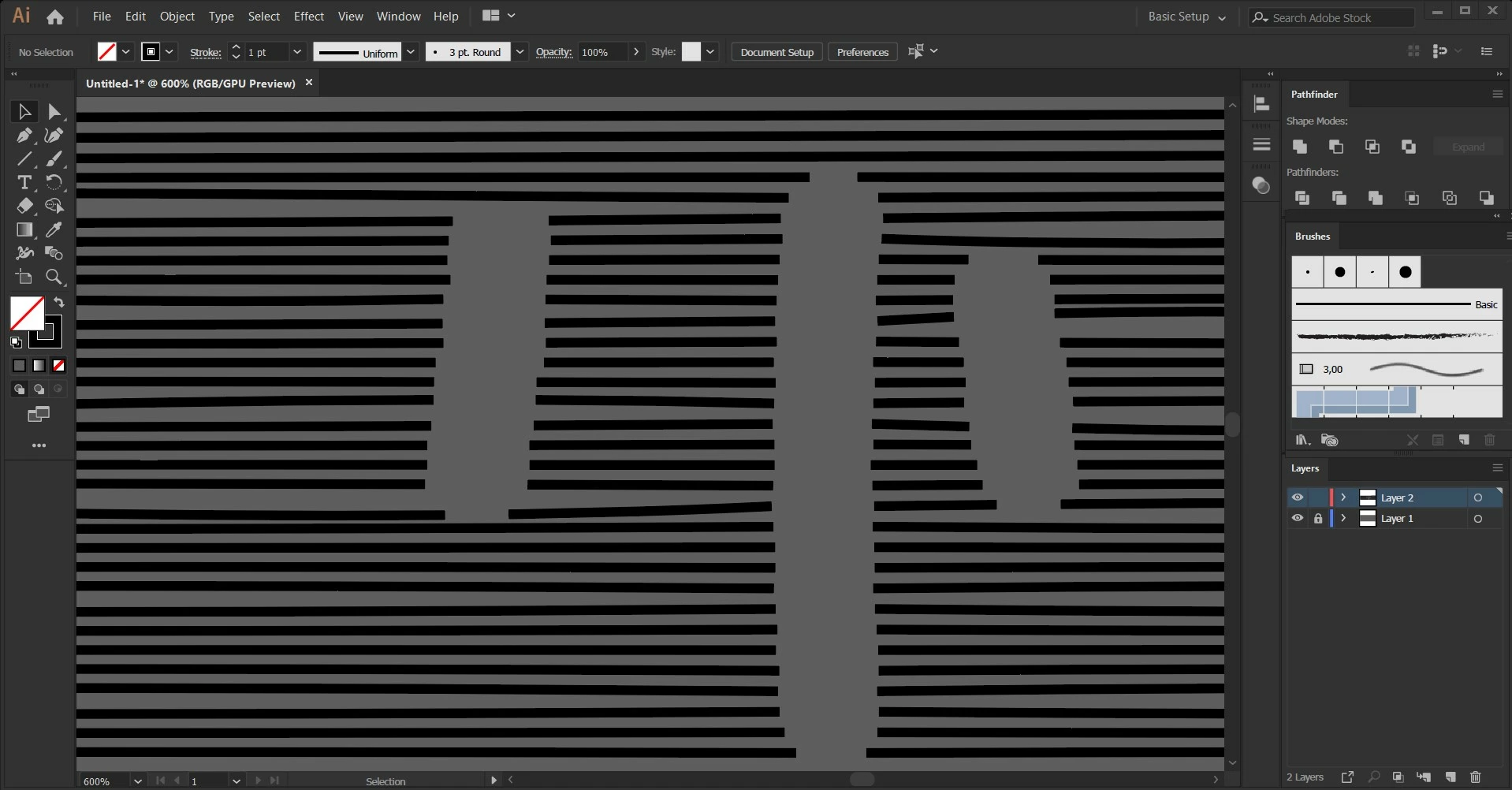
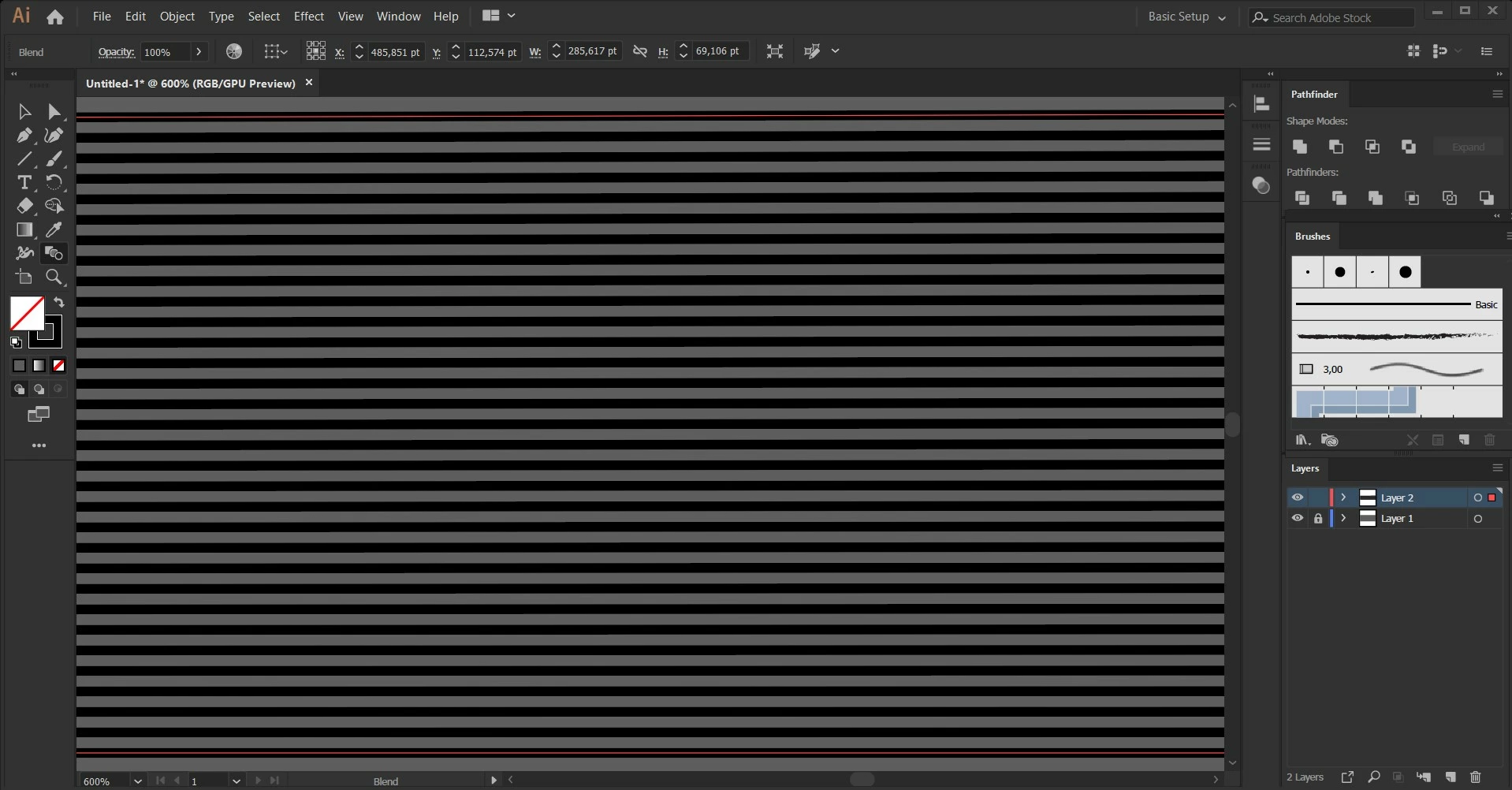
after extending a blend between 2 parallel lines,

my eraser turns these straight lines into wobble lines.


Does anyone know a solution to this problem? Would be much appreciated.
4 replies

Participating Frequently
October 23, 2019

I finally found a good solution!

You just need to make the canvas bigger ( 2000x2000+ ) it will add anchor points here and there, but most of the times it works now.

Thank you everybody for your participation.

DougKatz17096006
Inspiring
October 21, 2019

In AICC2017 and Sierra 10.12.6, I'm unable to reproduce the wobble. I make a blend of two paths (no fills), expand the blend (Object>Blend>Expand), then use the eraser (shift-E) to remove segments at random angles. My resulting path segments are not distorted. What am I missing? 

Monika Gause
Community Expert
Community Expert
October 21, 2019

Use the direct selection tool and drag a selection rectangle over the paths. Then you should see additional anchor points and handles on formerly perfect straight lines.

Participating Frequently
October 23, 2019

"of course you get additional anchor points"


Sure you get them. Eactly at those points where you cut the lines, but you shouldn't get them anywhere else. But that is what is happening. And it has always happened since the eraser tool has been added.


This is Illustrator CS4:


And don't you dare and zoom in, because, no, those handles are not straight:


I don´t understand why adobe wouln´t fix that since adobe cs4...

I understand that there are specific tools from adobe to draw, but i really enjoy working and experimenting with the blend tool, especially that you can change the strokes afterwards.

Monika Gause
Community Expert
Community Expert
October 21, 2019

Since you don't want to outline strokes, I would suggest you draw the shape that you want to erase, fill it with a different color than the stroke color and then apply the pathfinder "Outline". The part you don't want, can be selected by stroke color and then deleted.

Monika Gause
Community Expert
Community Expert
October 21, 2019

Unfortunately that is a known issue.

Can you give us the big picture of what you want to do?

Participating Frequently
October 21, 2019

Thank you for your fast reply.

I want to shade using parallel contour lines, be able to erase parts ( in this case the top of the ball )

and be able to edit every single line after i´ve cut them. for example make them tapered etc. .

I used now the brush in the same colour as the background to simulate it.

I have a course on this drawing technique and many people on there have this issue... but as my tutor is doing the exact same process, it works for him. Unfortunately the course is too old, for him to respond anymore....

Doug A Roberts
Community Expert
Community Expert
October 21, 2019

I get similar results with stroked paths.


If I outline strokes (as you would need to if you want to achieve your second image) I get rather less noticeably bad results, but its still apparent.


Haven't noticed this bug before.