


alliisyourpally
Participant
December 20, 2022
Answered

Illustrator changing colors of RGB file

  • December 20, 2022
  • 2 replies
  • 2086 views

Hi everyone! I want to preface this by saying I don't know very much about CMYK / RGB settings in Illustrator. The issue I'm having likely stems from my lack of knowledge vs. Illustrator itself. For those kind enough to give advice, please write as though you're speaking to a beginner. I appreciate your patience as well as your willingness to read and respond to this thread 🙂


Operating System: macOS Monterey Version 12.6


Color Profile:
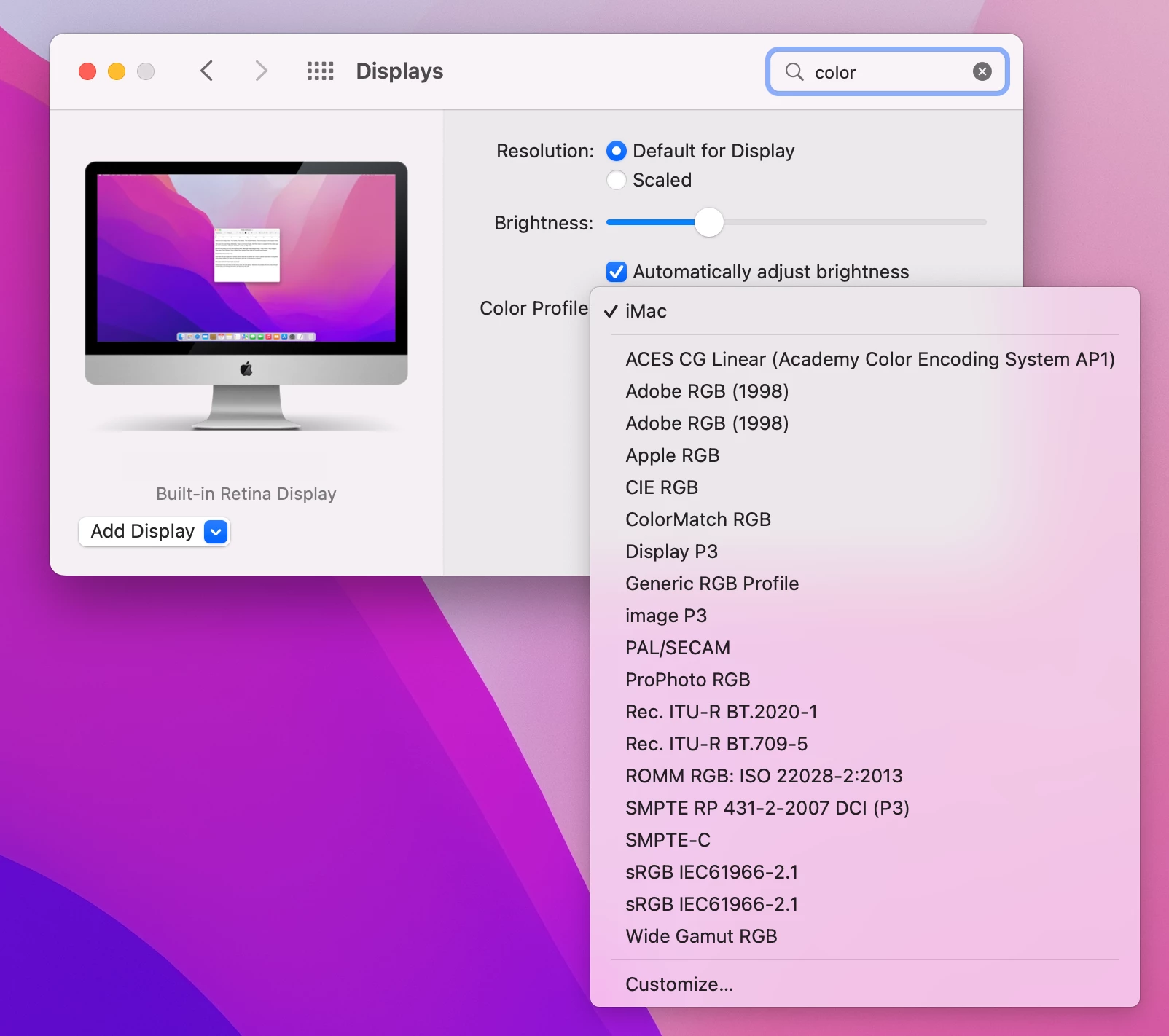
 

Illustrator Version: 27.1.1


Color Mode: RGB


Document Settings:
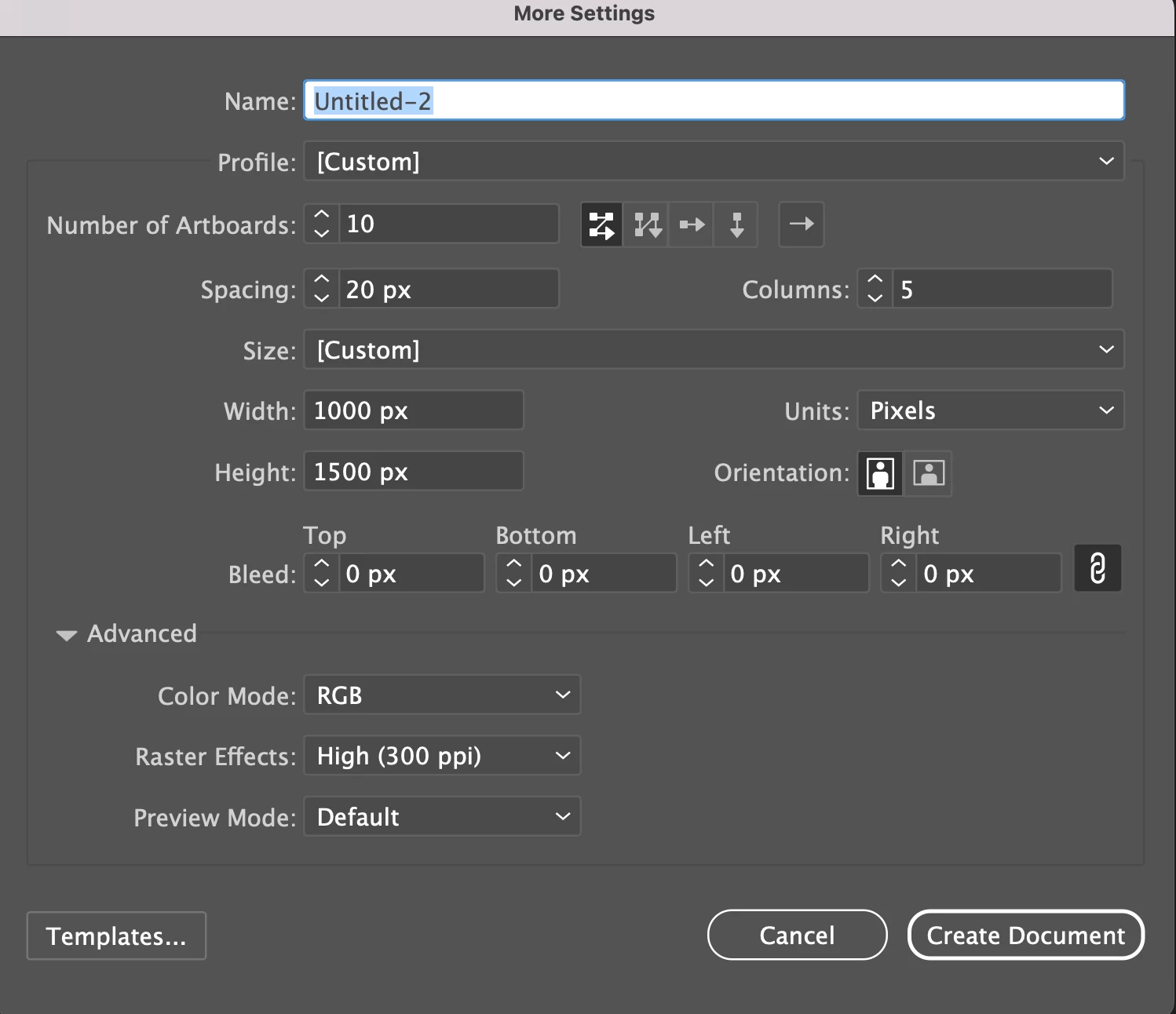
 

Color Settings:
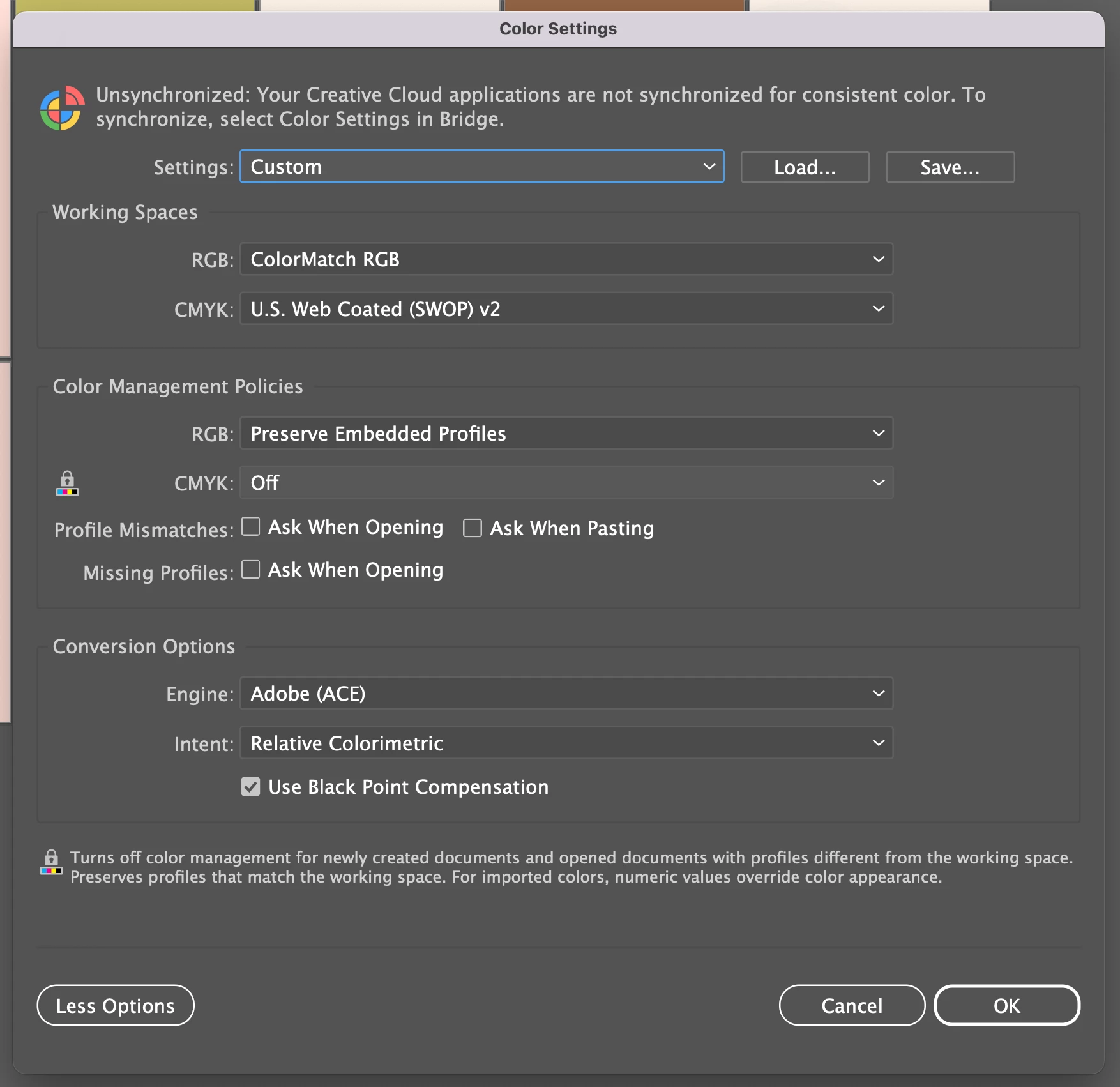
 

The issue:

I'm trying to make Pinterest posts, so I went with RGB as it's best for screens. Throughout my time working on this file, I've noticed the colors change and I don't know why.


I've experienced my original palette lighten:

 

and become darker / more saturated:

Possible Explanations:

– File setup is wrong

– Pasting or embedding photos

– Copying/pasting elements from another Illustrator file with different color settings

– My Mac's color profile doesn't match the one listed in the Illustrator file's color settings


I've read that it's a bad idea to change the color settings of an AI file, so I haven't done that. Does anyone have insight into why this color change might be happening? What can I do to prevent this from happening in the future? Thank you in advance for your help.

This topic has been closed for replies.
Correct answer Ton Frederiks

The Display profile is probably caused because you Opened an image (with that Display profile) in  Illustrator instead of creating a new sRGB document and placing the image. I would create a new document and copy/paste everything from your old into that new document and see how that behaves.

2 replies

Ton Frederiks
Community Expert
Community Expert
December 20, 2022

Can you also check what Edit > Assign Profile shows you?

alliisyourpally
Participant
December 20, 2022

Absolutely! Thank you for your quick response, Ton.


As per Monika's advice, I changed my color settings to sRGB

Ton Frederiks
Community Expert
Ton FrederiksCommunity ExpertCorrect answer
Community Expert
December 21, 2022

The Display profile is probably caused because you Opened an image (with that Display profile) in  Illustrator instead of creating a new sRGB document and placing the image. I would create a new document and copy/paste everything from your old into that new document and see how that behaves.

Monika Gause
Community Expert
Community Expert
December 20, 2022

There have been some general issues with macOS, but that shouldn't apply to your system, it has been isolated to Ventura.


Please set your RGB profile in the color settings to sRGB

Also: please check your Color proof settings - is anything turned on there?

alliisyourpally
Participant
December 20, 2022

Monika thank you for your quick response!


I just changed my color settings to sRGB.


As for my color proof settings, it's showing this: