
Sameer Jaffer
Participant
February 20, 2017
Answered

Illustrator flyer templates add image

  • February 20, 2017
  • 5 replies
  • 8937 views

Hi,

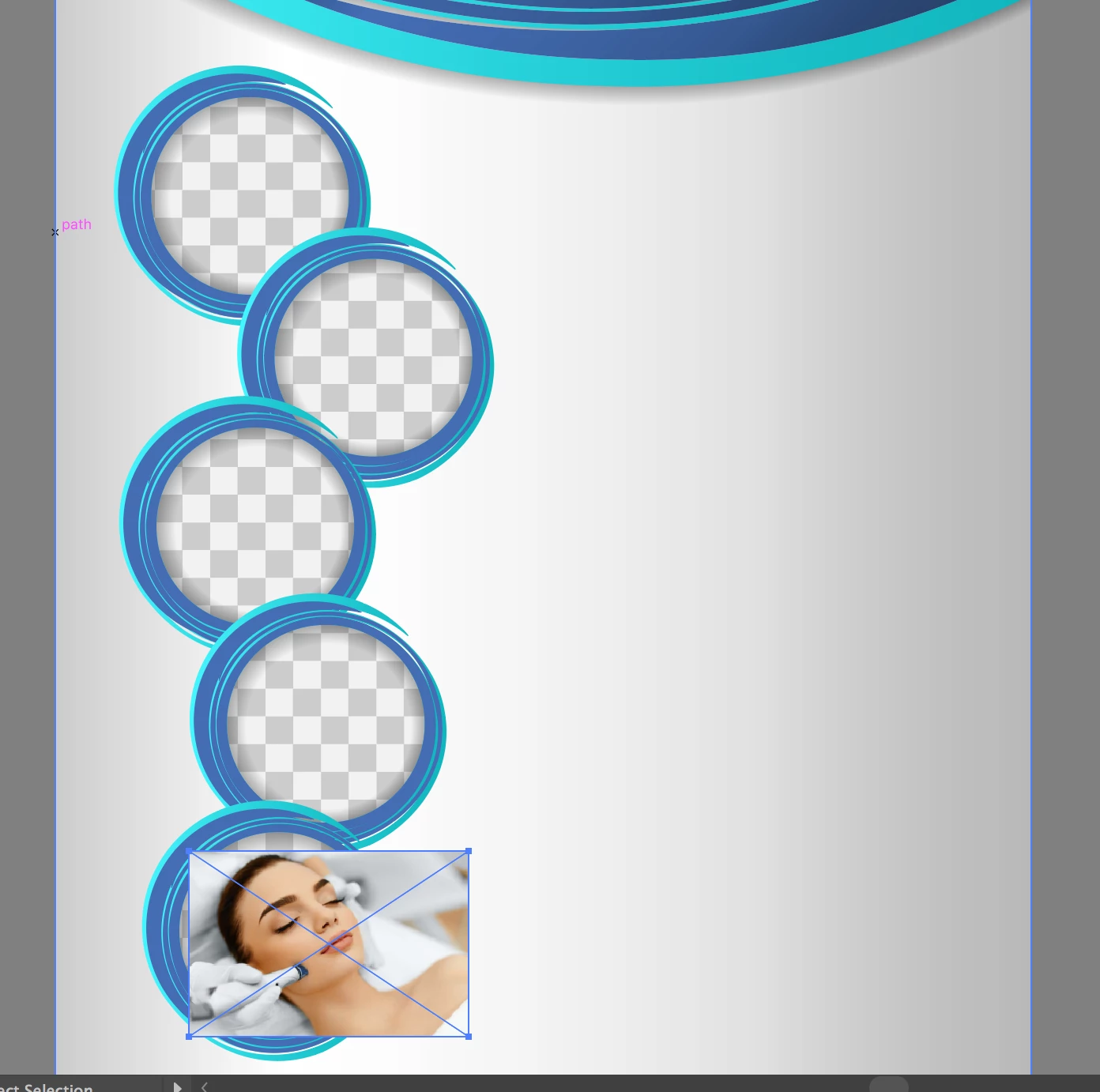
I downloaded an illustrator flyer which has areas to add image in between the circles. I would like to add them behind the main layer so the drop shadow effect is visible. I am not sure how to do that. I have tried sending the image back but it disappears. what is the best way to use these template which have are given areas to insert images behind the main layer.
    Correct answer Sameer Jaffer

    Guys,

    Thanks for your help! I found the Checkbox Layer after digging deep into all the layers and was able to move the image in that group. It looks perfect as expected!!

    5 replies

    Sameer Jaffer
    Sameer JafferAuthorCorrect answer
    Participant
    February 20, 2017

    Guys,

    Thanks for your help! I found the Checkbox Layer after digging deep into all the layers and was able to move the image in that group. It looks perfect as expected!!

    Inspiring
    February 20, 2017

    Take a look at the artwork in outline ( command/control Y ) mode.  If you see the checkerboard pattern as rectangles or lines, then it is part of the composite for visual purposes ( i.e., to let user know that is a photo area ).  I would try selecting, with the open arrow tool, just the shadow circle.  Delete it just to see what happens.  Un-do the delete and dupe the shadow > use the duplicate for your clipping mask  >  place the shadow on-top of the new photo mask ( in transparency flyout, make sure "multiply" is selected.  If that fails, you might have to recreate the shadow and mask manually and delete the original.  Make sure you do these type of edits on a "copy" of the original file.

    Monika Gause
    Community Expert
    Community Expert
    February 20, 2017

    We need to see the layers panel.

    This checker board can be anything and it might even be part of the illustration.

    Lilybiri
    Legend
    February 20, 2017

    It depends on the setup. I would use the blue "border" as clipping mask for your image: duplicate the most inner circle of that border in front of your image and use that as clipping mask.

    Kanikas
    Community Manager
    Community Manager
    February 20, 2017

    Moving to Illustrator